28
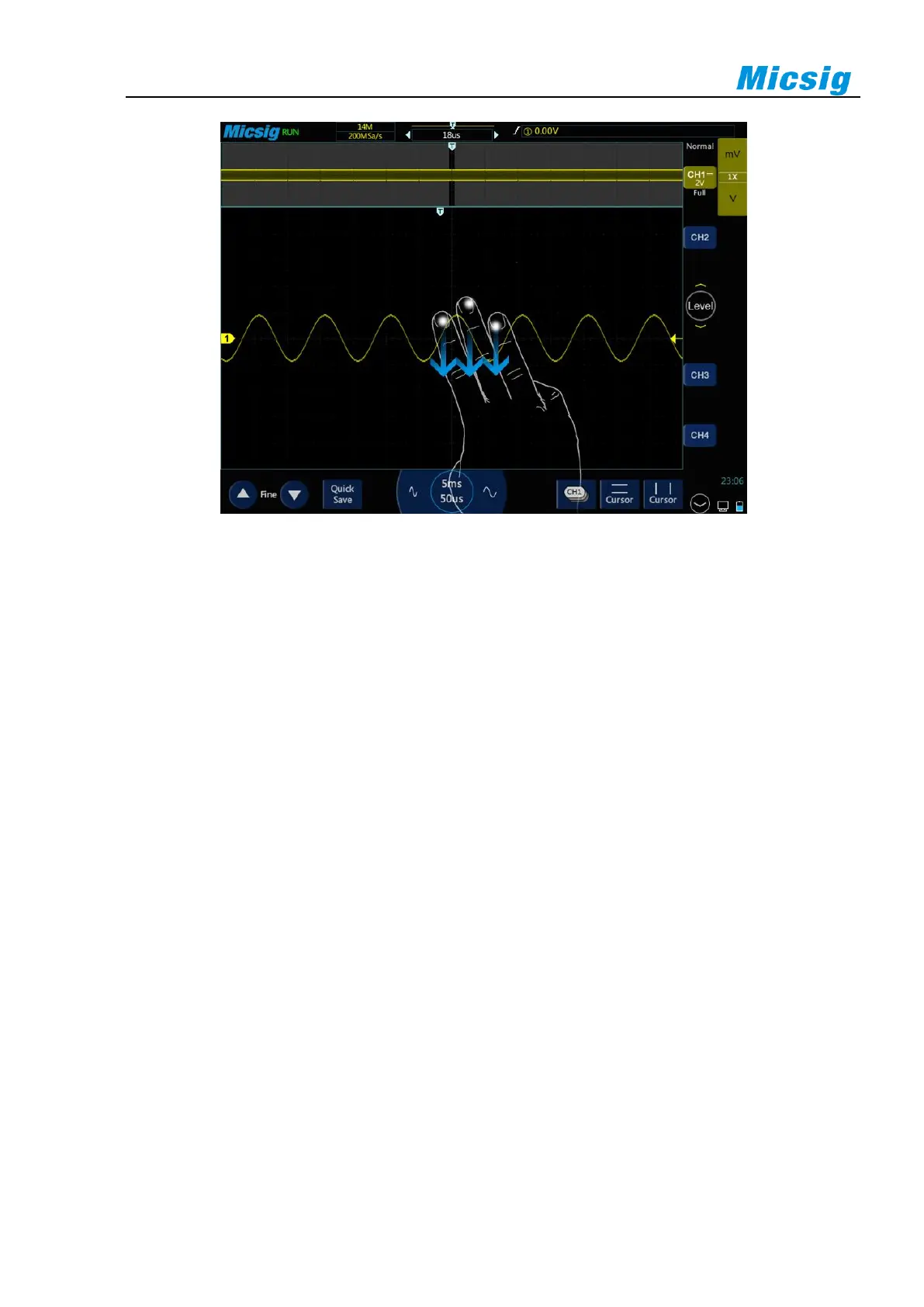
Figure 3-12 Open Zoom Function by Three Fingers Sliding Down
Zoom window is framed in a box on the normal window, and the other portion is covered by gray shade not
displayed in the zoom window. This box shows the normal scan portion that was zoomed in the lower bottom.
Tap the time base button to adjust the time base of the zoom window. The size of the box in the normal window
changes according to the time base of the zoom window.
Drag the waveform of the zoom window horizontally to adjust the waveform position. The box in the main
window moves oppositely against the waveform; or directly drag the box in the normal window to quickly locate
the waveform to be viewed.
Note:
1) The minimum time base is displayed in the normal window when the waveform in the screen is exactly
within the memory depth. If the current time base is smaller than the minimum time base in the
normal window at the current memory depth, when the zoom window is opened, the time base in the
normal window is automatically set to the minimum time base in the normal window at the current
memory depth.
2) The cursor, math waveform, and reference waveform are not displayed in the normal window, but
can be displayed in the Zoom window.
3) If Roll mode is stopped, Zoom mode can be turned on, and tap “Run/Stop” to automatically turn off
Zoom mode.
4) When high refresh is turned on and stopped, it is forbidden to enter zoom mode.


 To Next Page