Using the phone system 19Final
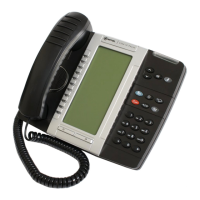
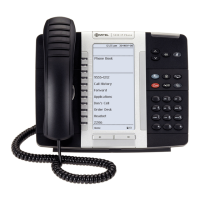
Login on the 5340 phone
Using Login, you can enter your extension into any phone and take ownership
of that phone. By doing this, you can direct all incoming calls for your
extension to that phone. You must have the appropriate privileges to log out of
a phone.
You can only log in to an unassigned phone (a phone without a user logged
in). If a phone has a user logged in, you can log the user out by following the
procedure described in Logout on the 5340 phone. An unassigned phone
displays "Logged Out".
To log in to a phone, follow these steps:
1 Press the ACTIVATE softkey on an unassigned phone (a phone without a
user logged in)
The system prompts you to enter an extension.
2 Enter your extension.
The system prompts you to enter your PIN.
3 Enter your PIN. Press the # key or the ENTER softkey once you have
finished entering your PIN.
The system verifies that the PIN is valid and then it logs you into the
phone.
Notes: If you log in while you are logged in to another phone, the system
will log you out of the original phone.
You cannot log in or out, or activate a phone, while the phone is on an
active call.
If you are not logged into a phone, all calls to your extension will go
directly to call coverage.
If you have not been assigned the privileges required to log out of your
phone you will not be prompted for a PIN when you log in.
You will not be prompted for a PIN when you log in to a phone with a
location extension.
Logout on the 5340 phone
To log out of a phone, follow these steps when your phone has no calls
connected:
1 Press the MENU softkey.
2 Press the LOGOUT softkey. The phone displays a confirmation message.
3 Press the YES softkey to proceed. The phone will display the message
"Logout successful", confirming that you are logged out of the phone and
the system. Incoming calls will be forwarded to Call Coverage. The phone
returns to a logged out/unassigned idle state.


 To Next Page