108 Checking ink level
3 Checking ink level and replacing ink cartridge
When the cartridge ink is running low, the status LED flashes red and beeps.
Checking ink level
[1]
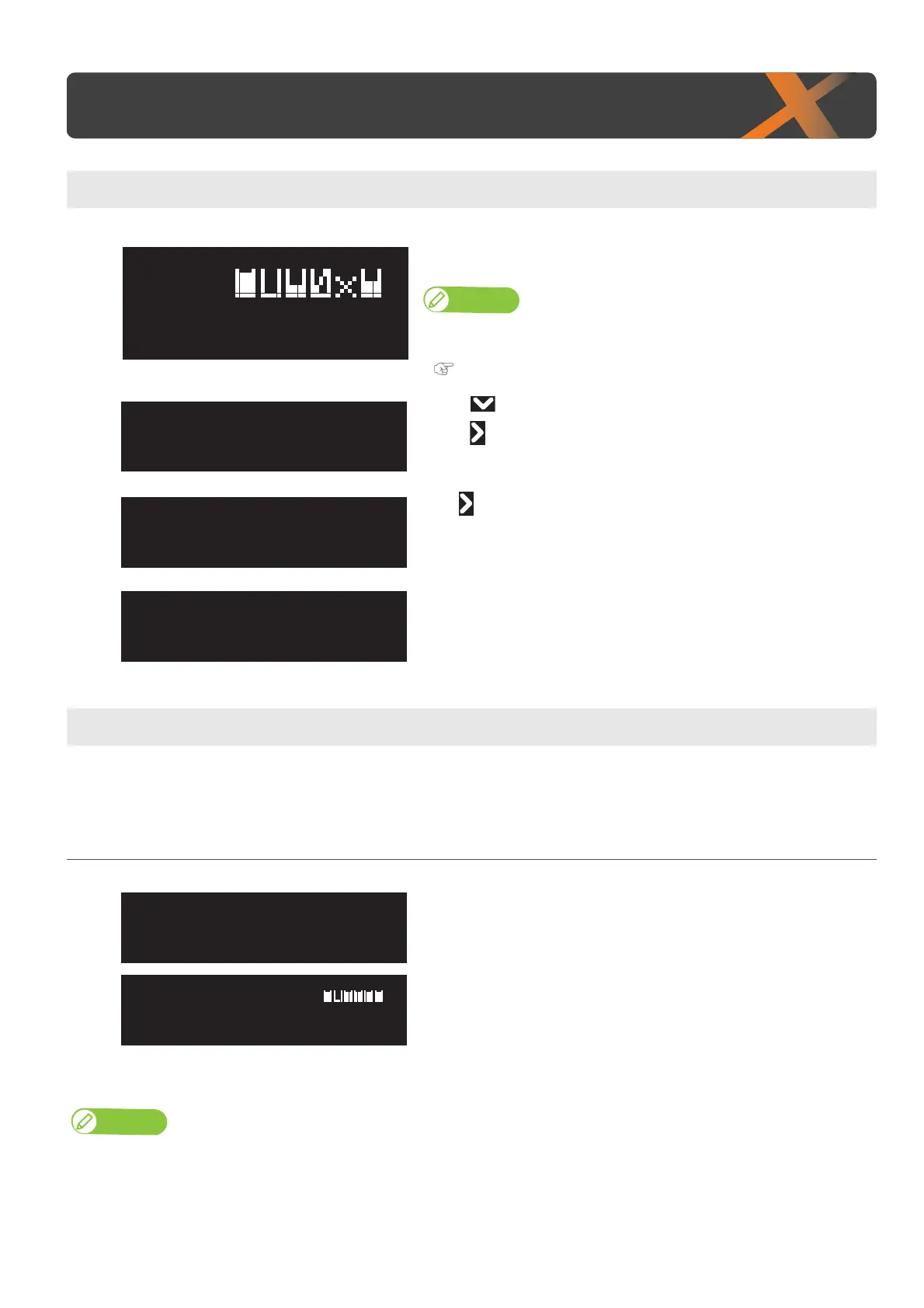
Check the remaining ink icons.
• To do a more detailed check, tap [Home].
Note
You can alternatively check the remaining ink amount via the MSM’s remote
panel.
"Launching MSM" P. 15
[2]
• Use to choose the menu shown left.
•Tap .
[3]
Tap .
[4]
• Displays the remaining ink in Slots 1 to 6, as percentages of the full levels.
When cartridge is nearly out of ink
Steps
[1]
Tap [Enter].
• The buzzer stops.
• The printer status and ink level warning message appear alternately every
2 seconds.
The ink slot indicator where the cartridge needs to be replaced flashes
every 0.5 seconds.
• In the figure to the left, the slot 2 ink cartridge is nearing replacement.
[2]
Prepare an ink cartridge to replace.
Note
Sleep mode continues after stopping the buzzer.
Checking ink level and replacing ink cartridge
1234: 100/90/80/70
56: 100/90
[2]InkLow
Type1
InkLow
Type1






 To Next Page