16 Launching MUTOH LFP Finder
From the [Printer Registration] menu on the MUTOH Status Monitor, click “3. Search printer Assign/Change IP address”.
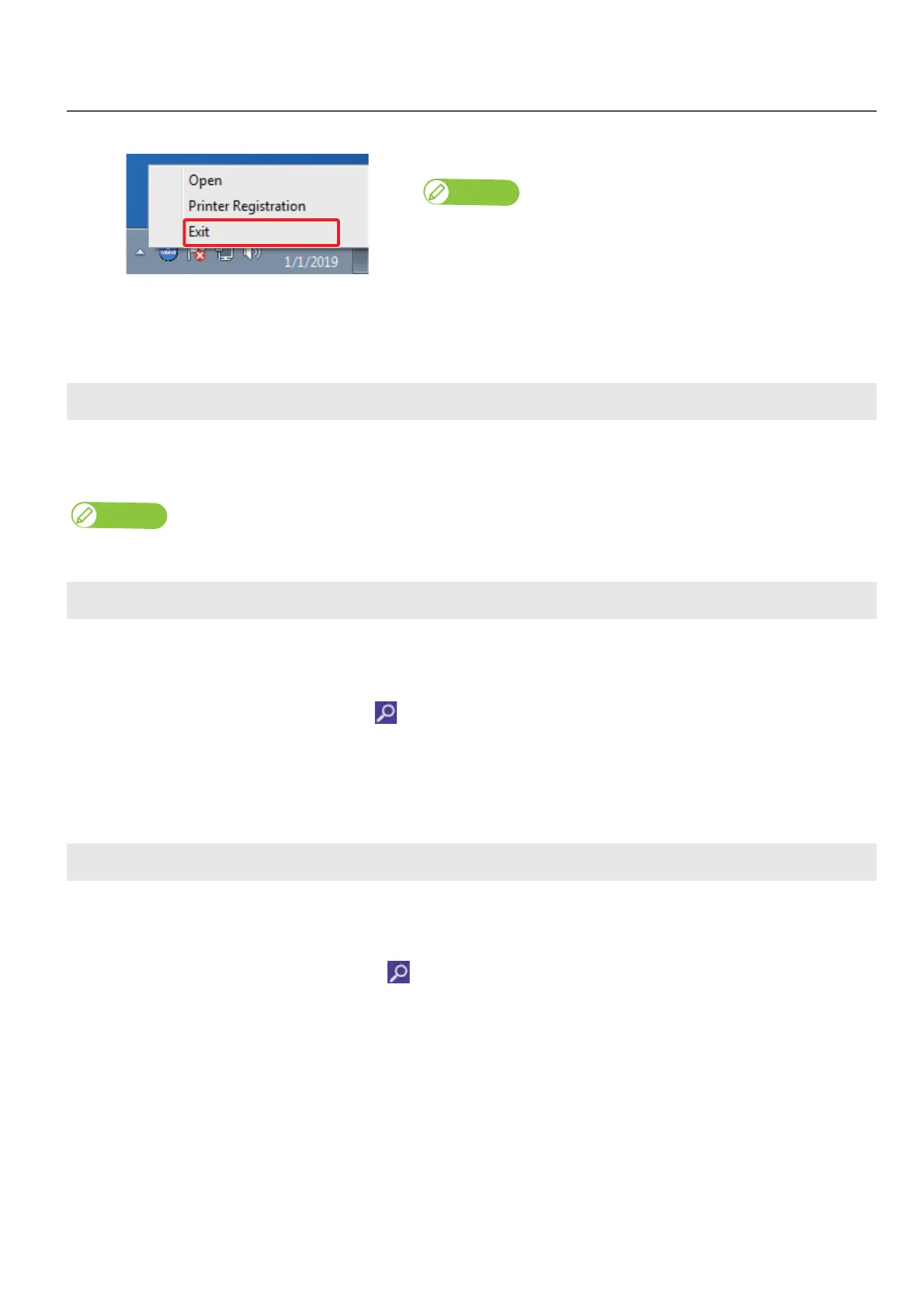
Exiting MSM
Right click the MSM icon in the task tray, and click [Exit].
Note
While using your printer, do not exit MSM. To close the MSM window, click
[Settings] - [Close].
Windows 8.1
Click the Down Arrow in the [Start] screen.
Click [MUTOH Status Monitor].
Launching MUTOH LFP Finder
Note
If ValueJet Finder has been already installed, uninstall the ValueJet Finder.
Launching Layout and Print Tool 2
Windows 8 / Window 8.1
Display the charm bar on the desktop, and then click [Search].
Enter “Layout and Print Tool 2”, and then click .
Click the “Layout and Print Tool 2” icon displayed in the search result.
Windows 10 / Windows 7
From the [Start] menu, click [All Programs] (or [All Apps]) – [MUTOH] – [Layout and Print Tool 2].
Launching MUTOH Layer Editor
Windows 8 / Window 8.1
Display the charm bar on the desktop, and then click [Search].
Enter “MUTOH Layer Editor”, and then click .
Click the “MUTOH Layer Editor” icon displayed in the search result.
Windows 10 / Windows 7
From the [Start] menu, click [All Programs] (or [All Apps]) – [MUTOH] – [MUTOH Layer Editor] in order.



 To Next Page