Clean daily maintenance parts 125
In following cases, clean the daily maintenance parts.
• If faint print or dot missing still persists even after head cleaning has been performed.
• If you perform printing all day without entering to sleep mode and you need to perform daily maintenance.
Preparation:
See "Preparing for Daily Maintenance" P. 115 to prepare items required for the maintenance.
Clean daily maintenance parts
Important!
If you want to continuously use the printer after this maintenance, follow the steps below.
If you will not use the printer after this maintenance, enter to sleep mode and then perform maintenance.
"Daily Maintenance" P. 114
1. Putting the printer into the Daily maintenance mode
[1]
Check that the media and jig are removed from the printer.
[2]
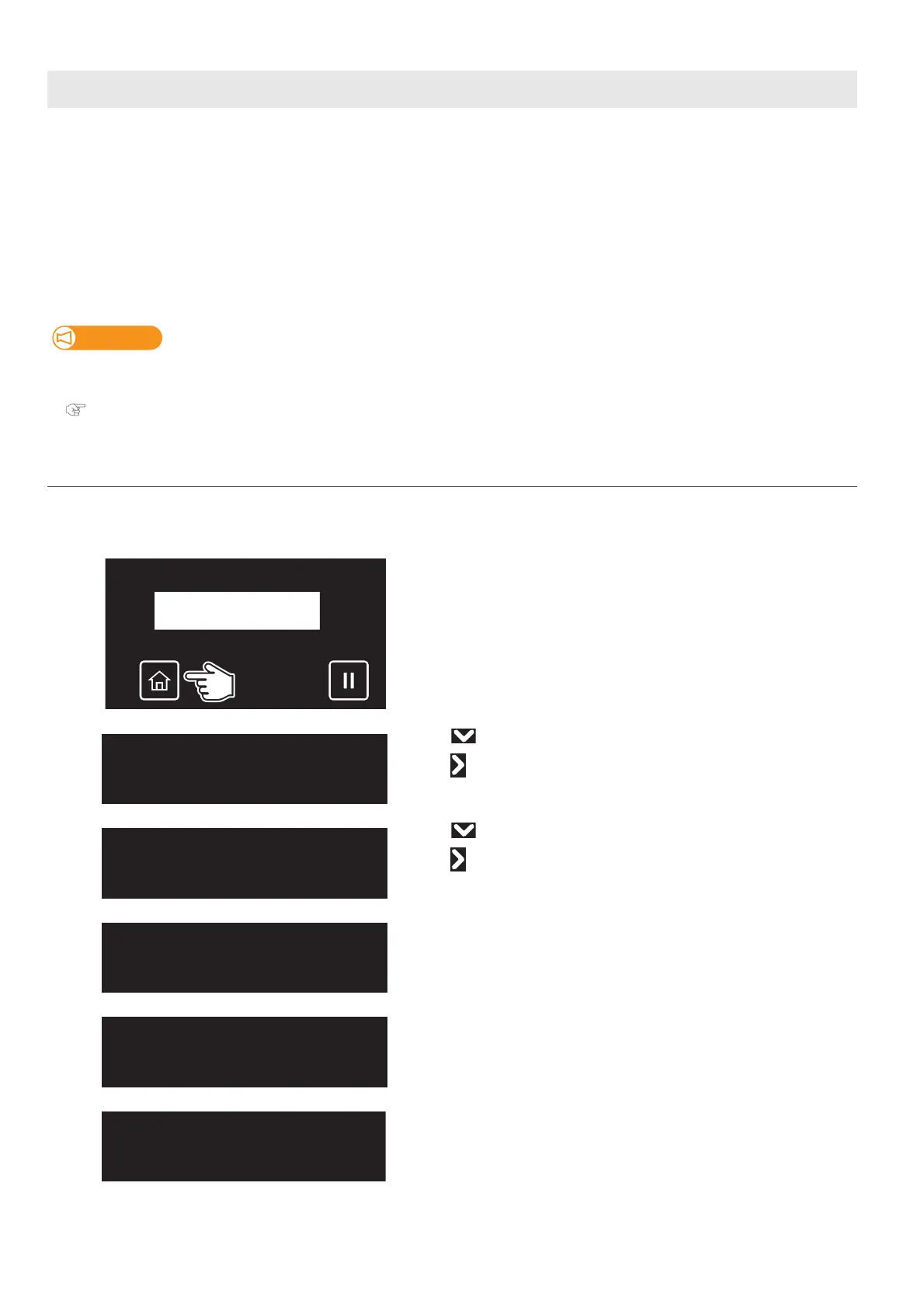
Tap [Home].
[3]
• Use to choose the menu shown left.
•Tap .
[4]
• Use to choose the menu shown left.
•Tap .
[5]
Tap [Enter].
[6]
The message on the left will appear.
• Remove the media and the jig on the table, and then tap [Enter].
• The table, carriage and cleaning wiper move to gain access to maintenance.
Maintenance7
DailyMaintenance
DailyMaintenance
Start ー> Enter
UnloadMedia
thenTapEnter



 To Next Page