Once the pot is in the correct position <MATCHED> will momentarily appear
on the screen.
The pot position now matches the console store. The auto scan process will
continue until it discovers another pot or fader position out of place from
the saved Recall store.
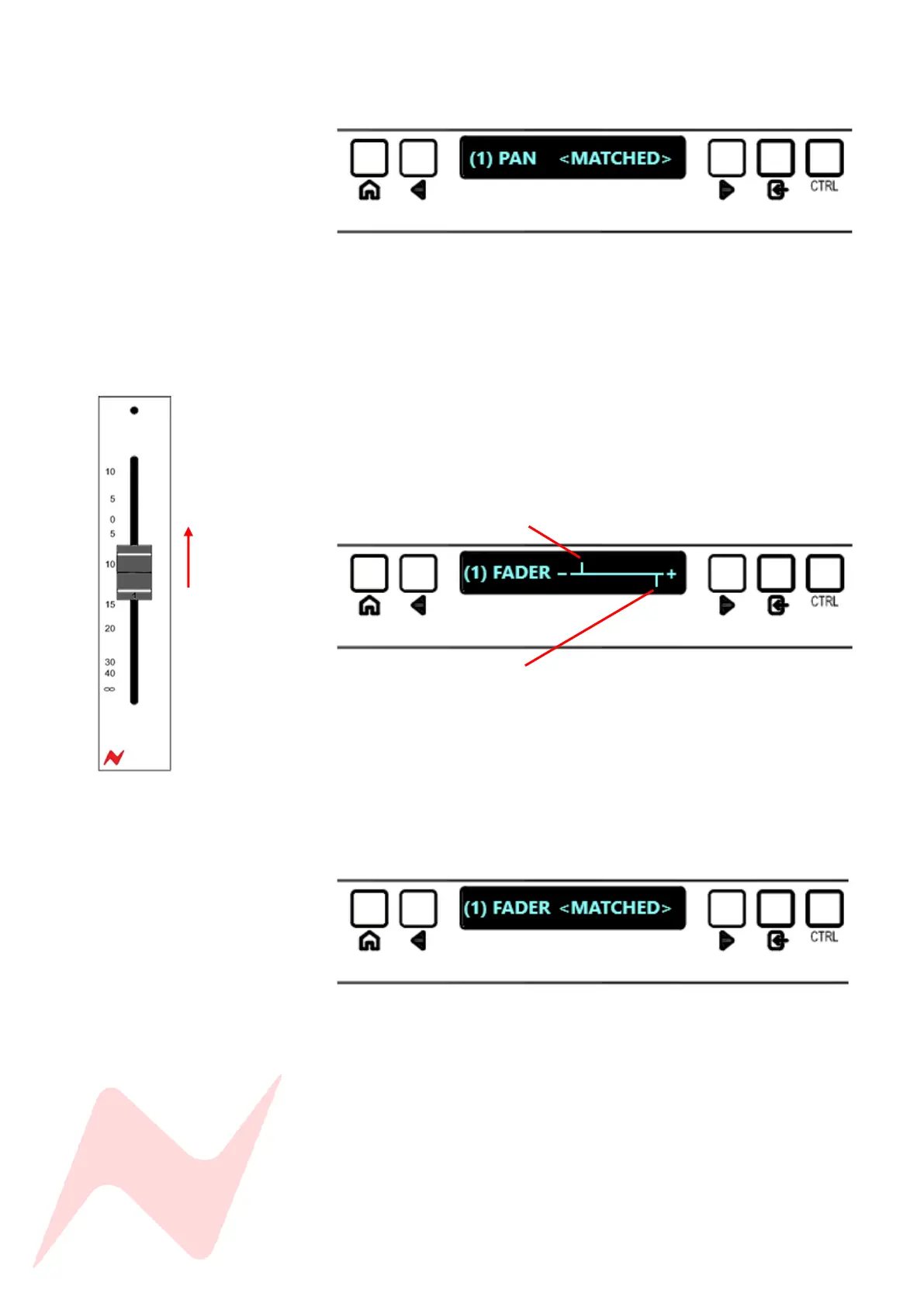
The example below shows a that auto scan has found a fader out of position
on channel (1). - and + represent fader level down or fader level up.
Current fader position
Saved fader position
In the above example channel 1 fader must be moved upwards in order to
match the saved fader position. As the fader is moved upwards, the top
vertical line will sweep across until it matches the saved fader position.
Once the fader is in the correct position <MATCHED> will momentarily
appear on the screen.
The fader position now matches the Recall store. The auto scan process will
continue until it discovers another pot or fader position out of place from
the saved console store.
Please take extra care when adjusting fader positions, due to the high
resolution of logarithmic-scale faders, fast motions can cause the auto
scan to skip this fader setting until the next auto scan cycle.
Press HOME at any time to stop the auto scan and exit recall.


 To Next Page