Chapter 8 Capturing Images with Advanced Setting Menu
91
Photographing and
Playing Images
(1) Adjusting the image
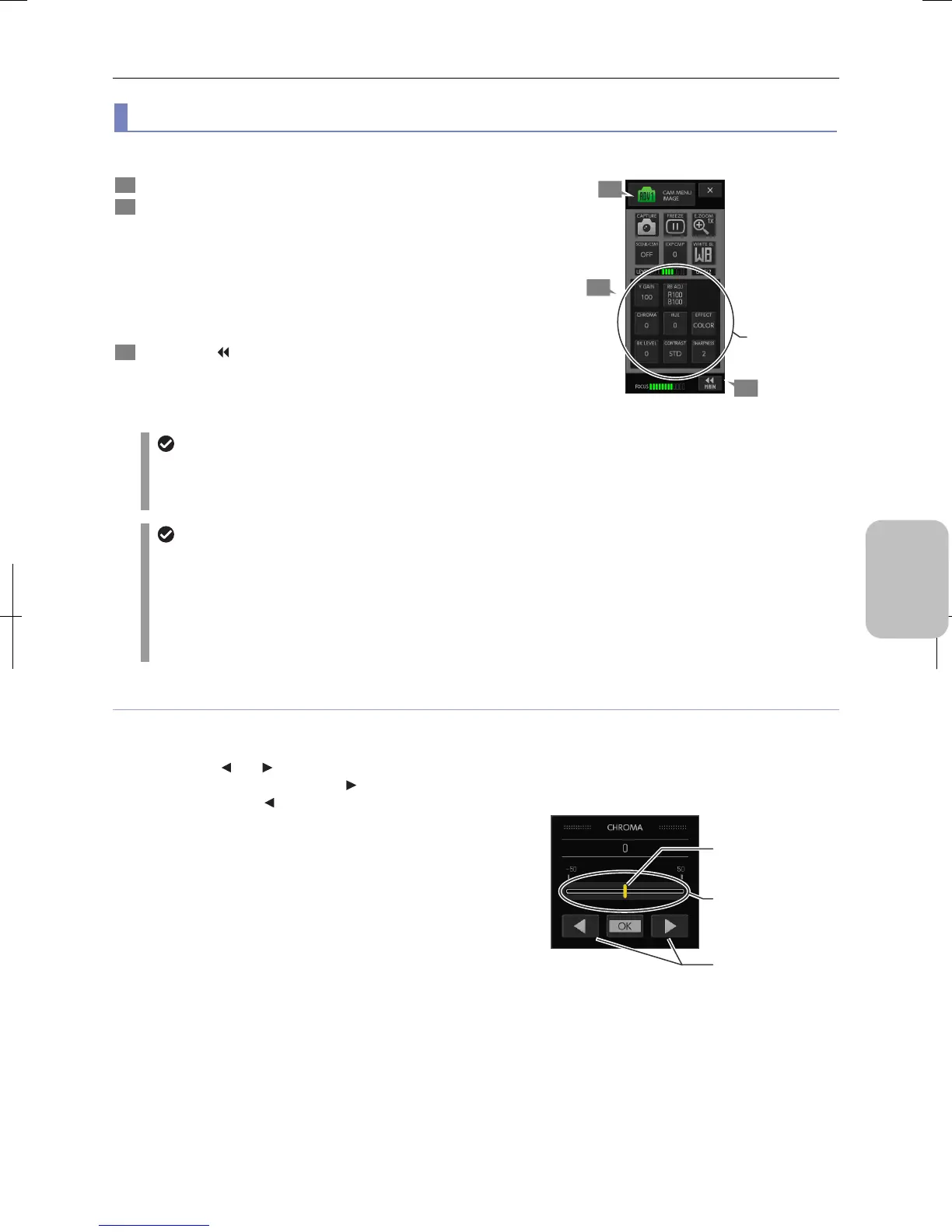
The [CAM MENU: IMAGE] screen allows you to adjust the brightness, hue, contrast, and other details of the image.
1 Display the [CAM MENU: IMAGE] screen.
2 Press one of the following buttons to open a submenu
for image adjustment.
For details of each setting, refer to the description below.
• Brightness
• RB adjustment
• Chroma
• Hue
• Color effect
• Black level
• Contrast
• Sharpness
3 Press the [ MAIN] button to return to the [CAM
MENU: CAMERA] menu.
Pressing the [X] button closes [CAM MENU].
Image quality adjustment
Setting for power-on
The settings in the [CAM MENU: IMAGE] screen are saved at the time of power-off and recovered at the next
power-on. If [CUSTOM No] has been configured in the [SETUP MENU: MAIN], the setting specified by the custom
setting is used.
Automatic change of setting values
In some cases, settings of items on the [CAM MENU: IMAGE] screen may be changed by the following operations:
• Selection of [SCENE/CSM]:
The mode changes to the one registered as the scene mode/custom setting.
• Execution of [CLR SET]:
Executing [CLR SET] in the [CAM MENU: NR/SD/SET] screen changes the setting value of each item to the
initial value.
Image adjustment operation
Adjustment is made by the buttons and slider in the submenu. Adjust the image to the desired condition viewing the live
image.
(1) Pressing the [ ] or [ ] buttons below the slider changes the
value with the smallest steps. The [
] button makes the
value larger and the [
] button makes it smaller. The amount
of the value changed by one operation is called a “step”.
(2) Pressing the yellow tab of the slider and moving it left or right
makes larger changes in the value. The value becomes
larger when the tab is moved right, and smaller when moved
left.
(3) Pressing any part of the slider other than the tab position
changes the value by a “step” or by several times the value o
a step. The value becomes larger when the right side of the
tab is pressed, and smaller when the left side is pressed. The
amount of the value changed by one operation is called a
“jump”.
Press the [OK] button to commit the setting value. On a submenu
that only has button selections, pressing a button commits the
selection.
Submenu operation
3
1
djust the
image quality.
2
Press the buttons to
augment/reduce the
value (step).
Press on the left or
right of the tab to
augment/ reduce the
value (jump) .
Move the tab left or
right to change the
value.




 To Next Page