Chapter 12 On-Screen Measurement
152
Adding Annotations
and Measuring
12.2.6
Measuring Distance between Centers of Two Circles
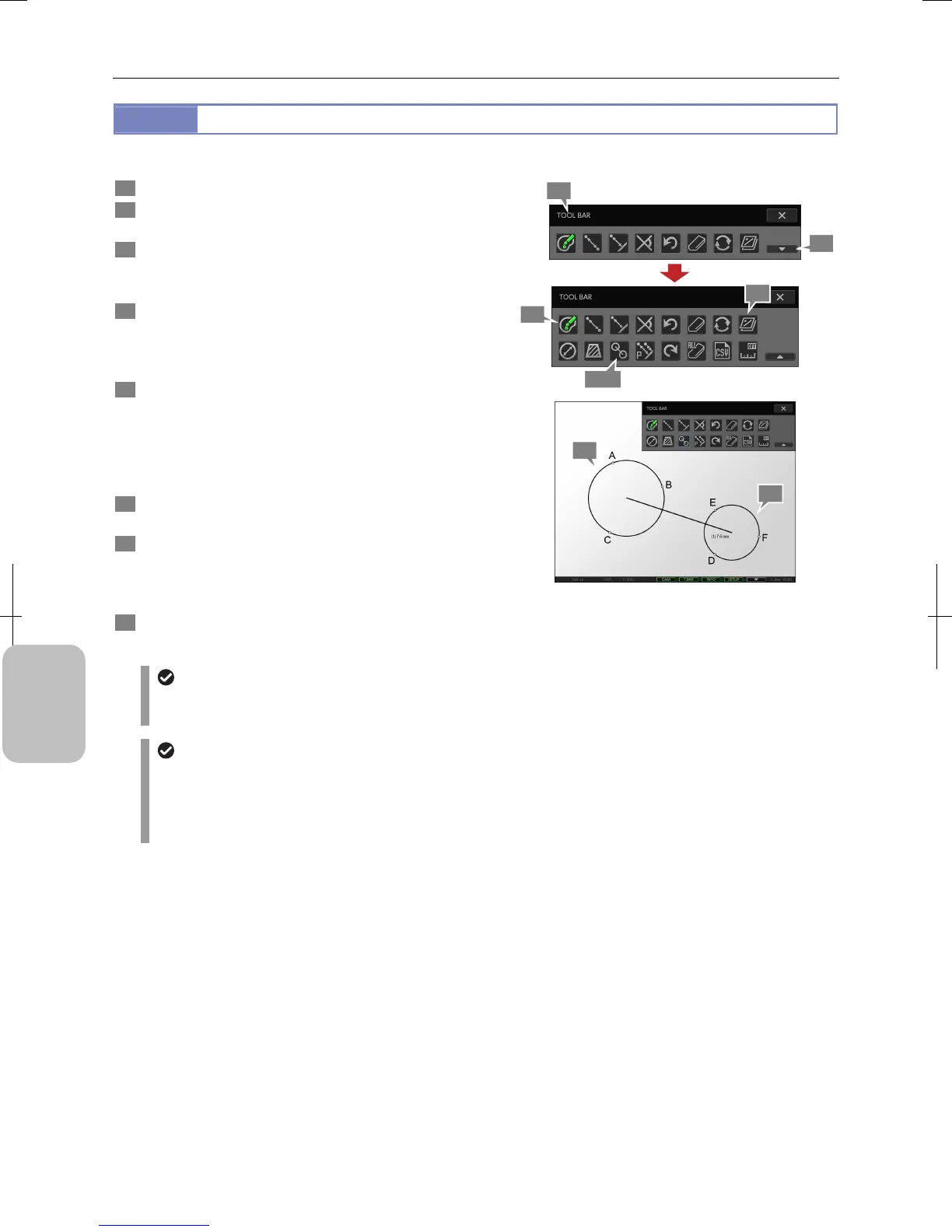
You can measure distance between centers of two circles drawn on the screen.
1 Display the toolbar and press the [SHOW ALL] button.
2 Press the [COLOR] button to select color of
measurement results.
3 Press the [DISTANCE BETWEEN 2 CIRCLE CENTERS]
button.
A blue frame appears around the button.
4 Specify three points (A, B and C on the figure) on
circumference of the first circle you want to draw.
A circle whose circumference passes on the three points is
drawn on the screen.
5 Specify three points (D, E and F on the figure) on
circumference of the second circle.
Another circle whose circumference passes on the three
points is drawn on the screen. A straight line is drawn from
the center of the first circle to that of the second, and
distance between the two circles is shown.
6 Repeat steps 4 and 5 to continue measuring distance o
other circles.
7 To display or hide the measured result, switch to
display or hide overlay.
You cannot selectively display or hide only the measured
result. Switch to display or hide the entire overlay.
8 To end measurement, press the [DISTANCE BETWEEN
2 CIRCLE CENTERS] button to deselect the tool.
Measuring Distance between Centers of Two Circles
Undoing and redoing measurement
You can cancel and redo measurement by pressing the [UNDO MEASUREMENT] or [REDO MEASUREMENT]
button respectively.
Measurement result display
• If the setting of calibration is changed, all measured results are cleared.
• The line width and character size of measurement result can be changed on the [TOOL SET: MAIN] screen.
• When stylus operation is not easy or accurate positioning is required, mouse operation is recommended. Use a
commercially available USB mouse for operation.
2
3, 8
4
7
5
1
1
1




 To Next Page