Chapter 16 Connecting to Network
214
Connecting to
PC, Printer, and
Network
(2) Changing proxy server settings
When connecting from a web browser to this system, disable the use of a proxy server.
Examples for Internet Explorer and Firefox on Windows are presented here. If you plan to use other OS or web browser, use
the following examples as a guide.
Proxy server settings
No communication can be done between the system and PC unless you change proxy server settings. Be sure to change
the settings.
Internet Explorer
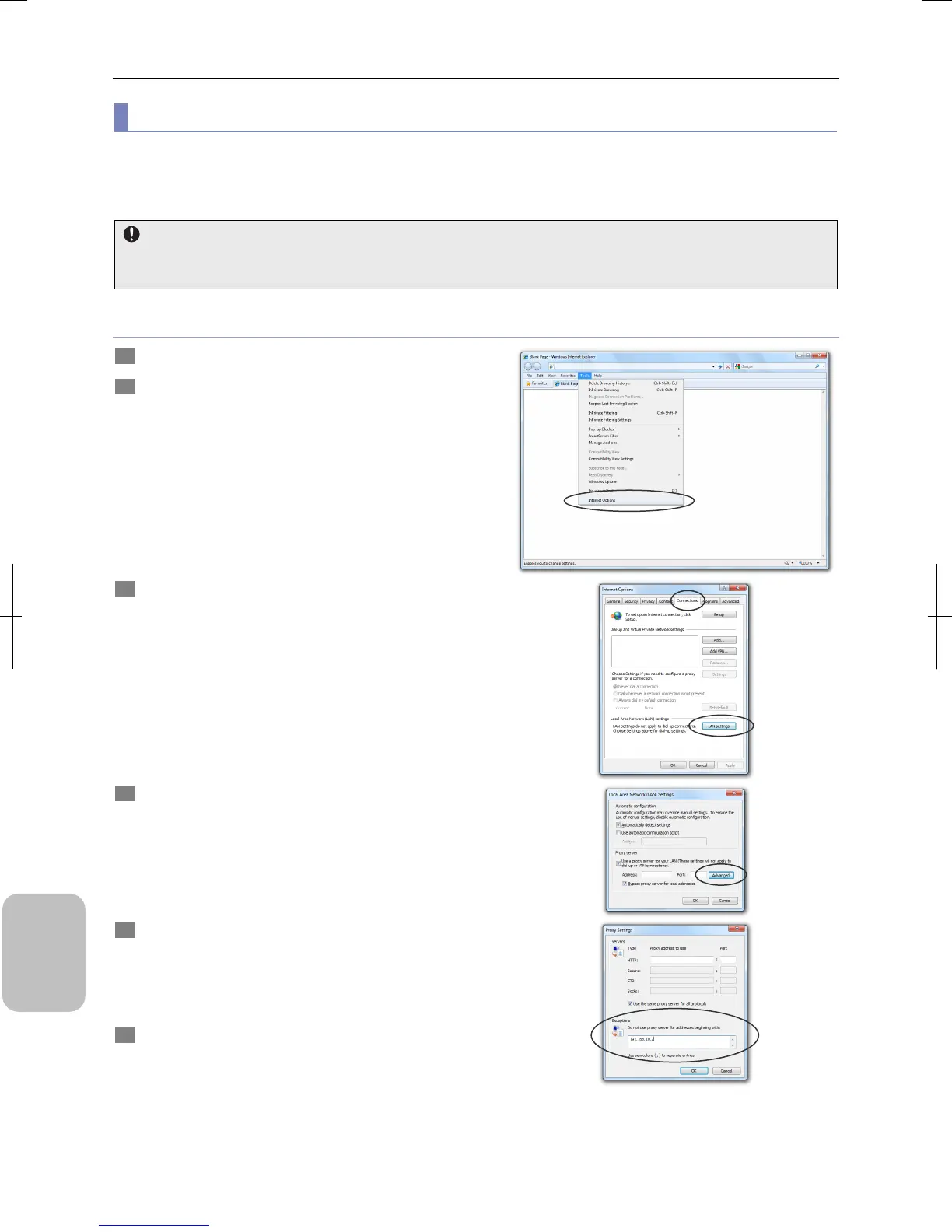
1 Start Internet Explorer on your PC.
2 Select [Internet Options] from the [Tools] menu.
A dialog box appears.
3 Select the [Connections] tab and click the [LAN
Settings] button.
The [Local Area Network (LAN) Settings] dialog box
appears.
4 Click the [Advanced] button.
If the [Advanced] button is disabled, select the [Use a proxy
server for your LAN] checkbox.
The [Proxy Settings] dialog box appears.
5 Write the IP address of this system in the [Exceptions]
field.
Enter a dot (period) per three-digit IP address component. I
the component starts with “0” or “00,” skip“0” or “00” and
enter the IP address.
6 Click [OK] for every open dialog box to close the dialog
boxes.
The settings are enabled.






 To Next Page