Chapter 13 Changing Settings
177
Changing
Settings
(3) Specifying a fixed IP address and a subnet mask
When a fixed IP address is used without using the DHCP server, you must manually enter an IP address and subnet mask.
Note: You cannot enter these values if the [DHCP] checkbox is selected.
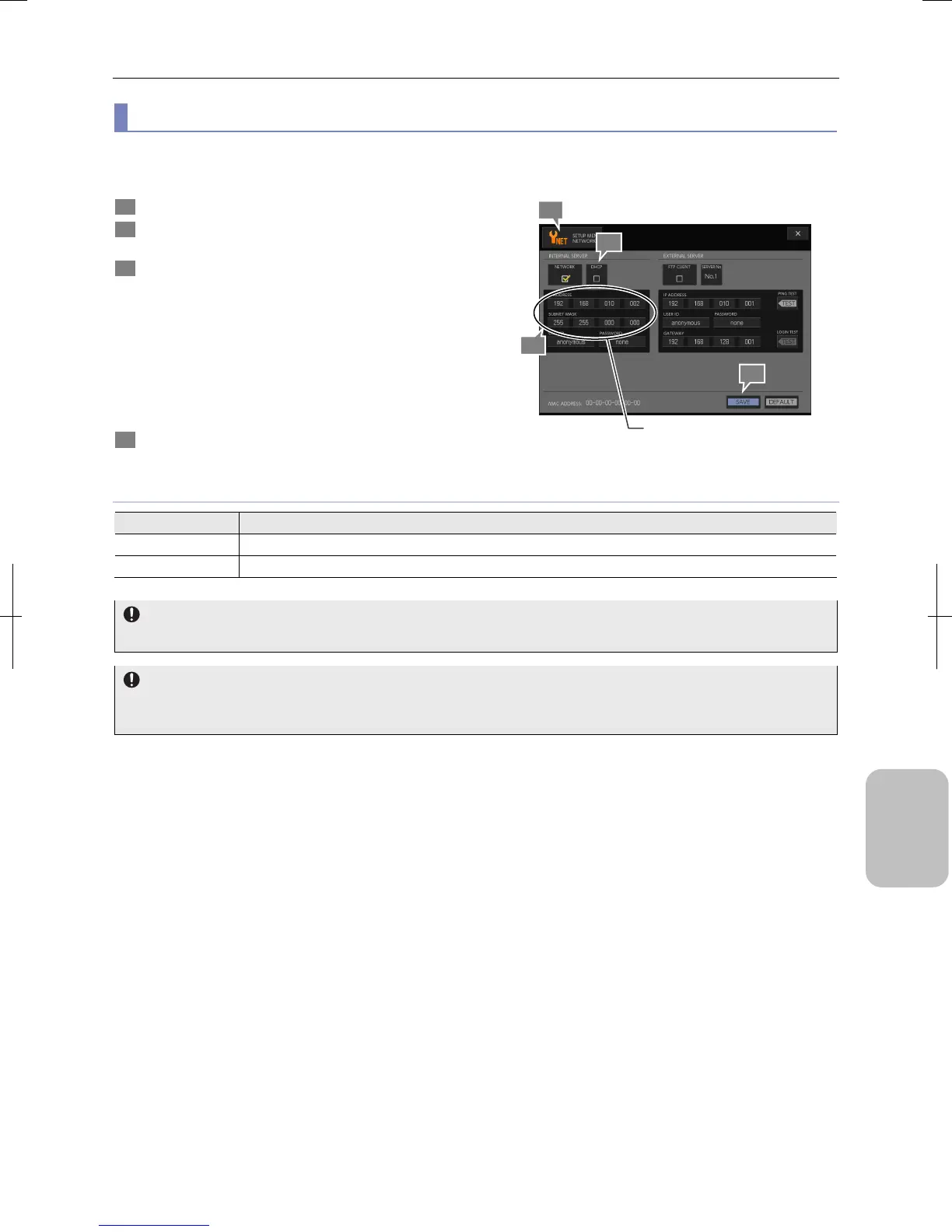
1 Display the [SETUP MENU: NETWORK] screen.
2 Make sure the [DHCP] checkbox on the [INTERNAL
SERVER] area is cleared.
3 Enter an IP address and subnet mask assigned by the
network administrator into [IP ADDRESS] and [SUBNET
MASK] fields.
When you press each input field, a keypad appears. Press
the desired key to enter a correct number and press the
[ENTER] button.
Press the [CLR] button to erase the input. Press the [BS]
button to backspace one character. Pressing the [X] button
closes the keypad without changing the value.
4 Press the [SAVE] button.
The IP address and subnet mask setting is saved.
Specifying IP Address and Subnet Mask
IP Address/Subnet Mask Setting
Item Setting
IP ADDRESS IP address is a number to identify equipment on the network. The DS-L3 conforms to IPv4.
SUBNET MASK Subnet mask is a number to correctly recognize each IP address.
Changing the IP address
Turn off and on the system when you changed a method for obtaining an IP address.
Specifying a fixed IP address
If you plan to use a fixed IP address, consult the network administrator of your organization and specify the IP address
and subnet mask officially given from the administrator. A wrong IP address may cause a failure in your network.
3
1
Enter a valid IP address
and subnet mask.
4
2





 To Next Page