37
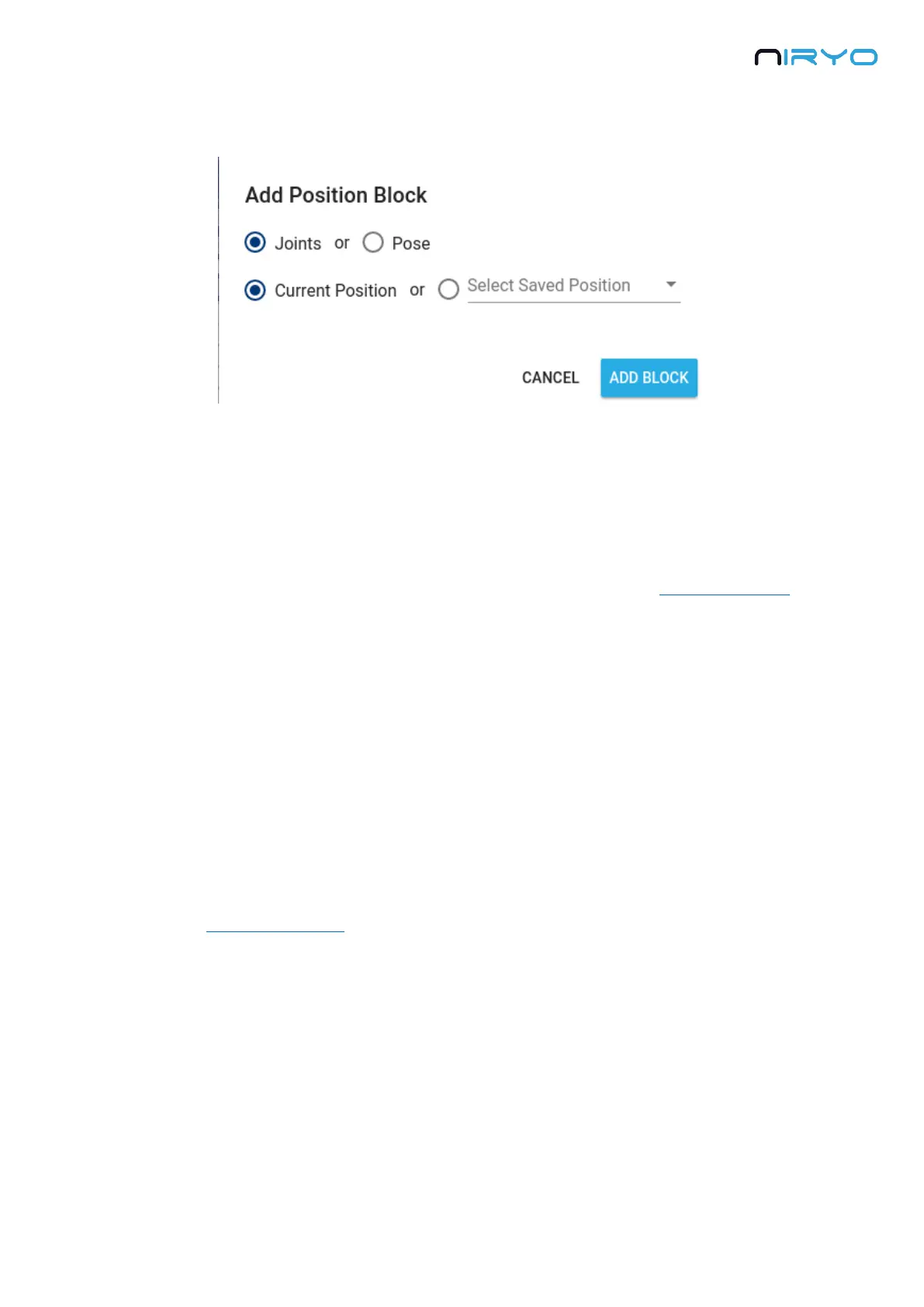
7. Add a position block. This will open a popup:
This is the most useful way to add a position command block to your workspace. You can
choose between a “Move Joint” block and a “Move Pose” block, and use either the current
robot state, or a previously saved position.
Niryo Blocks along with the learning mode is the perfect combination to easily create
programs in no time. Activate the learning mode, then for each position you want, add a
position block corresponding to the current state, and that’s it. Check out this video tutorial on
how to use the “learning mode” with Niryo Blocks.
8. Play the sequence displayed on the workspace. Once the sequence is done (success or not),
you’ll get a notification on the bottom of the screen.
9. Stop the current sequence execution.
You can’t execute a new sequence while another sequence is running. If you want to start
a new sequence, you’ll have to stop the previous one.
10. Import / Export Blocks
You can import and export (from and to your computer) the current workspace as an XML file,
and you can save the sequence directly on the robot.


 To Next Page