DigitalFlow™ DF868 Multipurpose Ultrasonic Liquid Flowmeter Programming Manual (2-Channel) 59
Chapter 2. Displaying Data
2.5 The LOG Submenu
The LOG submenu permits the display of the data in a log file either graphically or numerically. Although the Model
DF868 can display all of the data in a log file, screen size limitations prevent the simultaneous display of the complete
log file. Therefore, the function keys must be used to view the remaining data.
Follow the instructions in this section to display a log file in the desired format. See Chapter 3, Logging Data, for
instructions on creating a log file.
2.5.1 Entering the LOG Submenu
Press the appropriate side of the [SCREEN] key to activate the desired pane of the display screen, and complete the
following steps:
1. To access the Display Menu, press the [DISP] key.
2. Press [F4] = LOG.
3. Use the [
, [ and [F1]-[F4] keys to select the desired log file to display. At the NAME prompt, the option bar
will show the names of all log files that are currently stored in memory. If there are no log files currently stored in
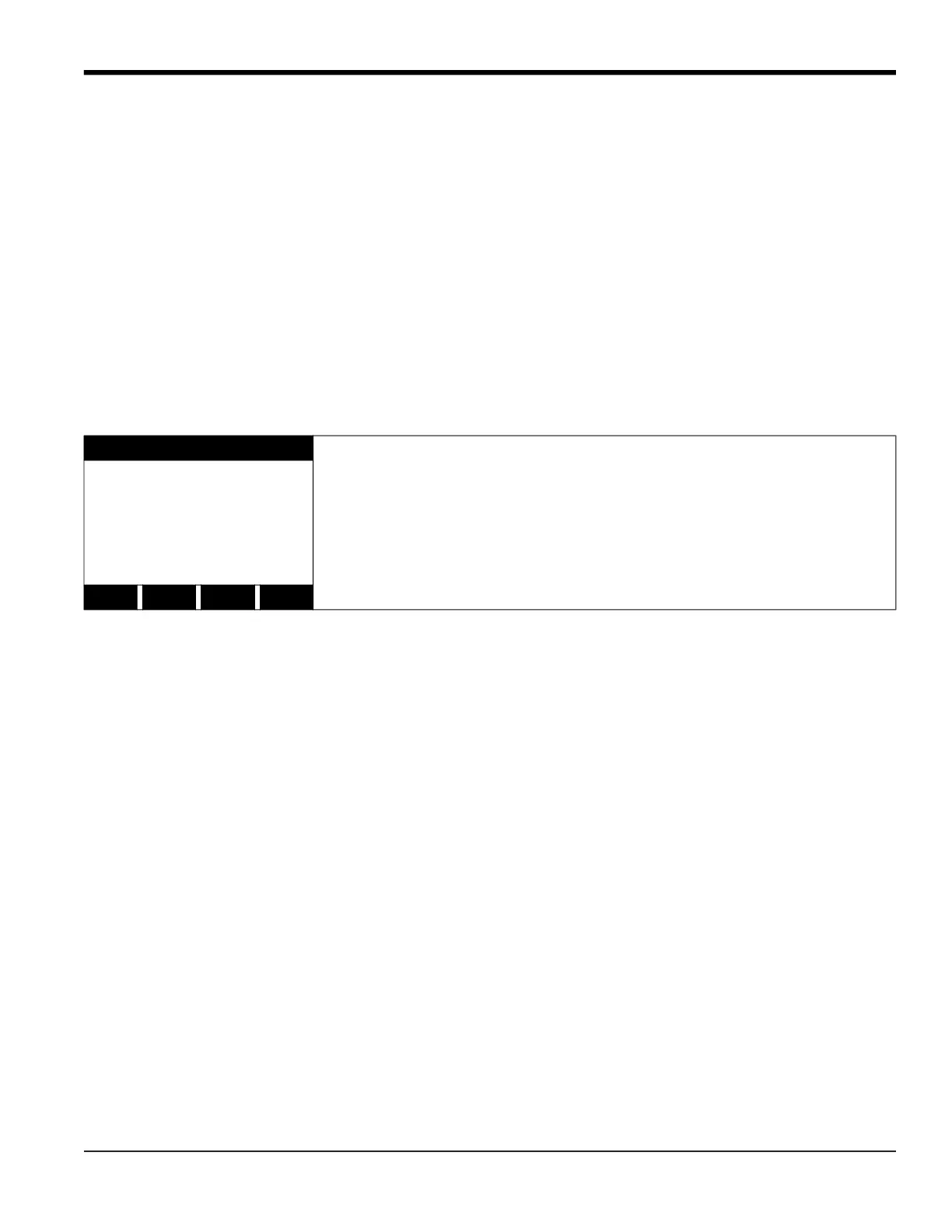
memory, the following prompt will appear instead:
If the All Logs Cleared! prompt appears, at least one log file must be created and stored in memory before the
Display Log function can be accessed. See Chapter 3, Logging Data, for instructions on creating a log file. After at
least one log file is stored in memory and selected at the NAME prompt of the LOG submenu, proceed to the next
step.
4. At the Format prompt, press [F1] to display the selected log in numeric format or press [F2] to display the
selected log in graphical format.
• If you pressed [F1], go to the next page.
• If you pressed [F2], go to page 2-9.
DISPLAY FEATURES
There are no log files currently stored in memory. Either all of the log files have
been cleared or no log files have yet been created. Press any key to return to
measurement mode.
DISPLAY FORMAT
logging
All Logs Cleared!
hit key





 To Next Page