Chapter 6. Serial Communications
88 DigitalFlow™ DF868 Multipurpose Ultrasonic Liquid Flowmeter Programming Manual (2-Channel)
6.3 Checking the DF868 Baud Rate
For successful serial communications, the DF868 and the personal computer must be set up to send/receive data at
the same speed. To check the baud rate setting of the DF868, proceed as follows:
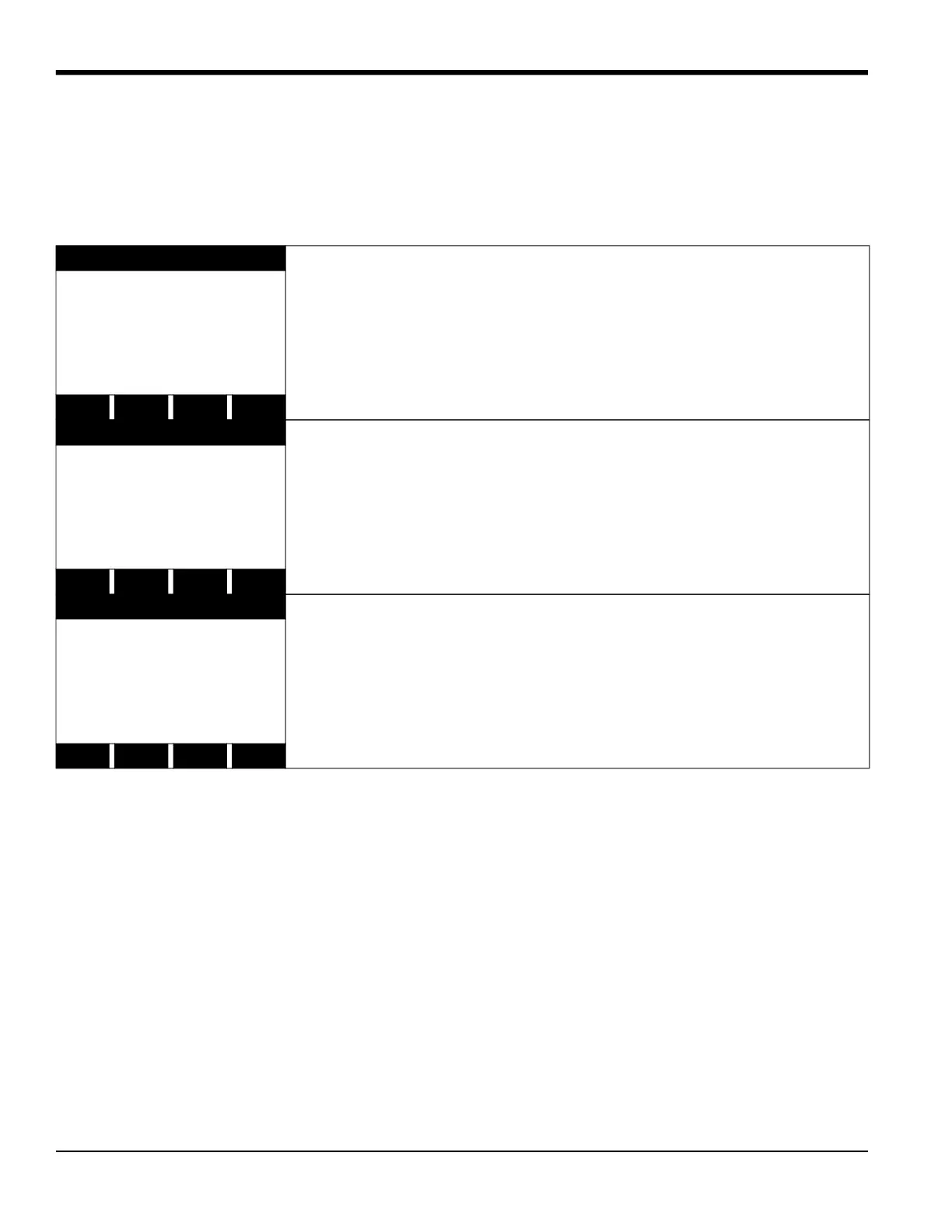
Access the User Program, by pressing the [PROG] key on the keypad. The standard measurement mode screen is
replaced by the following initial programming mode screen:
The available rates are 300, 600, 1200, 2400, 4800, 9600 and 19200 baud. After verifying or changing the baud rate
setting, press the [EXIT] key three times to return to standard measurement mode.
Note: Refer to Chapter 1, Programming Site Data, for a detailed description of using the COMM submenu.
6.4 Setting Up the Terminal Software
To communicate with personal computers running under either the Windows 3.X or Windows 9X/NT operating
systems, please refer to “Terminal Communications Software” in the brochure EIA-RS Serial Communications (916-
054).
Note: For computers operating under other operating systems, contact the factory for assistance or consult the
operating system manual supplied with the computer.
PROGRAM Start ‰
Press the [F3] key to select the GLOBL menu.
PROGRAM
previous selection appears here
CH1 CH2 GLOBL SAVE
PROGRAM Start ‰
Press the [F4] key to select the COMM submenu.
Global PROGRAM
previous selection appears here
CLOCK SYSTM I/O COMM
Global COMM PROGRAM ‰
To change the baud rate, press the [
key until the desired baud rate appears
on the option bar, and then press the appropriate [Fx] function key.
Global PROGRAM
Comm port
BAUD RATE
current setting appears here
4800 9600 19200





 To Next Page