Page 13
Ph: 804.227.3023
10511 Old Ridge Rd. Ashland, VA 23005
v 2.0
Powertrain Control Solutions
When online, changes can be made to the calibration by clicking Update on the individual forms after changes are made.
The changes will be stored in the dash when Update is clicked. The dash should change to a PC Communication Screen
when the computer communicates with the dash.
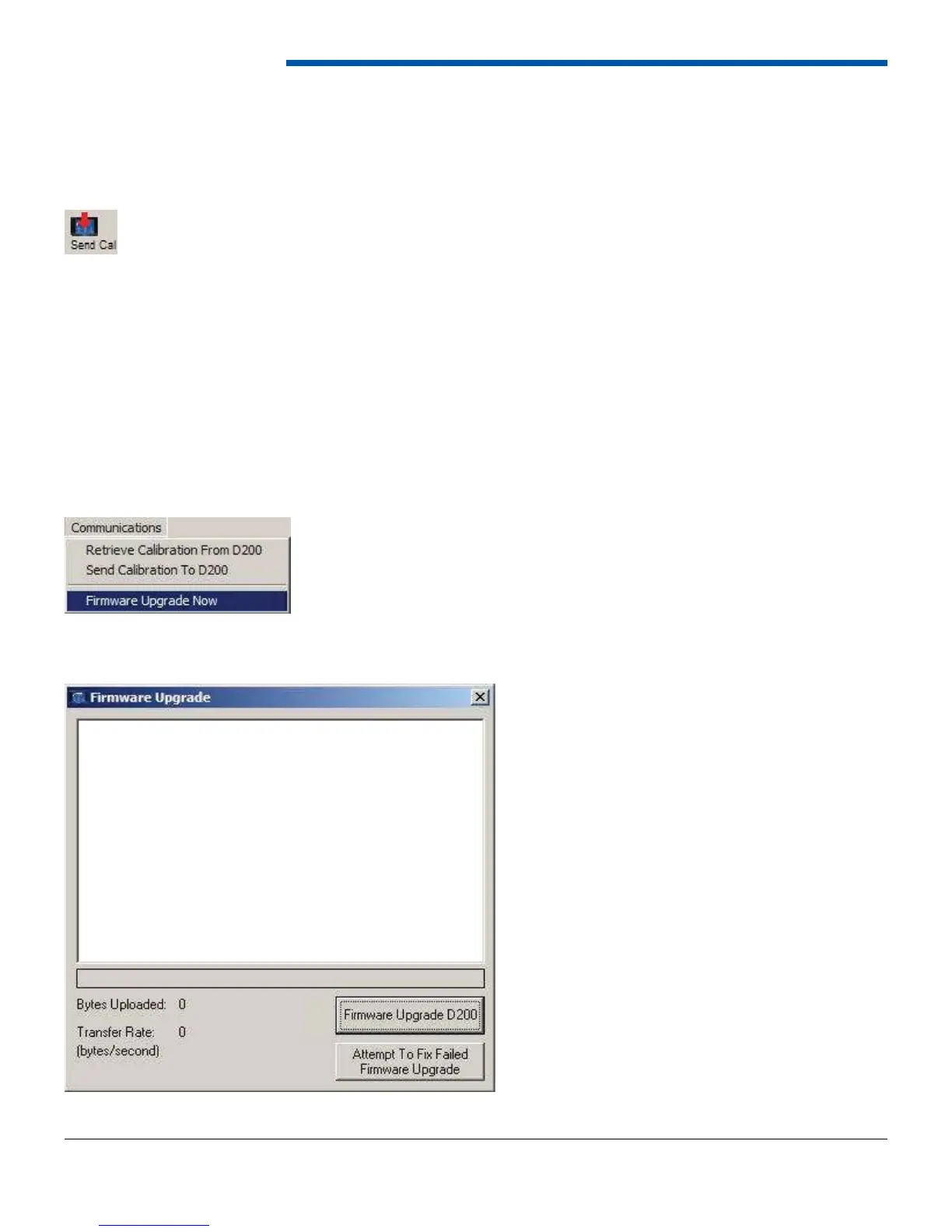
To send a complete calibration fi le to the dash click the Send Cal button from the top tool bar.
An important note regarding editing calibration fi les in offl ine mode is that the Update button must be clicked after each
change to save the change to open fi le even though it is not writing the changes to the dash. Once all the changes have
been made, the fi le can be saved using the Save Calibration function. Later the fi le can be programmed into the unit using
the send cal button.
5.3 Firmware Upgrade
The dash contains fi eld-upgradeable fi rmware which means that as PCS releases new fi rmware it is possible to upgrade
the dash without sending it back. This procedure is called a Firmware Upgrade and it erases the program on the
dash and replaces it with the new fi rmware. The fi rmware fi le has the extension .pbin and is typically named similar to
Firmware 1_00_8.pbin. For the latest dash fi rmware, check the PCS website. Typically a new software install will include
a new fi rmware. The fi rmware is located in the installed path in a folder named Firmware. To upgrade the dash, select
Communications from the title bar at the top of the software. Then select Firmware Upgrade Now.
A window will appear with two buttons on it. Select Firmware Upgrade Dash. A window will appear asking for new fi rmware
fi le. Locate it, and select Open. The fi rmware upgrade process will begin.


 To Next Page