PCS D200 Dash Logger User Guide
Page 8
Ph: 804.227.3023
10511 Old Ridge Rd. Ashland, VA 23005
v 2.0
4.2.1 Monitor Data
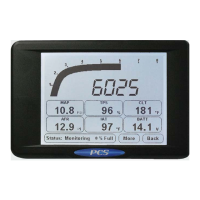
The Monitor Data button displays the user selected monitor screen. The dash provides four different monitor screens
which can be selected from the More button as described below. All monitor screens contain a status bar, a More button,
and a Back button. The status bar indicates if the dash is monitoring or logging, and the amount of full data log memory.
When the memory is full, this number will read 99%. During a log playback, this number will indicate the percentage of
the log that has been played and the current playback mode. The Back button returns to the Main Menu.
4.2.1.1 Monitor Menu
The More button displays the Monitor Menu which contains four buttons.
Show Peak - Hide Peak - Clear Peak
The dash stores the peak values for all inputs. The peak values are lost when the unit is powered down. To view the
peak values select Show Peak. The unit will return to the Monitor Screen with the peak values shown. To return to normal
monitor mode, select More then Hide Peak. To clear the peak values without resetting the unit, select Clear Peak.
Start Data Log - Stop Data Log
To start a data log from the touchscreen, select Start Data Log. The dash will begin logging and
return to the monitor screen. To stop the data log, select More then Stop Data Log.
The dash provides four different monitor screens to monitor the data. These include:
• Tach Slider and Digital Gauges
• Analog Gauges and List
• Full Screen GPS
• Full Screen Accelerometer
The Tach Slider and Analog Gauge screens allow the user to select a displayed input by touching a particular gauge or
display area and selecting the item to be displayed. Some items are limited to certain display types. For example, speed
inputs such as RPM or vehicle speed can not be displayed on a 1.1 inch gauge and only RPM can be displayed on the
tach slider.
The GPS screen is fi xed to all the GPS information from the receiver and does not contain any selectable regions.
The accelerometer screen displays the X, Y, and Z values and a G-G diagram of the X and Y axis. The peak values are
also displayed as markers on the X and Y axis and can be reset by selecting Clear Peak from the More button.
4.2.2 Tune Devices
If a PCS Transmission Controller is connected to the CAN A bus, tuning is performed through the Tune Devices button.
A display message will appear if a tunable device was not found. The transmission controller must be enabled in the
Communications menu and the transmission controller software must be version 2.0 or later.
4.2.3 Data Log Explorer
The dash’s Data Log Explorer displays all the data logs on the unit. It can display eight logs per page. The total number
of logs, the percentage of memory used, the current page, and the total number of pages is displayed at the bottom of
the screen. To increment to the next page select More, to return to the previous page select Back. To erase the entire
memory, select Erase. Note: This will erase ALL the data logs on the dash. To playback a log, select the log then
press Play.


 To Next Page