PCS D200 Dash Logger User Guide
Page 6
Ph: 804.227.3023
10511 Old Ridge Rd. Ashland, VA 23005
v 2.0
3 Software Installation
A software CD is provided with every D200 Dash Logger purchase. If a software CD was not shipped with the dash or
if a replacement CD is needed, please contact PCS Technical Support. The newest revision of the software is available
from our website. Load the software CD into the CD drive. A window should appear offering several options, click “Install
Software.” If this menu does not appear, open the CD with Windows Explorer or MyComputer. Double click the fi le D200-
CD.exe to begin installation. An installation window will appear with the D200 Dash Logger software version number,
click next. A window will appear with the intended installation directory, it is possible to change the installation directory
but using the default directory is strongly recommended. Once the directory has been chosen, click next. A window will
appear offering a selection of installed components from a list. The software installation will allow the ability to select or
deselect manuals and optional components. Select the preferred components for installation and click next. A window will
appear with the start menu folders. Changing the name is possible but not recommended. A window will appear offering
to create a desktop icon and a quick launch icon. A desktop icon will place a shortcut to the Dash Logger software on
the desktop. A quick launch icon will place a shortcut to the Dash Logger software on the windows quick launch bar (only
offered on some operating systems, usually on the lower left side of the screen next to the start menu button). If these are
desired, select them and click next. A window will appear summarizing the desired settings. If everything is correct, click
install. If these settings need to be changed, click back. Once the installation is complete, a window will appear asking
to install drivers now. These are the USB drivers and are required for communication to the D200 Dash Logger. After
installation a window will appear asking if you wish to launch the Dash Logger software now, make your choice and click
fi nish.
4 Confi guring Using the Touchscreen
Many of the D200 Dash Logger settings can be confi gured from the touchscreen without the use of a computer. This
chapter describes each menu and the underlying options and their function. The fi rst section in this chapter is a quick
reference guide to setting up a dash for the fi rst time.
4.1 First Use and Basic Settings Walk Through
This section contains a step by step procedure from powering up the dash for the fi rst time to monitoring and logging data.
When the dash turns on, it will display the monitor screen. The fi rst step is to setup display and communication settings.
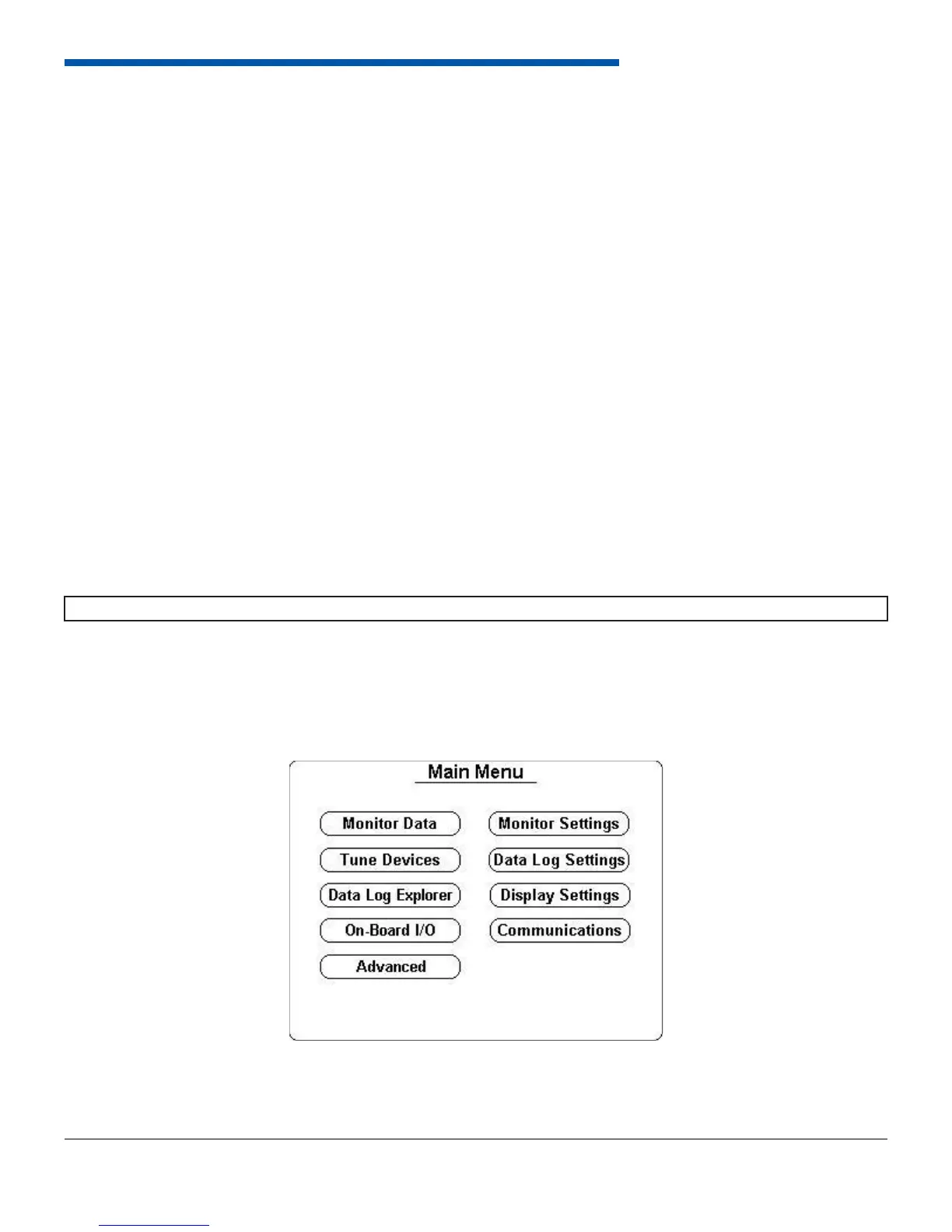
From the monitor screen, select Back. The main menu screen will be displayed as shown below.
NOTE: Analog inputs, Speed inputs, and PWM outputs must be initially confi gured from the software.


 To Next Page