Page 37
Ph: 804.227.3023
10511 Old Ridge Rd. Ashland, VA 23005
v 2.0
Powertrain Control Solutions
7.0 Data Logging
A data log can be initiated by either touching the screen or by an analog input.
7.1 Start a Log from the Touchscreen
To start a log from the touchscreen, from the Monitor Screen select More then Start Data Log. Logging will begin.
7.2 Start a Log from an Analog Input
To start a log from an analog input, confi gure the input as described in Section 6.4.3. When the condition to begin logging
is true, the dash will begin logging.
7.3 Stop a Data Log
A data log can be stopped one of three ways. The fi rst way is to turn off the dash. The dash will contain all the data up to
the last second it had power. This is typically used in drag racing applications where the driver turns off power to the car
at the end of the quarter mile. The second way to stop logging is to manually select Stop Data Log from the More button
from a Monitor Screen. The third way, which will only work if an analog input is defi ned as a data log switch, is to defi ne
a trigger set point (such as engine RPM less than 1500) which stops logging when true.
7.4 Data Log Play Back on the Dash
To play back a data log, select Data Log Explorer from the Main Menu. A list of all the logs on the unit will appear. Up to
128 logs can be stored on the dash and only 8 are listed at one time. To view more logs, select More and to move a page
back select Back. Touch the log desired for play back and then touch play. The monitor screen will be drawn and the log
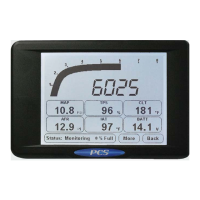
will be paused. To play the log touch Play. The Monitor Screen status indicator will show how much of the log has been
played (0-100%). To view the log twice as fast, touch the fast forward button. To pause the log playback, touch pause. To
reset the log to the beginning touch the reset button. To stop playback mode, touch the stop button.
7.5 Data Log Download to the PC
The data logs are downloaded from the dash to the PC using the dash software. The software must have the calibration
open when the data logs are uploaded. Therefore, if the software opens and detects a dash, select Yes when it asks to
upload the calibration. If the unit is online but the software does not have an open calibration, then select the Get Cal
button from the top icon bar. If the calibration is not open and a log is downloaded, a warning message will appear asking
if it should proceed with the data log download. Click No, and then download the calibration by clicking the Get Cal button
from the top icon bar.
The dash logs are shown in a small explorer window named Log File Explorer that opened when the software opened. If
the Log File Explorer is not open in the software, select Logs from the top icon bar. To have the software search for logs,
select Refresh in the Log File Explorer window. If logs are on the unit, a list will be generated. Click the log you wish to
download and then click the Download button. The logs are saved as .dlg fi les to the computer. They are saved to the
installed directory in a folder named Datalogs. To view this folder click View Downloaded Logs, or navigate there using
Windows Explorer. Double click the log name in the Datalogs folders to view the log using the Data Log Viewer. Double
clicking the log in the Log File Explorer will automatically download the log and open the fi le in the Data Log Viewer.


 To Next Page