C
ontrols
Phenom microscope
Mouse
(Pro)
Rotary knob
USB Flash drive
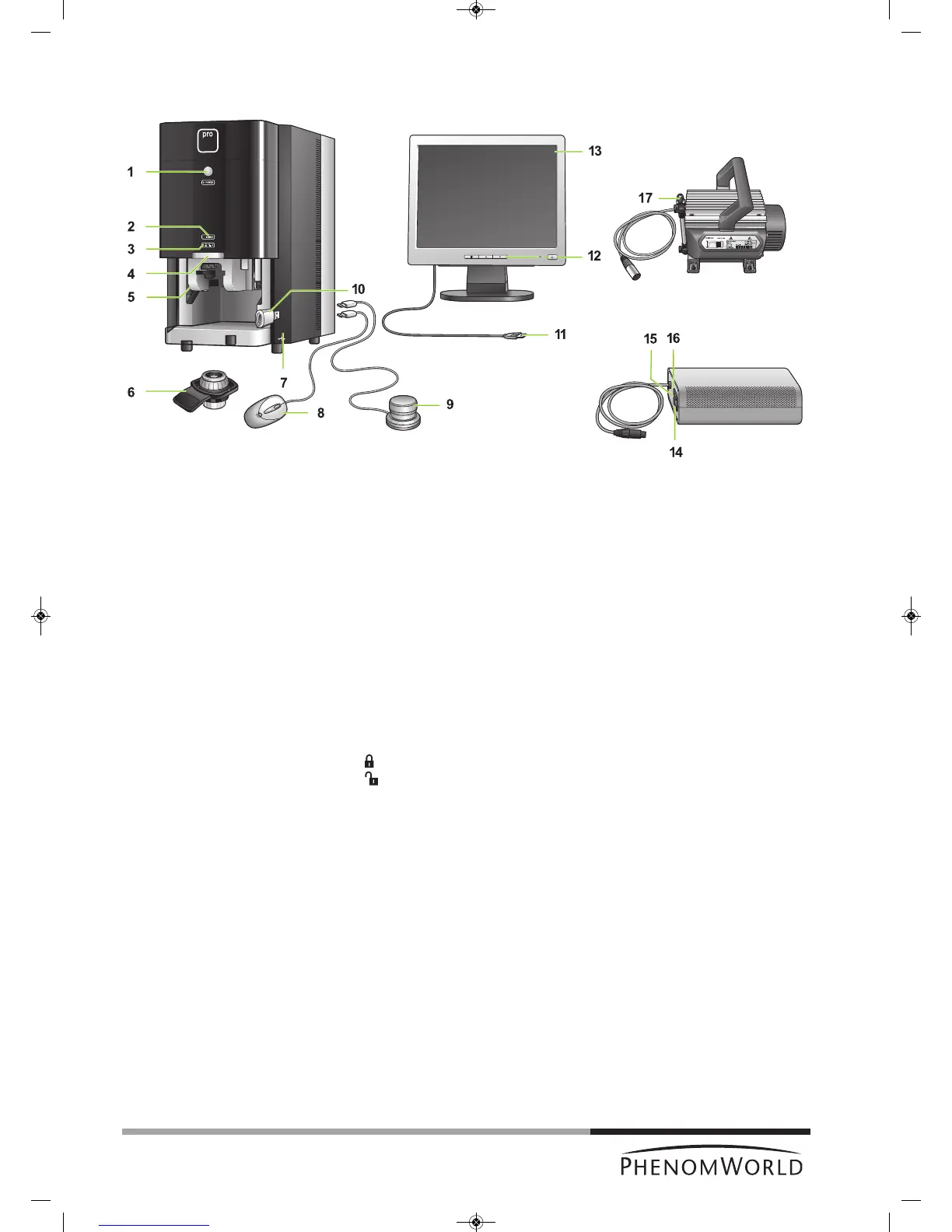
2. System overview
1 y System control button
- Switches the Phenom from standby or hibernate mode to operation mode.
- Switches the Phenom from operation mode to standby.
POWER
- Blinks green when the Phenom power supply is switched on and the Phenom goes
to operation mode.
- Blinks green when the Phenom switches from standby or hibernate mode to
operation mode.
- Lights up orange in standby mode.
- Blinks orange (1 second on, 3 seconds off) in hibernate mode.
- Lights up green in operation mode.
2 SAMPLE (sample indicator)
Lights up green when a sample is loaded.
3 - Lights up orange when the door is locked.
- Lights up green when the door is unlocked.
4 Door
5 Sample loading bay
To insert the sample holder into the Phenom.
6 Sample holder
7 USB ports
- To insert the supplied USB Flash drive.
- To insert the mouse USB connector or the rotary knob USB connector.
8 Operates the Phenom together with the touch screen and the rotary knob.
9 Operates the Phenom together with the touch screen and the mouse (ProX / Pro).
10 To store images on.
10
Fig. 1



 To Next Page