46
Tip!
5.7.4.4 Connectivity
When the Phenom is connected to the Internet, Phenom Remote Assistant (PRA) is
a
vailable. The Phenom can periodically upload technical performance data which is
monitored by Phenom-World’s Customer Support. In this way, maintenance requirement for
the Phenom is more predictable and a better uptime (the time the Phenom is ‘up’ and
running) is achieved. PRA also enables you to request remote assistance by Phenom-World
service engineers. They are then able to operate your Phenom remotely, similar to the
‘remote desktop’ function in Windows, and work with you to resolve any issues with your
Phenom. For more information, refer to the PRA Operations Guide or contact
Phenom-World’s Customer Support.
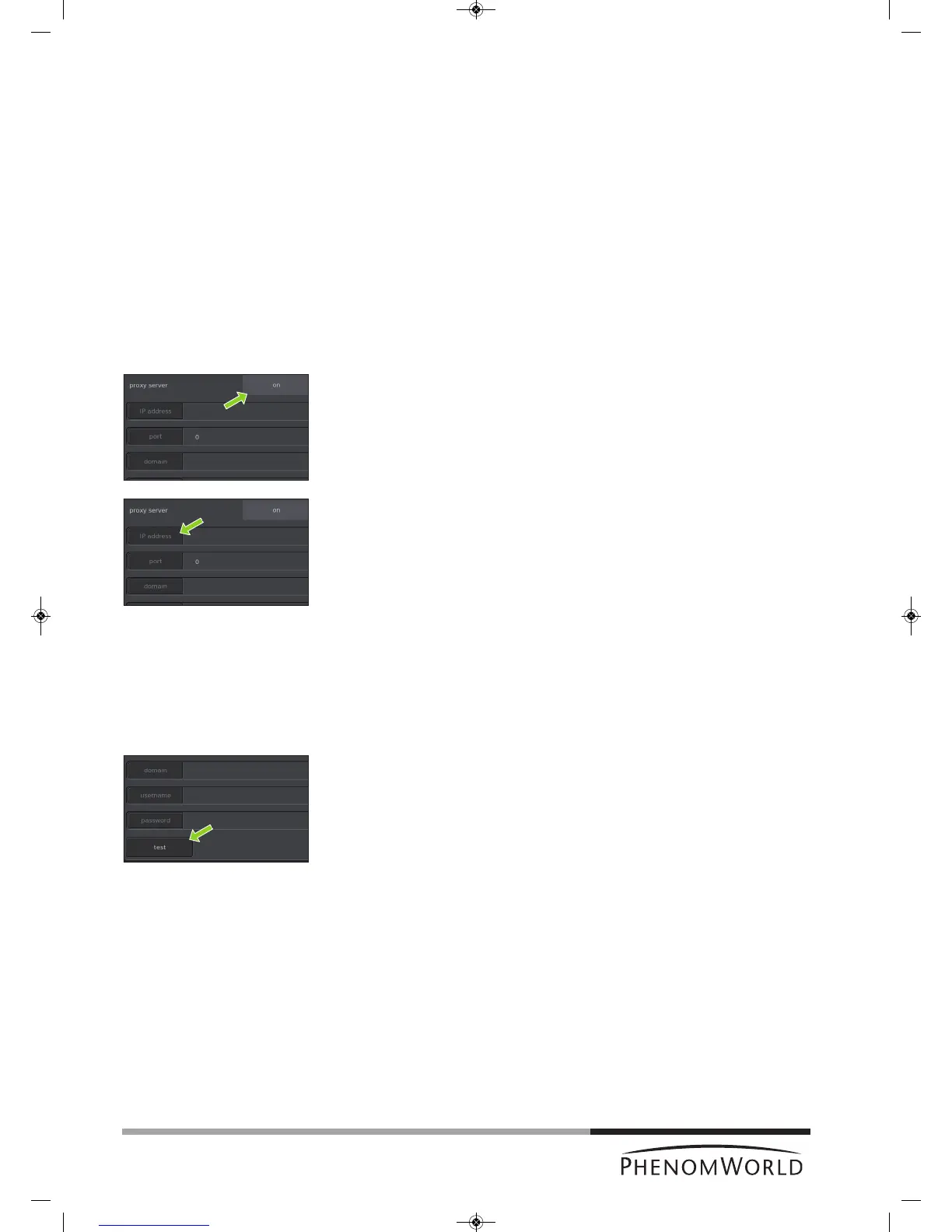
Proxy server settings
Most corporate networks require Internet connections to go via a proxy server. If this is the
case on your network, set up the proxy server settings in the Connectivity Routine page.
Contact your local network administrator for the required settings.
1 Touch the on button in the proxy server pane to enable the use of a proxy server.
> onlights up green on the button.
2 Touch the IP address button.
> A keyboard appears.
3 Enter the IP address of your proxy server, confirm by touching the OK button on the
keyboard and select the next setting by touching the appropriate button (port).
4 Enter the data for the other settings (port, domain, username, and password) in the
same way. Confirm each setting with the OK button on the keyboard and select the
next setting by touching the appropriate button.
The username and password can be taken from any valid user on your network who has
sufficient permissions to access the Internet. The Phenom does not require an account of
its own.
5 After entering all settings, touch the test button to test the connection.
> The Phenom will now try to establish a connection with the PRA server.
> If all settings have been properly made and a connection can be established, the
message ‘Connection test succeeded’ is displayed in the Statusarea.
> If the message ‘Connection test failed’ is displayed, check if the correct data have
been entered for all settings or contact your network administrator.
A successful connection requires the correct PRA password to be filled in. For this,
refer to ‘Phenom Remote Assistant settings’, hereafter.



 To Next Page