47
Note!
Phenom Remote Assistant settings
The Phenom gives you fine-grained control over the Phenom Remote Assistant settings
and offers industry-standard security. For a detailed description of the technical
performance data and security, refer to your PRA Operations Guide.
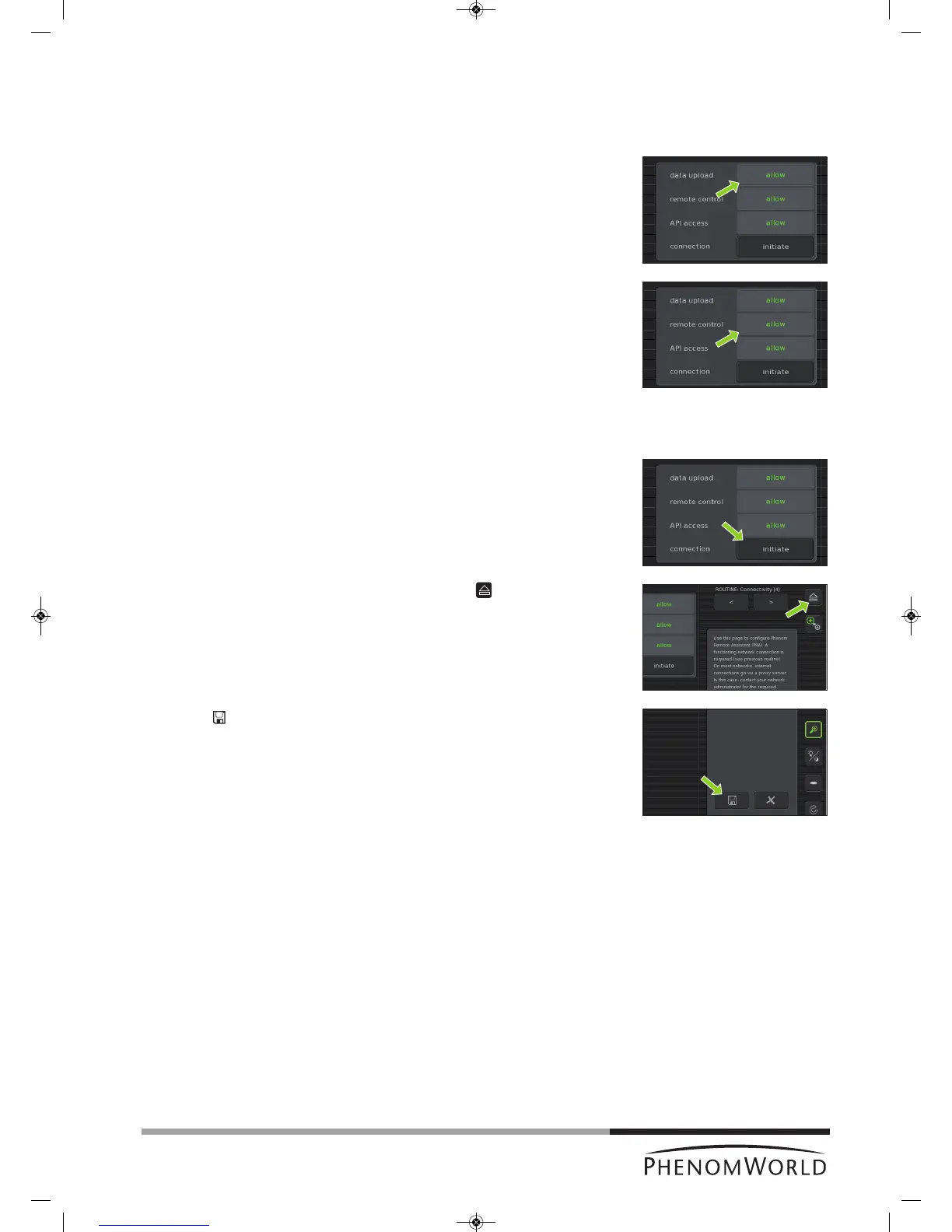
1 Touch the allow button next to data upload to allow daily upload of technical
performance data for remote system health monitoring.
> allowlights up green on the button.
2 Touch the allow button next to remote control to allow remote control of the
Phenom.
> allowlights up green on the button.
A remote control connection is onlymade when you explicitly initiate it yourself. To do so,
continue with step 3.
3 Touch the initiate button next to connection to initiate a remote control connection.
Refer to the PRA Operations Guide for instructions on how to set up a remote control
session with a Phenom-World service engineer.
4 The connection can be ended at any time by touching the button next to the
Connectivity label.
> After a remote control session, connection will be ended automatically within
5 minutes.
5 Touch
’ ’ to save your settings.
> The message ‘Connectivity configuration settings correctly saved’ appears in the
Statusarea.
> When data upload is allowed in step 1, the technical performance of the Phenom
will be monitored by Phenom World’s Customer Support and you will be notified if
maintenance is required.
> All settings will be stored in the Phenom memory even after rebooting the Phenom
software. The network connection will be automatically restored after reboot or
shutdown of the Phenom.



 To Next Page