34
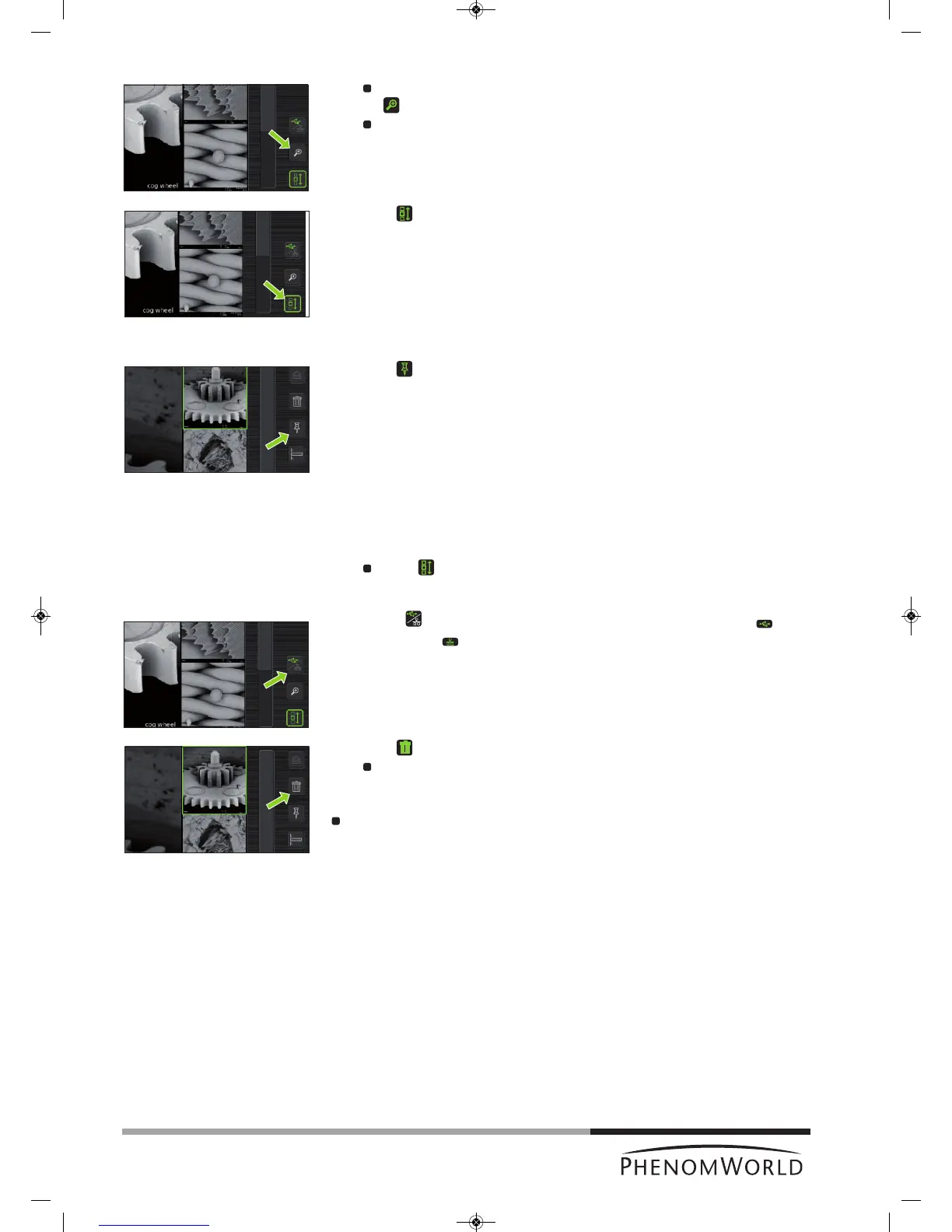
When the image is displayed at full size, digital zoom is available by touching
(
fig. 4,5).
The image can then be magnified digitally using the rotary knob (fig. 1,9).
3 Touch (fig. 4,5) to continue scrolling through your images.
4.7.1 Comparing images
(ProX / Pro)
1 Touch (fig. 4,5) to select the image in the main viewing window as the first image
for comparison.
2 Use the rotary knob (fig. 1,9) or the scroll bar (fig. 4,4) to select the second image you
wish to compare to the image in the main viewing window.
3 Press the rotary knob (fig. 1,9) to switch between the 2 selected images for
comparison.
Touch (fig. 4,5) to continue scrolling through your pictures.
4.7.2 Deleting stored images
1 Use the button (fig. 4,5) to select the storage location (USB Flash drive, or
network share, ).
2 Use the rotary knob (fig. 1,9) or the scroll bar (fig. 4,4) to select the image you wish to
delete.
3 Touch (fig. 4,5) to delete the image.
To delete all images touch ‘4’ to confirm or ‘8’ to cancel. Refer to 5.6.1 ‘USB
Flash drive’ / 5.6.2 ‘Mode’’.
For deleting all images stored on the USB Flasdrive, refer to 5.6.1 ‘USB Flashdrive’.



 To Next Page