33
Note!
Note!
Storing images
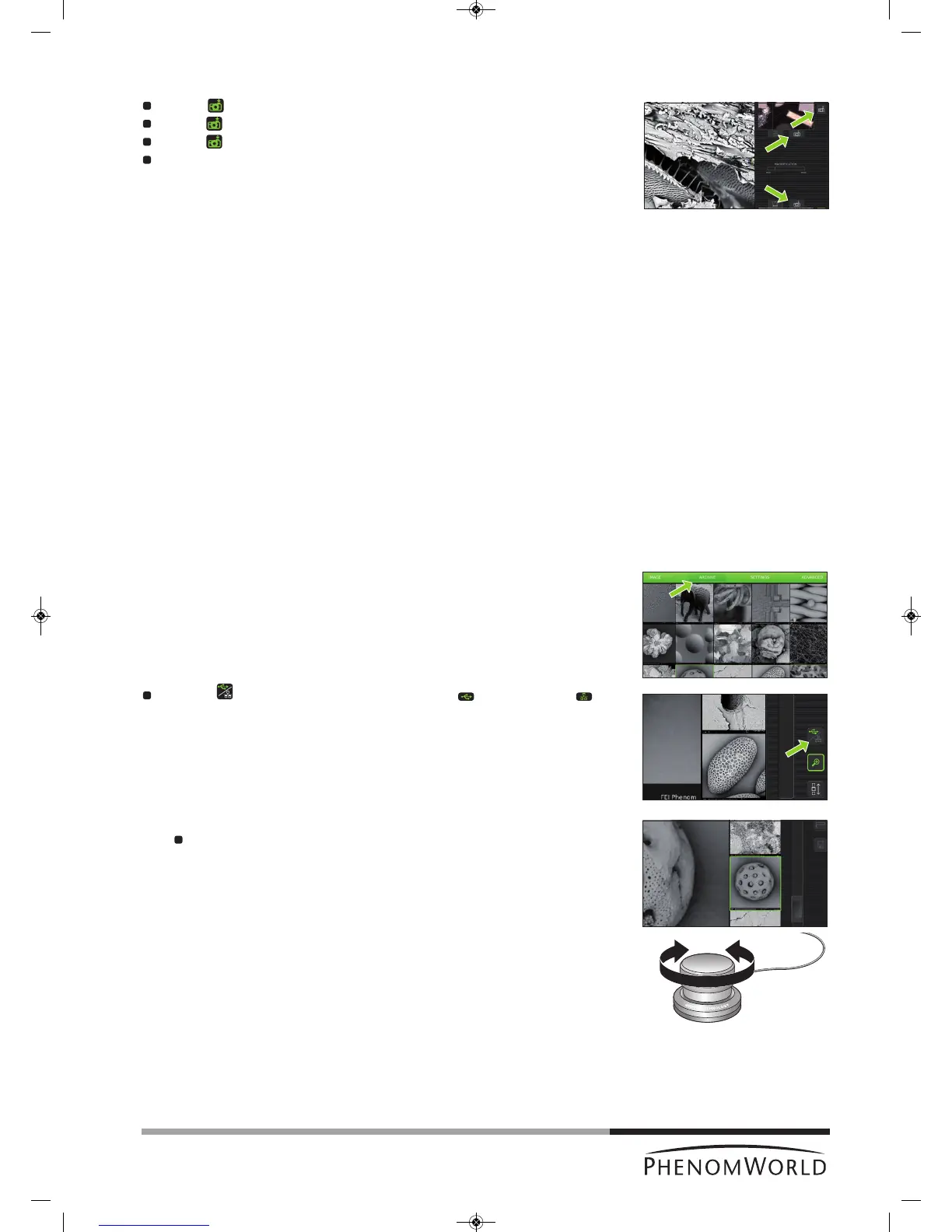
Touch (A) to store the image displayed in the main viewing window (fig. 3,1).
Touch (B) to store the image displayed in the optical overview window (fig. 3,11).
Touch (C) to store the image displayed in the electron overview window (fig. 3,3).
Parameters for settings associated with storing images can be selected on the
Settings screen.
>
Images will be stored on the selected storage location (USB flash drive or network
share). The storage location will be displayed in the status window.
When storing images on the supplied USB Flash drive (fig. 1,10), make sure the USB Flash
drive is correctly formatted and inserted into one of the Phenom USB ports (
fig. 1,7 / fig. 2,6
).
The USB Flash drive can be inserted at any time. For formatting the USB Flash drive refer
to 5.6.1 ‘USB Flash drive’.
4.7 Viewing stored images
Images stored on the USB Flash drive or on a (Windows) network share can be viewed on
the Archive screen. When the Archive screen is entered, it shows the images stored on the
currently selected storage location. For selecting the desired storage location and
configuring the network share, refer to chapters 4.5.5 ‘Sample overview’ and 4.6.6 ‘Storing
images’.
When viewing images stored on the supplied USB Flash drive (fig. 1,10), make sure the
USB Flash drive is correctly formatted and inserted into one of the Phenom USB ports
(
fig. 1,7 / fig. 2,6
). The USB Flash drive can be inserted at any time. For formatting the USB
Flash drive refer to 5.6.1 ‘USB Flash drive’.
1 Touch ARCHIVE in the screen selection bar.
> The Archive screen appears.
>
The images stored on the current location are shown on the main viewing window
(fig. 4,1).
Use the button (fig. 4,5) to select USB Flash drive (
)
or network share ( ).
This is only possible when both storage locations are available.
2 Use the rotary knob (fig. 1,9) to scroll through your stored images.
The selected (highlighted) image can be displayed at full size on the main viewing
window by pressing the rotary knob (fig. 1,9) or touching the thumbnail image.
> The other images are then shown in thumbnail format in the thumbnail gallery
(fig. 4,3).
A
C
B



 To Next Page