Directions For Use
EN 16 DVDR70 & DVDR75/0x13.
22
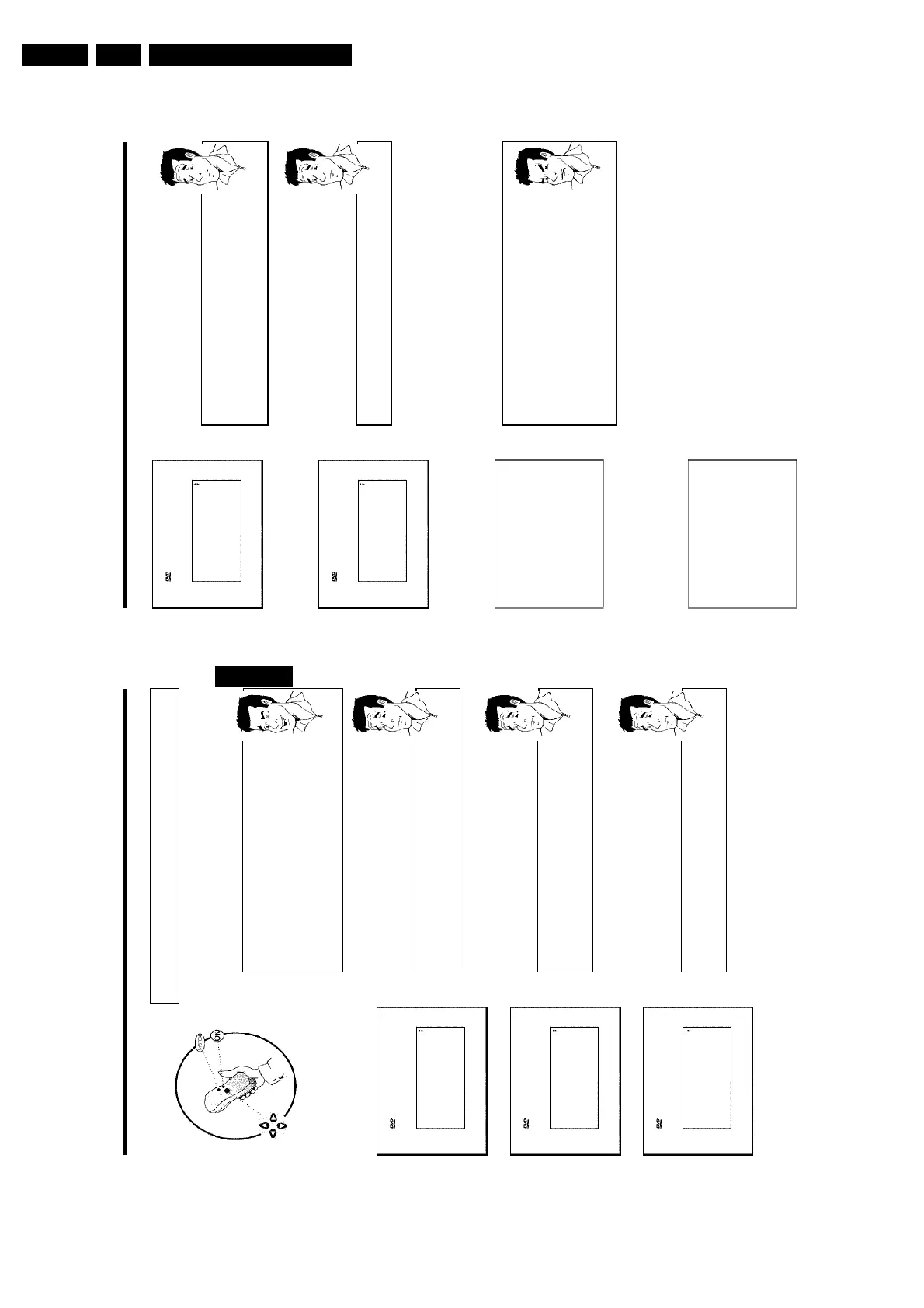
Virgin mode
TV Shape
4:3 letterbox
4:3 panscan
16:9
Press OK to continue
7 Select the desired screen format position using CH- B or CH+ A .
These settings will only be used if you insert a DVD that contains this
information.
Which screen formats can I select?
'4:3 letterbox' for a 'wide-screen' (cinema format) picture with black bars at
the top and bottom.
'4:3 panscan' for a full-height picture with the sides trimmed.
'16:9' for a wide-screen TV set (screen edge ratio 16:9)
?
8 Confirm with OK .
Virgin mode
Country
Austria
Belgium
Denmark
Finland
France
Press OK to continue
9 Select the country of your residence with CH- B or CH+ A .
If your country does not appear, select 'Other'.
Why do I have to select a country?
To call up the specific settings for the respective country, you must first install
the country.
?
0 Confirm with OK .
A After you connect the aerial (or cable TV, satellite receiver, etc.) to
the DVD recorder, press OK .
The automatic TV channel search starts. 'WAIT' will appear on the
display.
Installation
Autom. search
Searching for TV channels
00 Channels found
Please wait
a
The DVD recorder cannot find any TV stations
b Select channel 1 on the TV set. Can you see the stored TV channel on the
TV set?
If not, check the cable connection from the aerial (aerial socket) to the
DVD recorder and to the TV set.
b Please have patience.
The DVD recorder searches the entire frequency range in order to find
and save the largest possible number of TV channels.
b If you have not connected an aerial, go through all the basic settings right
to the end and then, if you wish, start the automatic search (see 'Automatic
TV station search').
Problem
B When the automatic TV channel search is complete, 'Autom. search
complete' will appear on the TV screen.
'Time', 'Year', 'Month', 'Date' will then appear on the TV screen.
Autom. search
Autom. search complete
00 Channels found
Time 20:01
Year 2003
Month 01
Date 01
To continue
Press OK
C Check if the time in 'Time' is correct.
À If required, change the time with the number buttons 0..9 on your
remote control.
Á Select the next line with CH+ A or CH- B .
Installing your DVD recorder
21
D
Installing your DVD recorder
Initial installation
After successfully connecting your DVD recorder to the TV set and other additional devices as
described in the previous chapters, this chapter will show you how to start the initial installation.
The DVD recorder automatically seeks out and stores all available TV channels.
Connecting additional devices
If you have connected additional devices such as a satellite receiver to the
aerial cable, switch them on. The automatic channel search will recognise it
and save it.
No aerial connected
Even if you only want to use the DVD recorder to play back or have only
connected a satellite receiver, you must still complete the initial installation.
This is necessary so that the basic settings are stored correctly. Once initial
installation is complete you can use the DVD recorder as normal.
Tip
Virgin mode
Menu Language
English
Español
Français
Italiano
Deutsch
Press OK to continue
1 Select the desired language for the on-screen menu by pressing
CH- B or CH+ A .
What is an onscreen menu?
The multi-language on-screen menu takes the mystery out of using your new
DVD recorder. All settings and/or functions are displayed on your TV screen
in the relevant language.
?
2 Confirm with OK .
Virgin mode
Audio Language
English
Español
Français
English
Italiano
Press OK to continue
3 Select the desired audio language using CH- B or CH+ A .
What is an audio language?
The DVD will play the sound in the language you select, provided this
language is available on the disc. If it is not available on the disc the fist
language on the DVD will be used instead. The DVD Video Disc menu, if
available, will also be displayed in the language you select.
?
4 Confirm with OK .
Virgin mode
Subtitle Language
English
Español
Français
English
Italiano
Press OK to continue
5 Select the desired language for the subtitles by pressing CH- B or
CH+ A .
What is the subtitle language?
The subtitles will be displayed in the language you select, provided this
language is available on the disc. If it is not available on the disc the fist
language on the DVD will be used instead.
?
6 Confirm with OK .
ENGLISH
Installing your DVD recorder











 To Next Page