Directions For Use
EN 41DVDR70 & DVDR75/0x1 3.
72
Disk feature menu
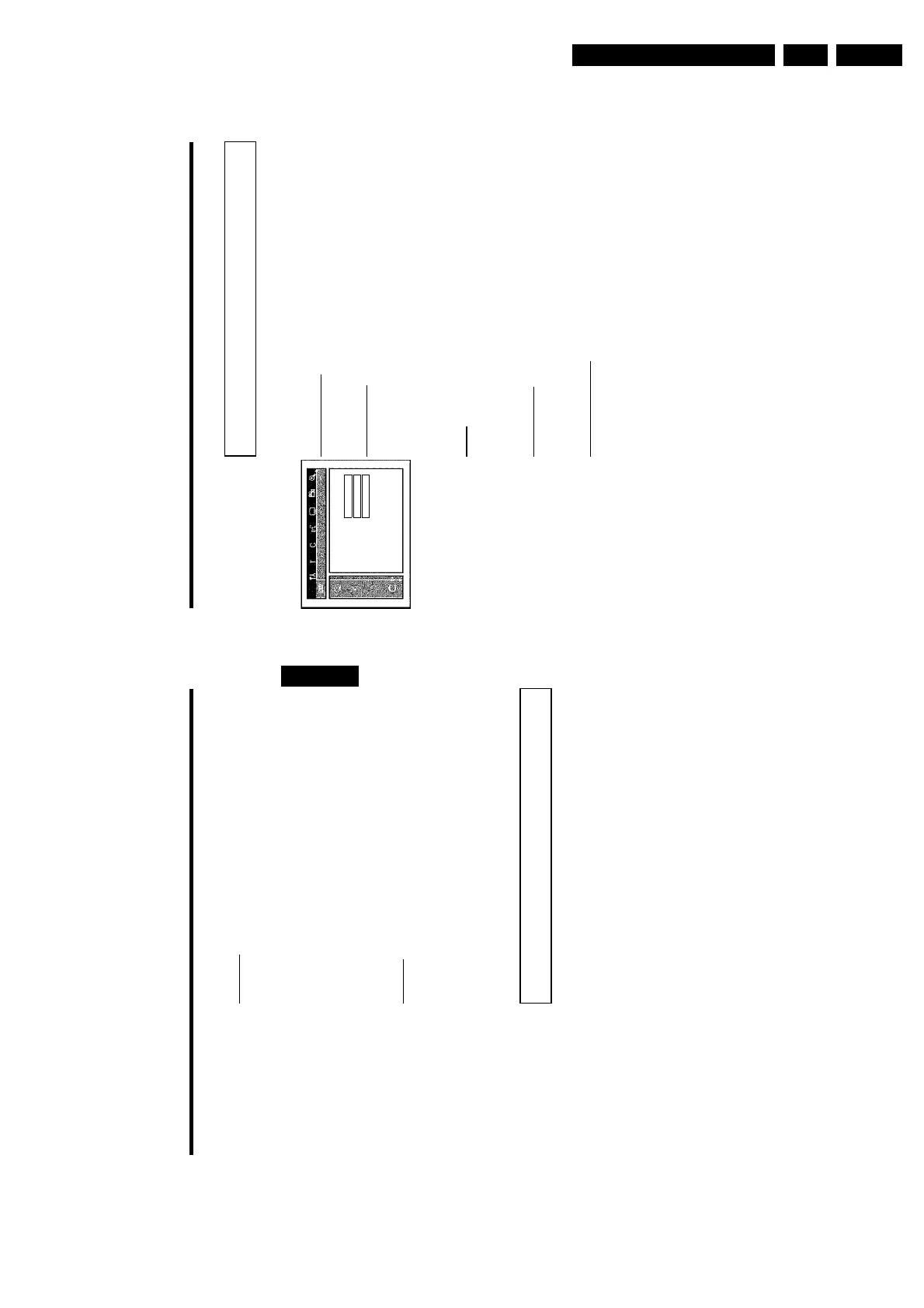
In this menu you can make the changes that relate to the disc:
Features
Status box On
Standby Off
Display Bright
'Access control'
Please read the next chapter on 'Access control (child lock)'.
'Auto resume'
If playback of a pre-recorded DVD video disc or video CD is interrupted (button STOP h or
OPEN/CLOSE J ) when the disc is reloaded (disc is started) playback starts at the precise
location where it stopped. This applies not only to the current disc but to the last 20 discs
played.
This feature can be switched off if not required.
'PBC'
This line appears only if a VCD is loaded.
This function lets you activate or deactivate the PBC menu (Playback Control) for video CDs.
See 'Playing a (Super) Video CD'.
'Finalise disc'
This feature allows you to finalise DVD+R discs. If the disc has already been finalised this line will
appear darker.
'Adapt disc format'
If a DVD+RW has been recorded in a computer drive or in another DVD recorder the index
screen may not be displayed correctly.
This feature allows you to change the format of the disc.
It is therefore only visible if the disc format is different.
User preferences
71
'Standby'
To save power, you can switch off the clock display on the DVD recorder. Programmed
(TIMER) recordings will still take place.
In addition, you can present the most important features of the DVD recorder in scrolling text
in the display (demo).
'Low power': If the DVD-Recorder is switched off (button STANDBY m ), the clock display is
also switched off.
'Off': If the DVD-Recorder is switched off (button STANDBY m ), the clock display is visible.
'Demo mode': If the DVD recorder is switched off with the STANDBY m button, a list of the
most important features is shown in the display.
'Display'
You can change the brightness of the display on the DVD recorder. This setting only affects the
DVD recorder when it is switched on.
'Bright': The display appear with normal brightness. The disc tray light is switched on.
'Dimmed': The display appears less bright. The disc tray light is switched off.
'Off': The display and the disc tray light are switched off.
Remote Control settings
In this menu you can set the remote control type to which your DVD recorder should respond.
'DVD player': The DVD recorder responds to a DVD player remote control.
The DVD recorder also responds to the remote control of a DVD player (remote
control code RC-6). Choose this setting if your Philips TV remote supports DVD
functions.
'DVD recorder': The DVD recorder only responds to the supplied remote control.
ENGLISH
User preferences











 To Next Page