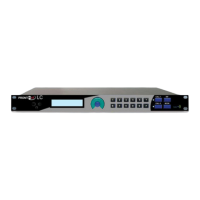
Prontonet User’s Manual v410 29
MAIN MENU
{NET}ENC CONF INF
THE MENU
By pressing OK on the navigation keys you enter the system’s main menu
from the default STATUS screen. We shall take a close look at the different
options available in the system menu. To aid in this, we recommend the reader
to have to hand the hierarchical menu tree in the appendices of this manual.
IV.1 The Controls: Navigation keys
Using the on-screen menus the user can control all the functions of the
ProntoNet. Using the ⇐, ⇑ and ⇒ keys it is possible to move around the system
menus and with the OK key select the desired options. Here is some more detail
on each of these keys:
⇒ : Moves to the menu option on the right. When we reach the last option, a
further press of this right arrow will cycle us round again to the first option, i.e.
we go to the left-most end of the list. The option that is available for selection
will appear on the display inside brackets ( {} ).
⇐ : Moves to the menu option on the left. When we reach the first option, a
further press of this left arrow will cycle us round again to the last option, i.e. we
go to the right-most end of the list. The option that is available for selection will
appear on the display inside brackets ( {} ).
⇑ : Returns to the previous level of the menu. If we keep pressing this key we
will leave the system menu completely and return to the STATUS screen.
OK : This selects or confirms the option that is selected (between the brackets)
and where relevant activates the subroutine associated with this option.
IV.2 Main Menu:
The main menu has the following options:
NET: This allows us to select the communications port required.
ENC: Here you can configure Encoders 1 and 2
CONF: Here you can configure various general parameters of the unit, for
instance selecting the audio input or setting up the LAN port.
INF: From here you can obtain information on the software version and
various configuration parameters of the ISDN port.
Chapter IV


 To Next Page