Device Manual CANlink wireless
Getting started
PROEMION GmbH | Phone: +49 661 9490-600 | Fax: +49 661 9490-666 | info@proemion.com | proemion.com | Version 1.0 47
© 2016RM MICHAELIDES● VX.X ● Device Manual CANlink 5000 series © 2016RM MICHAELIDES● VX.X ● Device Manual CANlink 5000 series © 2016 PROEMION GMBH > 1.0 EN > Device Manual CANlink wireless 3000 series
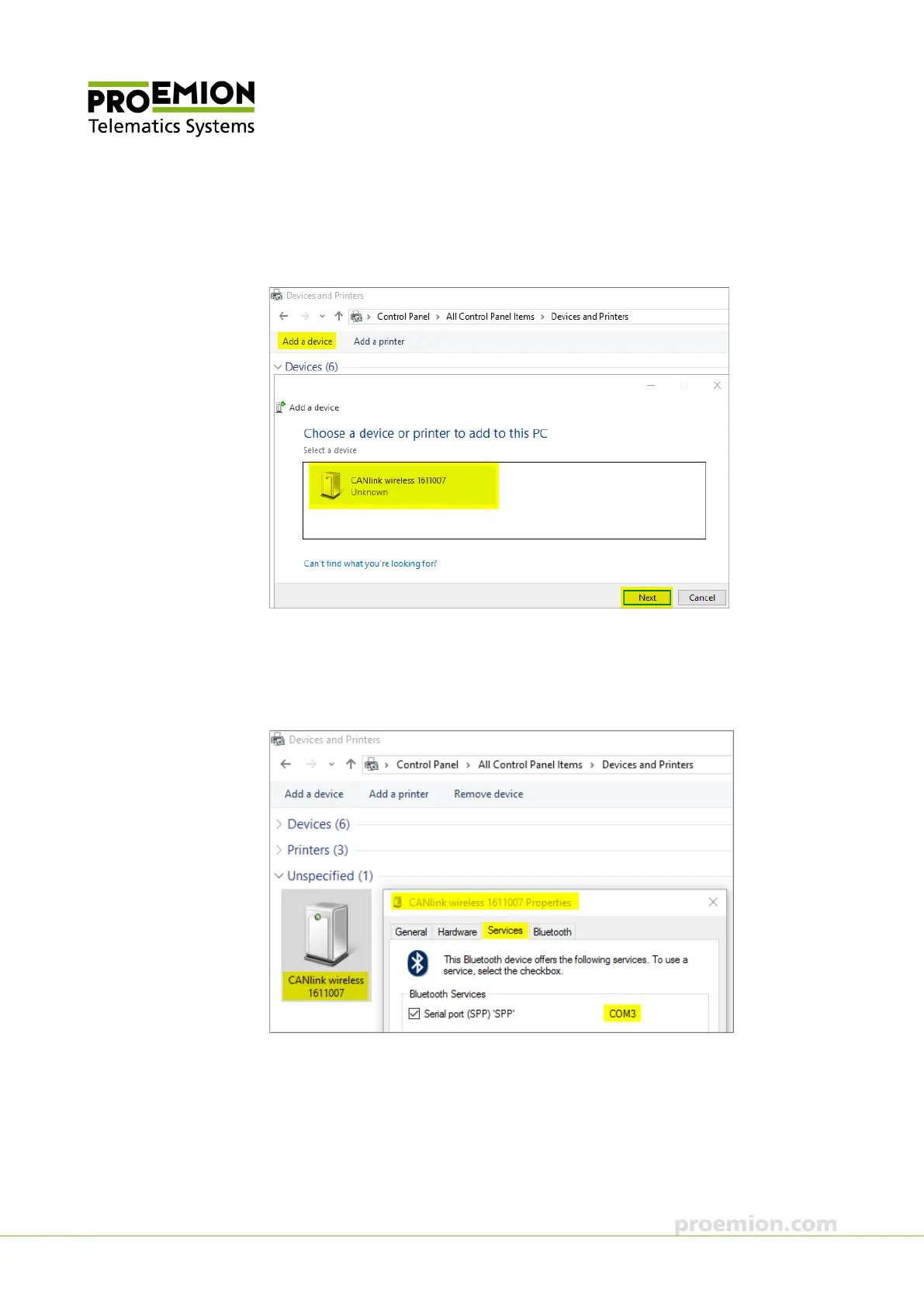
6. In Windows System Control Panel / All Control Panel Items / Devices and Printers,
click on A
DD A DEVICE.
7. In the overview, select the CANlink wireless and click on C
ONTINUE.
This establishes a Bluetooth connection between the CANlink wireless and the PC.
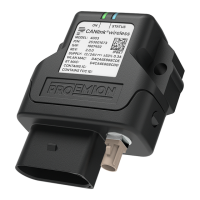
8. Identify and make a note of the COM port of the CANlink wireless used under
D
EVICES AND PRINTERS→ CANLINK WIRELESS SNNN → PROPERTIES→ SERVICES for
the Bluetooth SPP Server.



 To Next Page