Device Manual CANlink wireless
Getting started
PROEMION GmbH | Phone: +49 661 9490-600 | Fax: +49 661 9490-666 | info@proemion.com | proemion.com | Version 1.0 48
© 2016RM MICHAELIDES● VX.X ● Device Manual CANlink 5000 series © 2016RM MICHAELIDES● VX.X ● Device Manual CANlink 5000 series © 2016 PROEMION GMBH > 1.0 EN > Device Manual CANlink wireless 3000 series
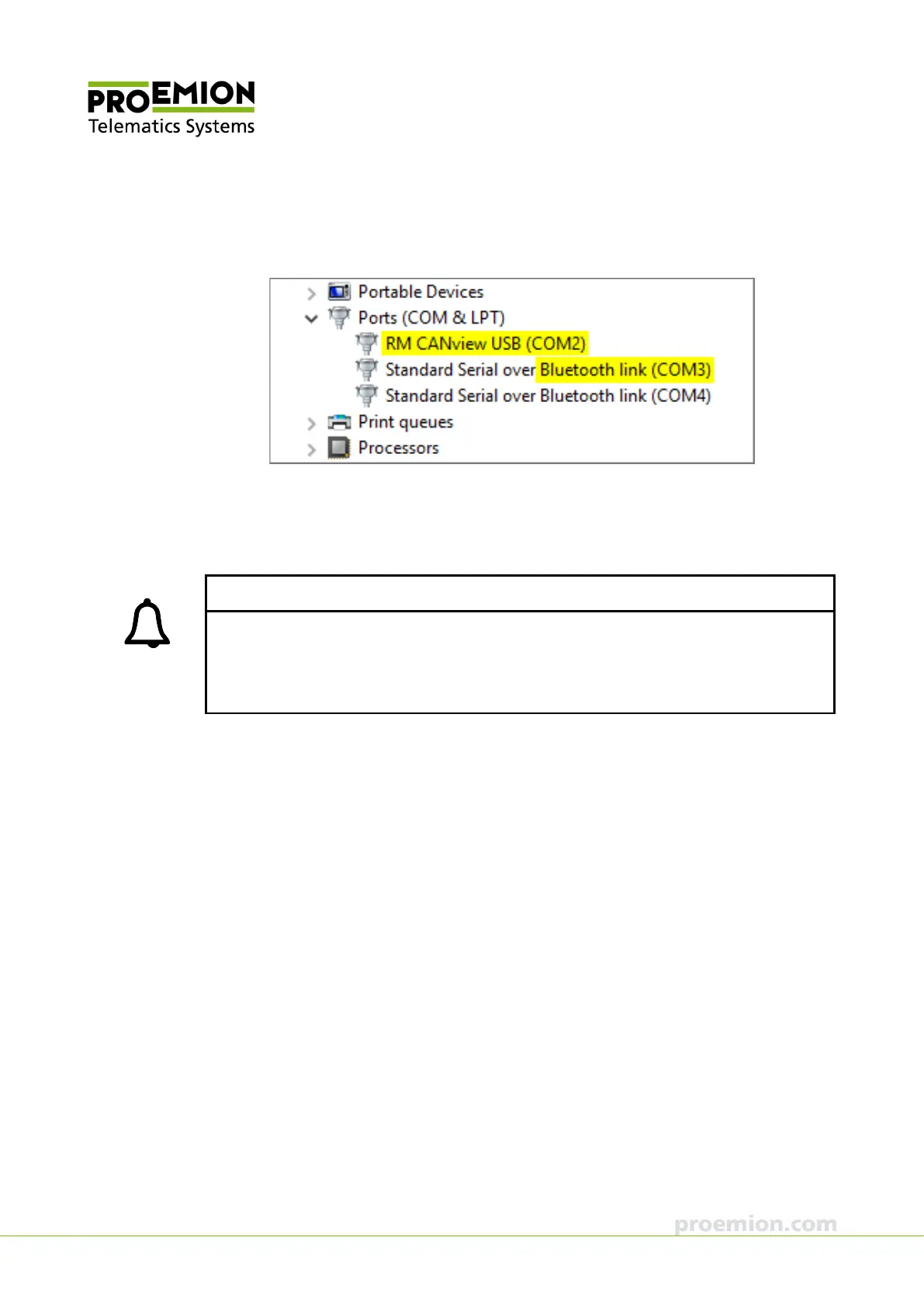
9. Identify and make a note of the virtual COM port of the CANview USB and the
CANlink wireless in the Device Manager of the PC. In the example shown here, this is
COM 2 for the CANview USB and COM 3 for the CANlink wireless.
CREATING A TEST TRANSMIT-MESSAGE WITH RM CAN-DEVICE MONITOR
1. Start the current software RM CAN-Device Monitor (Version 4.2.0 and higher) on the
PC.
INFORMATION
In the standard version of the RM CAN-Device Monitor software, not all the functions (e.g.
EDS functionality, indicators, and generators) are implemented.
The purchased version of RM CAN-Device Monitor PRO CANopen includes the full scope of
functions.
2. Click T
OOLS in the toolbar.
3. Click the C
OMM SETTINGS. tab.
4. In the list under C
ONNECTION TYPE, select the Interface SERIAL.



 To Next Page