4
Manual No. 016-0171-122 Rev. I 57
Initial Set Up and Navigation
Display Data
Note: Display Data is only accessible if the Viper Pro is set as the CAN controller.
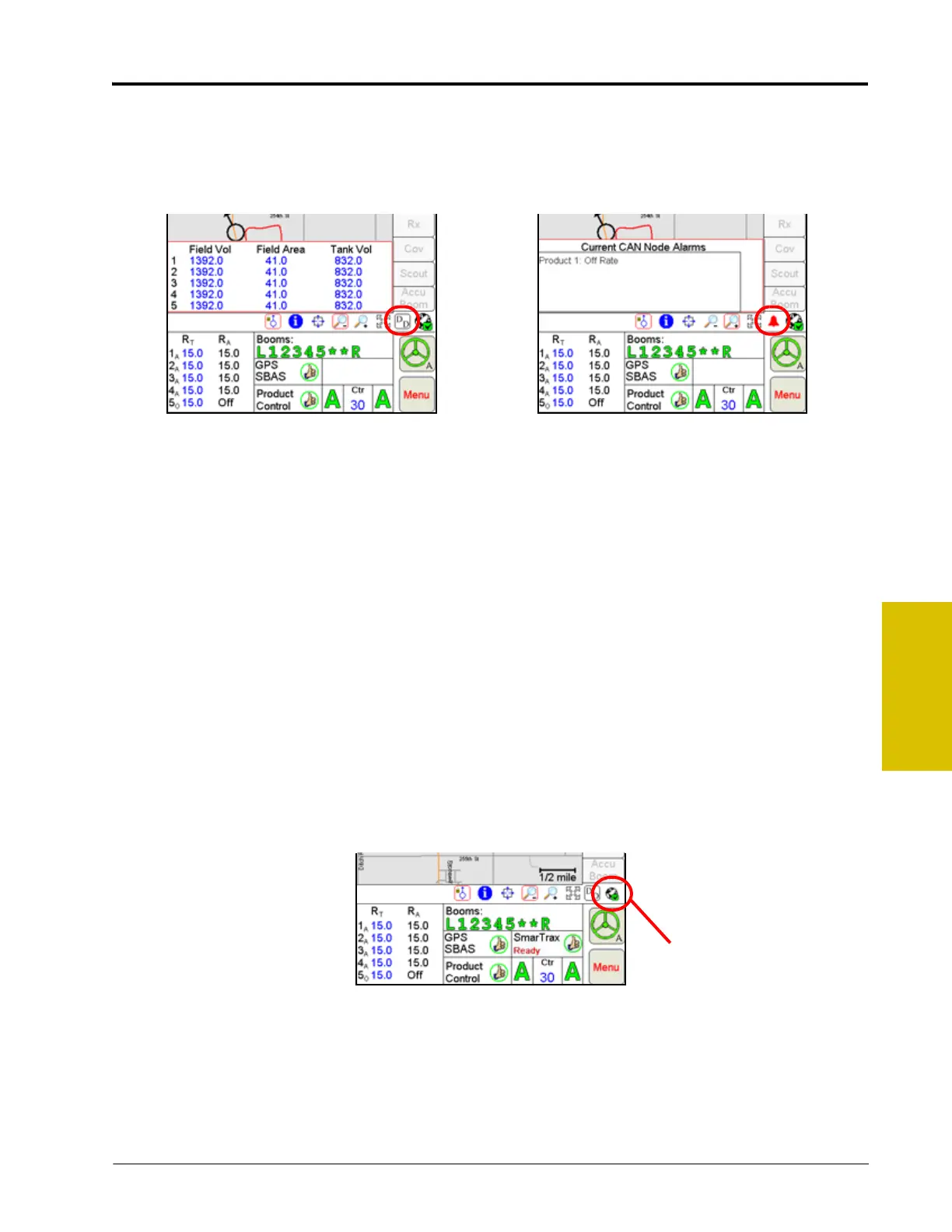
Touch the Display Data icon to access an overview of the tally register or current active alarm information for
each product node or control channel directly from the main screen.
The field volume, field area, tank volume, total volume, total area, and area per hour tallies are displayed within
the display prompt. Touch the display data prompt to cycle through the available data displays including
weather information if the optional hardware is installed. To hide the data prompt, touch the Display Data icon
again.
Note: The data tallies displayed are also available by touching within the Product Control area and
selecting the Tally Registers button at the bottom of the CAN Controller Status screen.
The display data prompt is for display purposes only and the tallied information cannot be modified
from this view. To modify the data displayed, refer to the Tally Registers section on page 98. See
Appendix I, Weather Station, for information on displaying weather data in this area using the
optional weather station.
Information for any active alarm conditions is also displayed in this area. If an alarm condition is detected, the
Display Data icon will change to a red alarm icon. Information for new alarm conditions will be displayed
automatically when the field computer detects the issue. To review current alarm information, touch the alarm
icon to display information such as the control channel and alarm type currently active.
Wireless Communication Status
The status of wireless communications is displayed on the Viper Pro main screen in the tool bar below the
map.
Note: For more information on using the wireless communication features with the Viper Pro, see
Appendix J, Wireless Communications and Remote Service.
For instructions on installing and setting up the Slingshot Field Hub, refer to the Field Hub
Installation Guide provided with the wireless device.
Wireless
Communication
Status Icon



 To Next Page