APPENDIX
A3
iii. To schedule the record session to start at a later time, select Schedule Startup
with the stylus, then enter a start time & date. Each portion of the time (hr,
min, sec) can be selected individually and adjusted using either the up or down
arrow keys, the on-screen arrow buttons next to the Time field, or the numeric
keypad. The Date field can be adjusted the same way.
iv. If scheduling the record session to start at a later time, after hitting OK on the
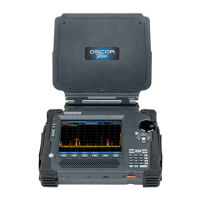
setup dialog box the OSCOR unit will switch to the Record Screen and display
the scheduled start time with a countdown. Press Stand by or F5 to turn off the
OSCOR unit. It will power back up and start recording at the scheduled time.
Press Cancel or press F6 to cancel the record session.
v. If you select Stand by mode in the step above and turn the unit back on before
the scheduled start, the OSCOR unit will return to the Record Screen with the
countdown dialog box on screen. At that time you will have the option to either
return to Stand by (F5) or Cancel (F6) the session.
c. Name and Location - select a location (either a USB flash drive or compact flash card)
and type a file name for the stored waterfall file.
5. Select OK in the dialog box to begin the recording.
6. During recording, no other operation can be performed. The status bar at the bottom of the
screen will display information about the progress of the waterfall recording. This status
information includes percent complete, the number of traces collected, and the time remaining.
7. To display the Waterfall full screen during recording, double tap on the waterfall portion of the
screen with the stylus. To return to the original screen configuration, double tap the waterfall
with the stylus again.
Opening a Trace Record Waterfall
1. If you are not already in the Waterfall | Trace Record Sub-Menu, from the Main Menu select
Waterfall | Trace Record.
2. From the Trace Record Sub-Menu, select the Review icon.
3. In the dialog box that appears, choose a previously recorded waterfall and select OK or press F5.
Note: The Trace Record session creates a folder for the waterfall data using the name you
designated while setting up the trace record session. Open this folder and select the .wfl file
inside to open the previously recorded waterfall.
4. The Waterfall Review Screen will appear.


 To Next Page
 Loading...