5. Connecting the Device via Wireless Connection (150BW models only)
50
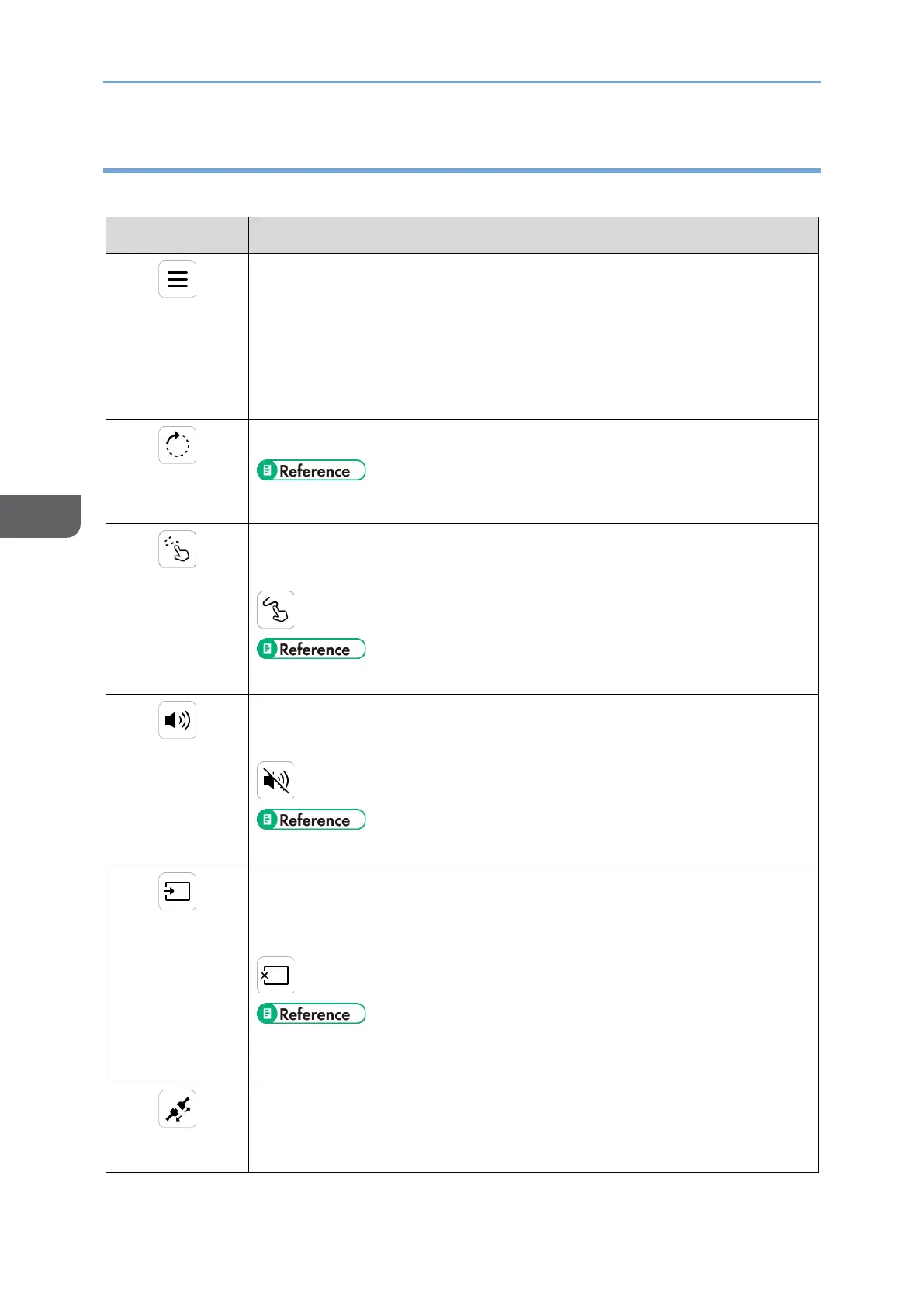
Icons of the menu displayed on the Connecting screen
Icons that are always displayed
Toggles between showing and hiding the icons displayed in the menu
You can also change the display position of the menu by touching
and moving the icon. The display position is fixed to the four corners
of the screen.
The display position of the sub-screen changes to the corner of the
screen closest to the position where the icon was moved.
Rotates the displayed screen 90° clockwise
• page 86 "Rotating the Screen"
Turns the Touch Traces ON/OFF
When turned ON, the icon will display the following:
• page 86 "Displaying the Touched Traces"
Toggles the sound mute on/off
When the sound mute is turned on, the icon changes to:
• page 87 "Muting Sound"
Toggles the screen display, sound, and touch operation on/off with a
single operation
When the AV mute is turned on, the icon changes to:
• page 87 "Disabling Screen Display/Sound/Touch Operation
Temporarily"
Disconnects the wireless connection
When two screens are displayed, the connection to the device on the
screen selected for operation is disconnected.





 To Next Page