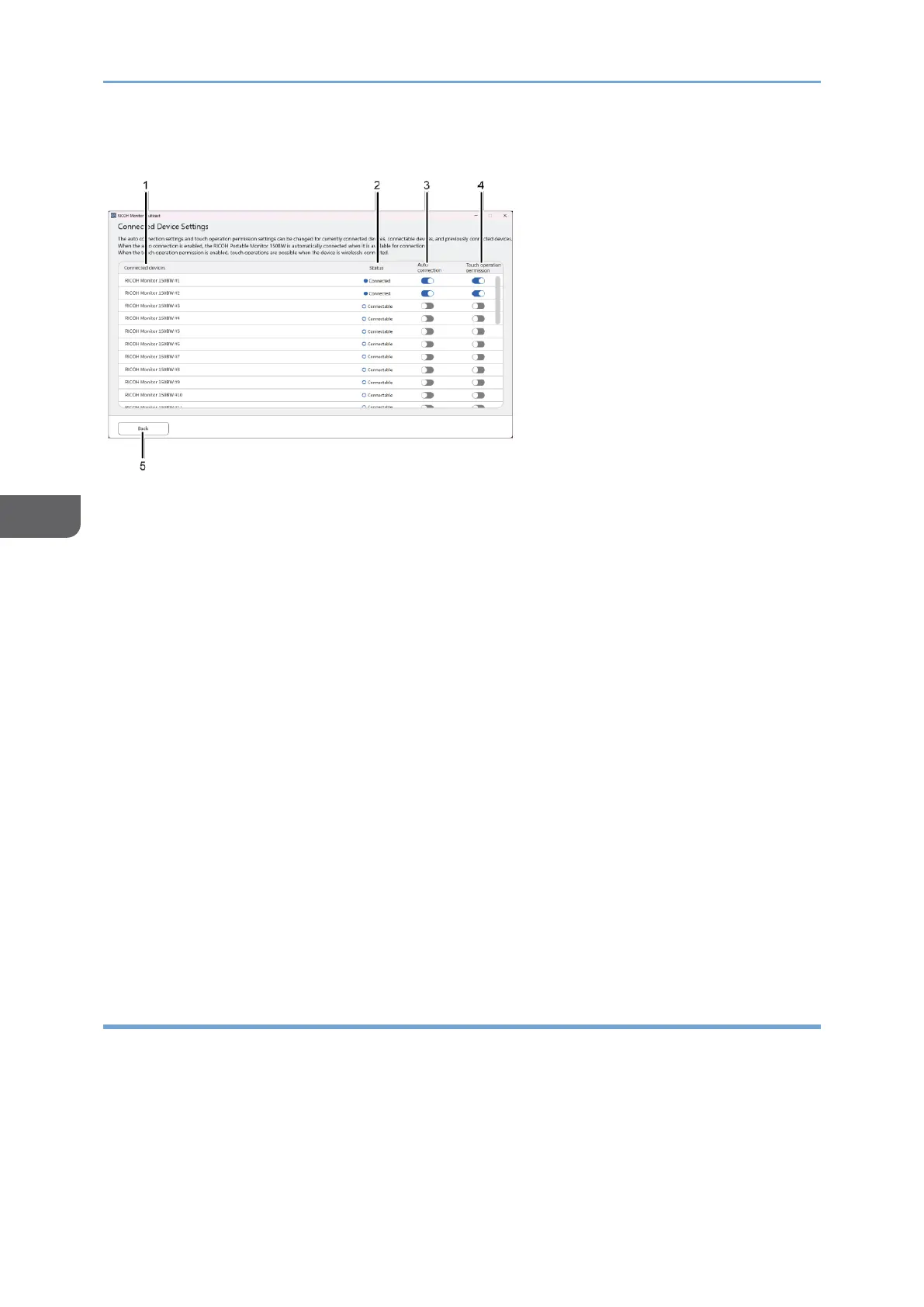
Description of the Connected Device Settings screen
1. Connectable devices
Displays the names of currently connected RICOH Monitors, connectable RICOH
Monitors, and previously connected RICOH Monitors
2. Status
Displays the connection status of RICOH Monitors
3. Auto connection
Toggles the auto connection enable / disable
When specifying the auto connection to enable, the connectable RICOH Monitors
start to wirelessly connect to the device.
4. Touch operation permission
Toggles the touch operation or stylus pen operation permission enable / disable
If you want to permit touch operations and stylus pen operations on a RICOH
Monitor, toggle on "Touch operation permission" of the RICOH Monitor you want to
give the permission.
The touch operation permission is given.
5. [Back]
Returns to the "Select Devices for Mirroring" screen
Specifying a RICOH Monitor group for connection
You can create a group by selecting RICOH Monitors from currently connected RICOH
Monitors, connectable RICOH Monitors, and previously connected RICOH Monitors. After
a group is created, the group name is displayed in the "Select Devices for Mirroring"
screen, and you will be able to manually connect the group in batch.





 To Next Page