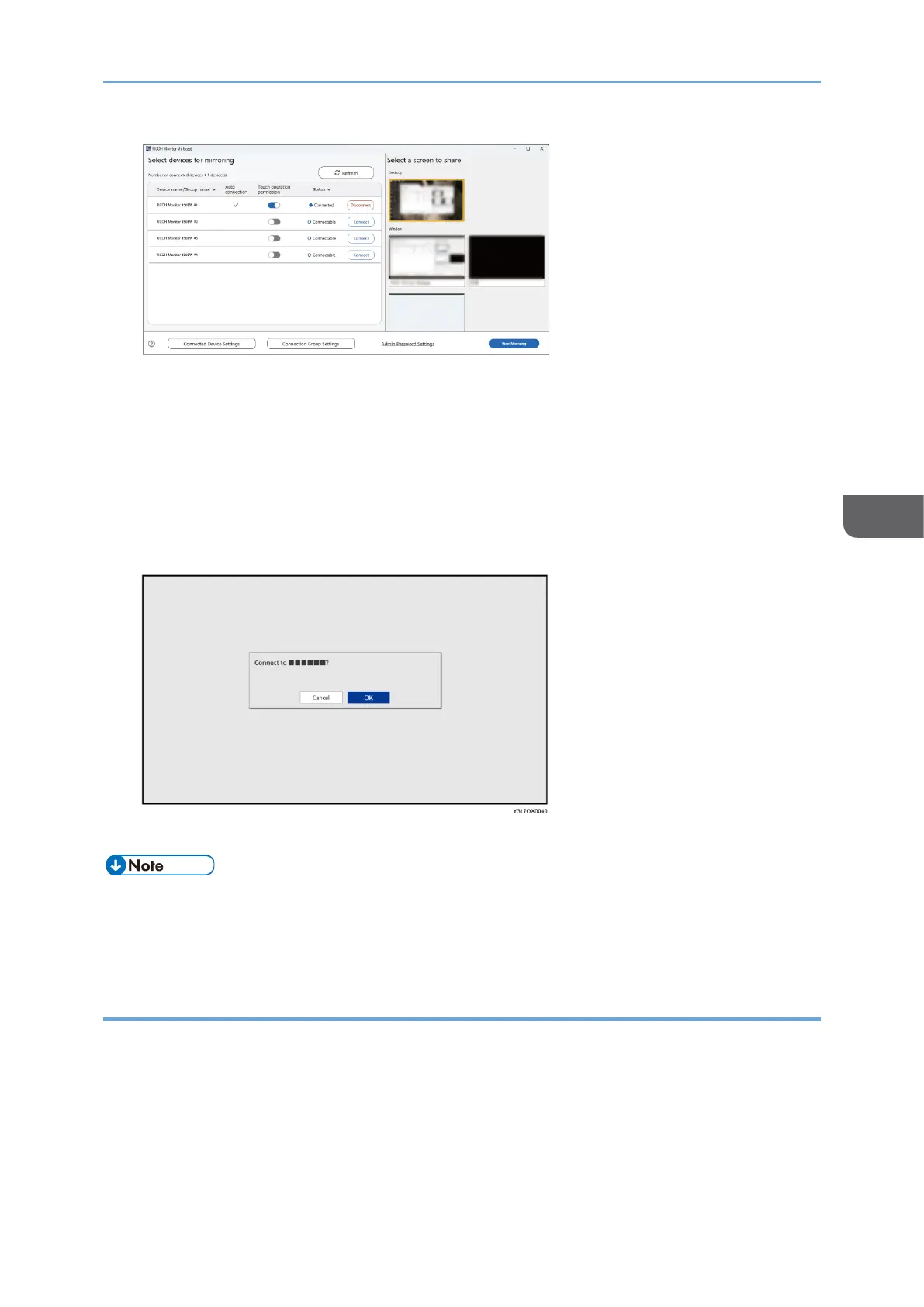
3. Click [Start Mirroring].
When the communication from RICOH Monitor Multicast for Windows to each RICOH
Monitor is successful, a message appears on each RICOH Monitor to confirm
whether the connection is allowed or not.
If the device to be connected is already registered in the Connection list of RICOH
Monitor, the message whether the connection is allowed or not is not displayed.
4. Confirm the name of the Windows device to be connected with the message
displayed on each RICOH Monitor, and then touch [OK].
The sharing is started.
• By registering the information of a device in the Connection list, it can be connected
to this machine without having to allow the connection on the device. For details,
see page 101 "Connection List".
Specifying RICOH Monitors to be connected
In the "Connected Device Settings" screen, you can change the auto connection setting
and the touch operation permission setting of listed RICOH Monitors of the Connectable
devices list.





 To Next Page