Checking the Remote Whiteboard Information
When you touch , the Share icon, during a remote whiteboard session, you can check the information
of the devices joining the remote whiteboard session.
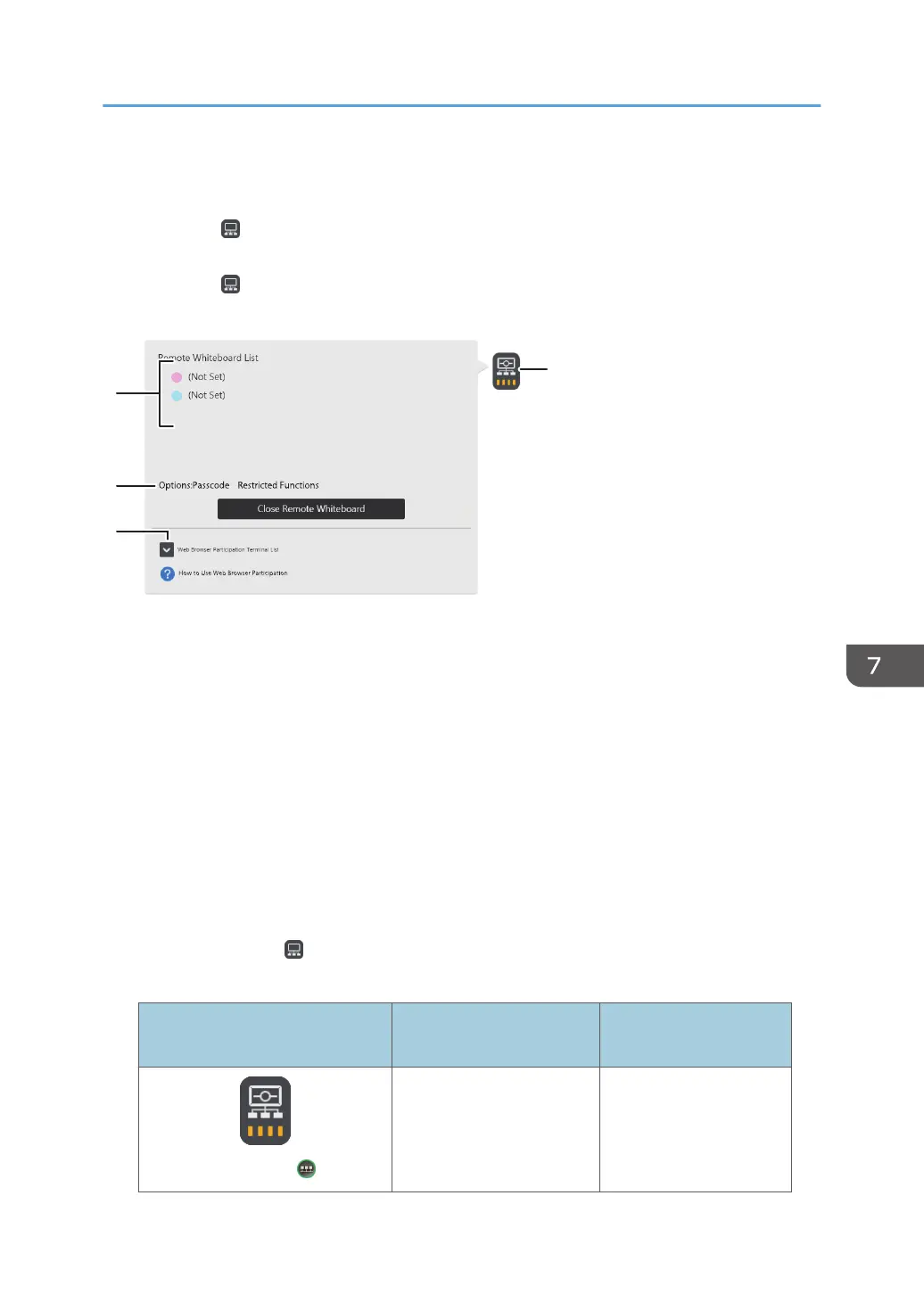
When you touch , the Share icon, the following submenu appears. The submenu indicates the status
of the remote whiteboard.
DHG356
4
2
3
1
XXX.XXX.XXX.XXX
XXX.XXX.XXX.XXX
1. Remote Whiteboard List
• Indicates the name and IP address of the device hosting the remote whiteboard session.
• Indicates the names and IP addresses of the devices participating in the remote whiteboard session.
2. Options
Indicates the options that have been set.
3. Web Browser Participation Terminal List
Indicates the IP addresses of the devices participating in the remote whiteboard session via a web browser.
4. Share icon
Indicates the network status in the bottom part of the icon.
Checking the communication status during a remote whiteboard session
You can check the communication status during a remote whiteboard session. The communication
status is indicated by , the Share icon. When you are using compatible mode, you can check the
communication status by the color of the icon.
Normal mode icon/Compatible
mode icon
Communication status Communication speed
Antenna 4/
Excellent 1.5 Mbps or more
Checking the Remote Whiteboard Information
135



 To Next Page