Managing a Template
You can import or export an image file that you want to use as a template. Also, you can configure the
default screen of the whiteboard from the list of the template after importing it.
• Keep USB flash memory devices out of reach of children. If a child accidentally swallows a USB
flash memory device, consult a doctor immediately.
Creating a Template File
Create image files and a list of template files and compress them.
1. Create an image file as a template and save it.
You can add up to 20 image files can be added to the machine as templates.
Save the image file with the following settings:
• File name: any name
• File extension: JPG or PNG
• File size: 40 MB
• Recommended resolution: 1920 × 1080 px (FHD)
2. Open a text editor, spreadsheet software or other similar application.
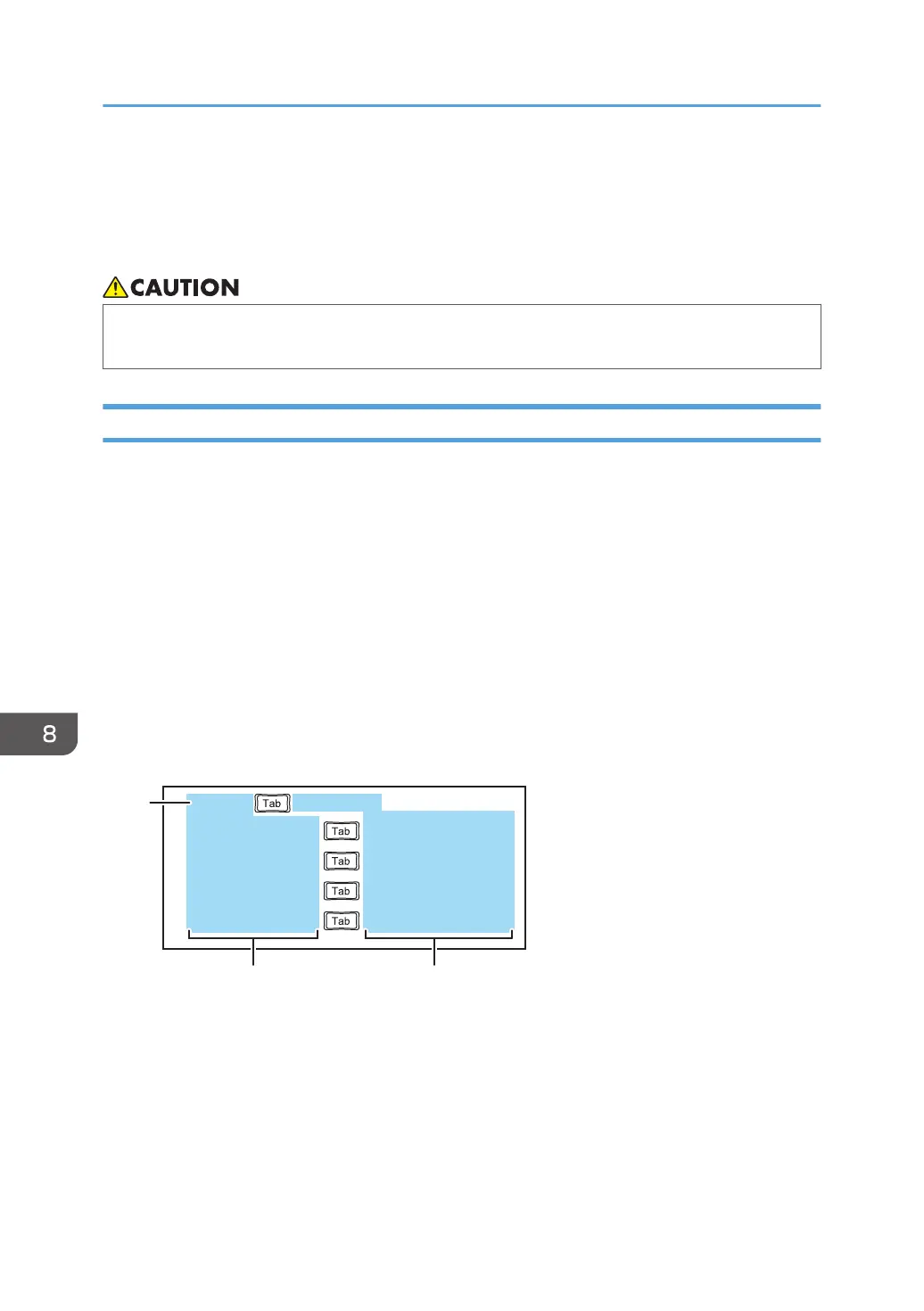
3. Enter the corresponding information for each template file in the following format:
image file name 01
image file name 02
image file name 03
image file name 04
DTW470
2
displayed file name 01
file name display name
displayed file name 02
displayed file name 03
displayed file name 04
3
1
1. Label row
Enter "file name" and "display name" by separating them with a tab.
2. Image file name column
Enter the name of the image file you want to register to the machine as a template. Enter the file name
with its extension.
8. Changing the Interactive Whiteboard Settings
172



 To Next Page