• When using the machine without the interactive pen, use the touch pen or your fingers to operate
the marker, select the menu, manage dialog boxes, and operate the applications on the desktop.
• Depending on the machine model you are using, you may be able to use the touch pen instead of
the interactive pen if the electronic pen is lost or its battery runs out. If this is the case, enable
[Handwritten Entry with Touch Pen] on the system settings. However, operating the marker and the
operation by the pen bottom will not be possible.
Writing on the Screen
Write text or draw figures using your fingers, the interactive pen, or touch pen.
Lines, automatically-recognized figures, and fair copy entry text can be automatically aligned to the grid
lines when entering, moving, reducing or enlarging the item. The Snap-to-grid function can be enabled
or disabled under the Whiteboard Detailed Settings. For details, see page 137 "Changing the Detailed
Settings".
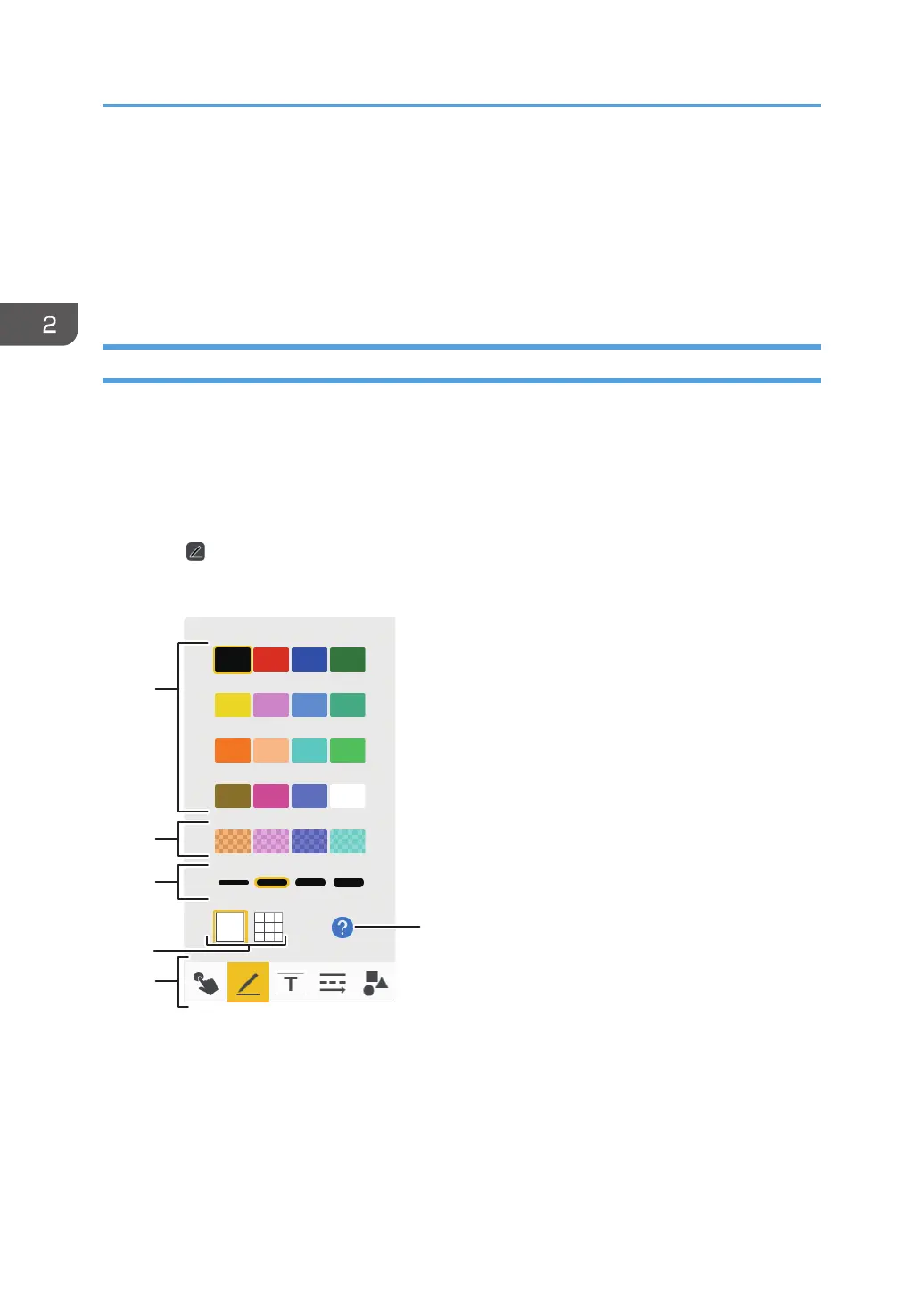
1. Touch , the Pen icon.
The Pen icon submenu appears.
1. Line colors
Selects the color of drawn lines.
2. Line colors (semi-transparent)
Selects the color of drawn lines from the semi-transparent colors.
2. Using a Whiteboard
30



 To Next Page