4. Touch [OK].
The saved files which correspond to the entered meeting code are listed.
5. Select the file you want to import.
6. Touch [Import].
The imported pages are added in sequence to the end of the page list. When the PDF file has
finished importing, the first page of the file is displayed.
Sending Pages by E-mail
You can save pages and send them by e-mail. All the existing pages can be combined within a single
PDF file.
• To send e-mail, it is necessary to configure the network and SMTP Server settings. For details about
how to configure the Network Settings, see page 149 "Configuring Network Settings". For details
about how to configure the SMTP Server Settings, see page 157 "Configuring SMTP Server
Settings".
1. Touch
, the Import and Save icon.
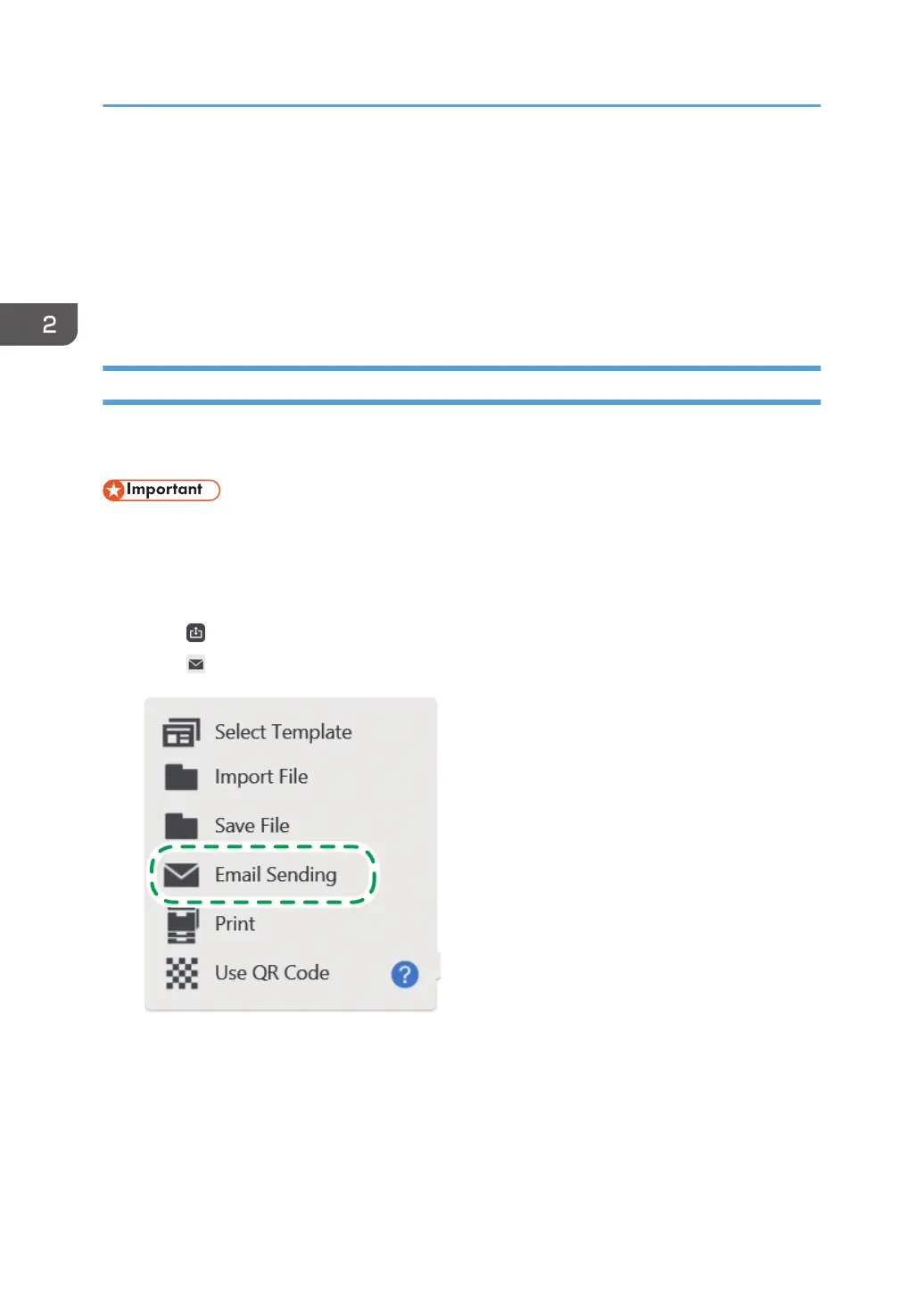
2. Touch , [Email Sending].
3. To change the file name of a PDF file attached to an email, specify a password to the PDF
file, prevent editing of the PDF file from being changed, or reduce the size of the file to be
saved, touch [Option Settings for Saved File].
If you do not change the settings, proceed to the next step.
2. Using a Whiteboard
64



 To Next Page