Adjusting Touch Sensor Positions
If the position detected when the screen is touched by the pen is out of place, you can adjust the touch
sensor position.
• This function is only available on RICOH Interactive Whiteboard D5510.
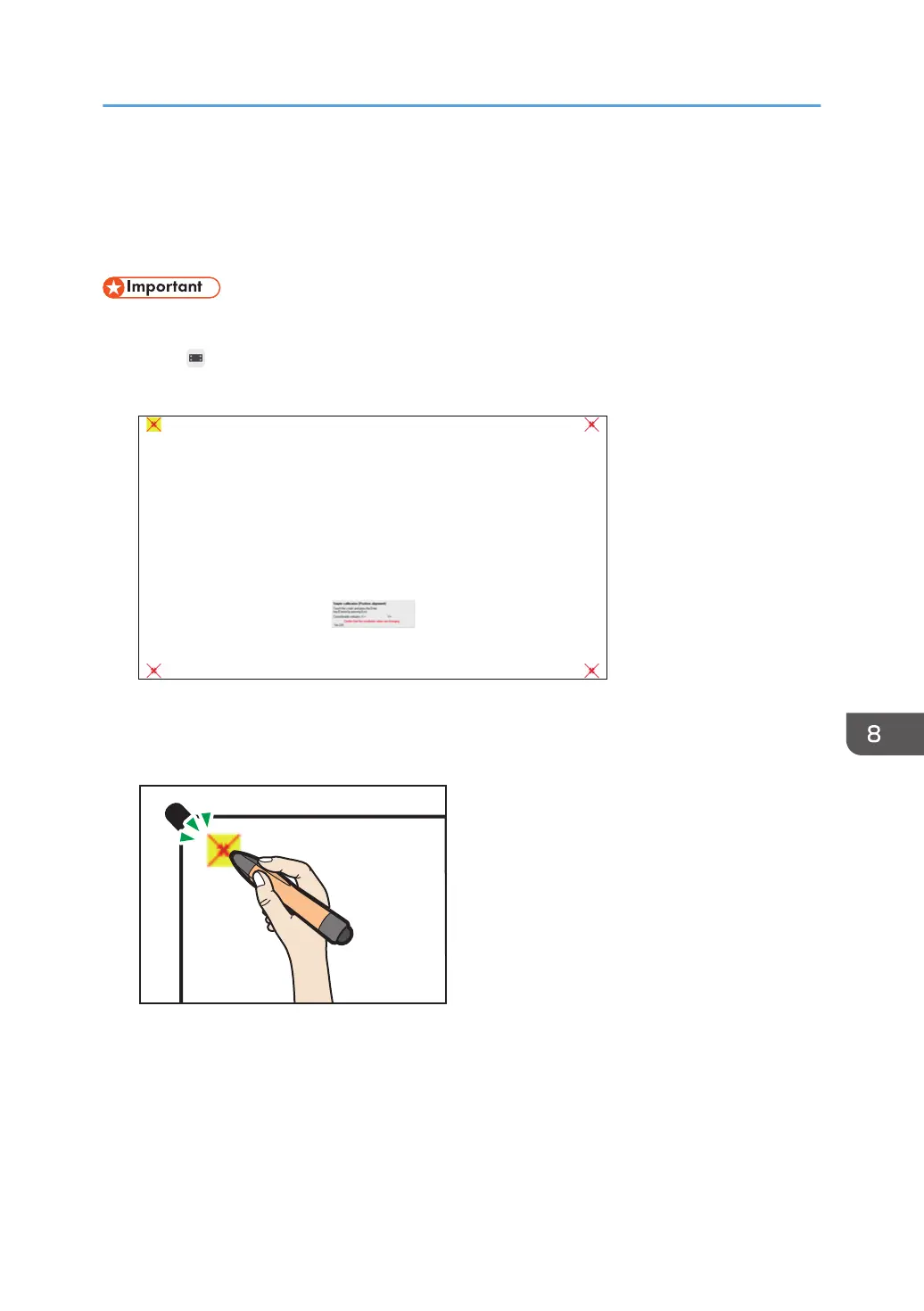
1. Touch , the Adjust Touch Sensor Position icon, in General Settings.
A screen for sensor adjustment is displayed on the entire display screen.
2. Touch each highlighted area in turn to configure the position of the touch sensor.
The highlighted area to be touched moves from the upper left to the lower left, lower right, and then
upper right.
When the last area is completed, a message appears.
When ten seconds have elapsed after the message appears, [OK] is automatically selected and
the adjustment is finished.
3. Touch [OK].
Adjustment is carried out.
Adjusting Touch Sensor Positions
147



 To Next Page