Adding or Deleting Your Remote License
This section explains how to enable the remote whiteboard session by adding a license code of Remote
License, which is an external option.
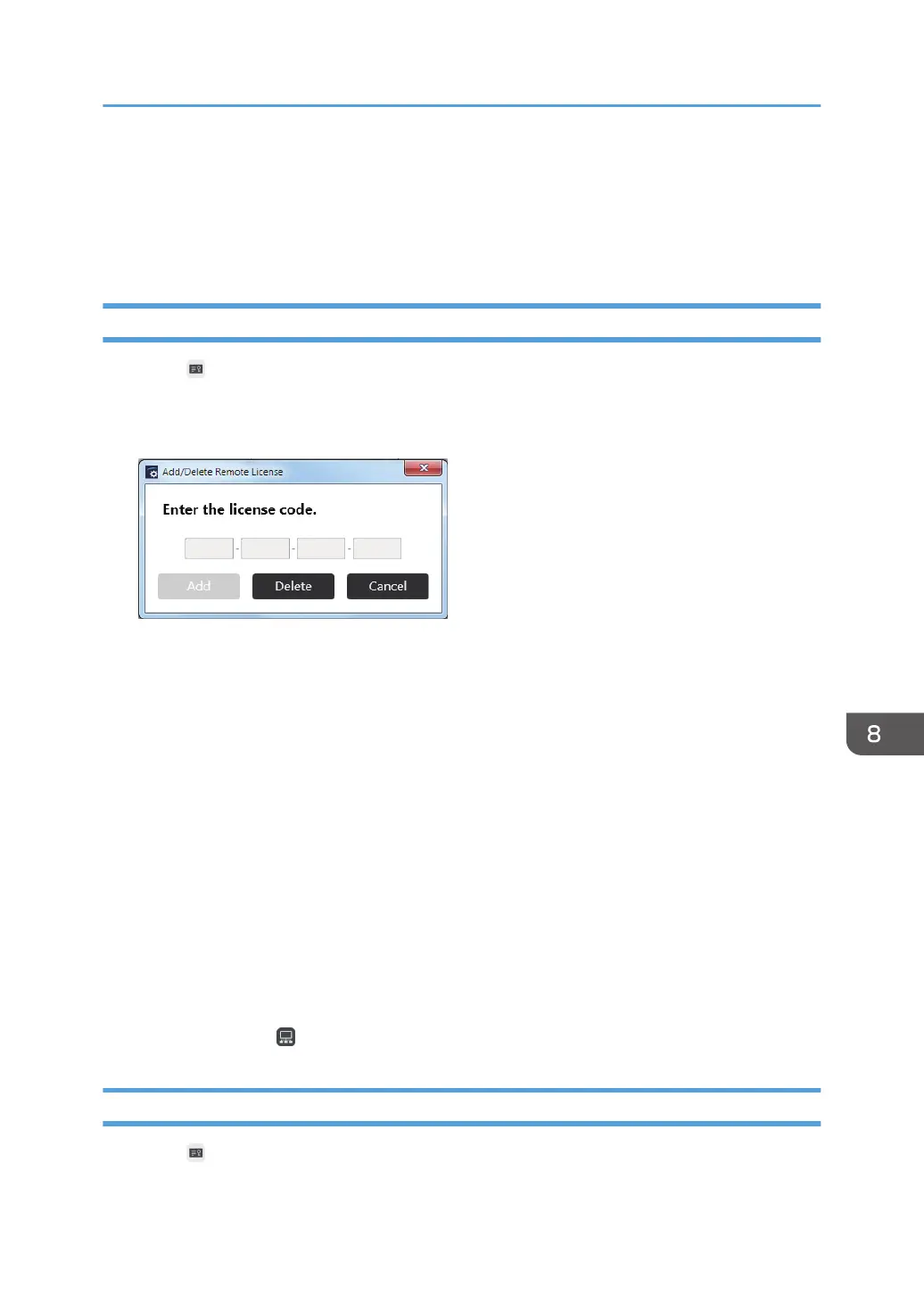
Adding Your Remote License
1. Touch , the Register/Delete License icon, in Administrator Settings.
2. Touch [Change] of "Remote Whiteboard"
3. Display the touch keyboard and enter your license code.
The method to display the touch keyboard varies depending on the machine. It may take
approximately 2 seconds until the touch keyboard is displayed.
• If the [Software Keyboard] icon is displayed on the desktop, touch this icon twice quickly.
• If the [Software Keyboard] icon is not displayed on the desktop, use the pen nib to move the
point to the upper left corner of the display and touch the frame that appears.
The license code is not case-sensitive. You can enter the license code in either uppercase or
lowercase.
4. Touch [Add].
When your license code is authenticated, a completion message appears.
If the entered license code is incorrect, an error message appears. Check the license code and
enter the correct one.
5. Touch [OK].
After the registration is complete, close the administrator settings screen, start the main screen of the
machine, and then check that [Open] and [Join] in the remote Whiteboard submenu that appears
when you touch the Sharing icon are enabled.
Deleting a Remote License
1. Touch , the Register/Delete License icon, in Administrator Settings.
2. Touch [Change] of "Remote Whiteboard"
Adding or Deleting Your Remote License
155



 To Next Page