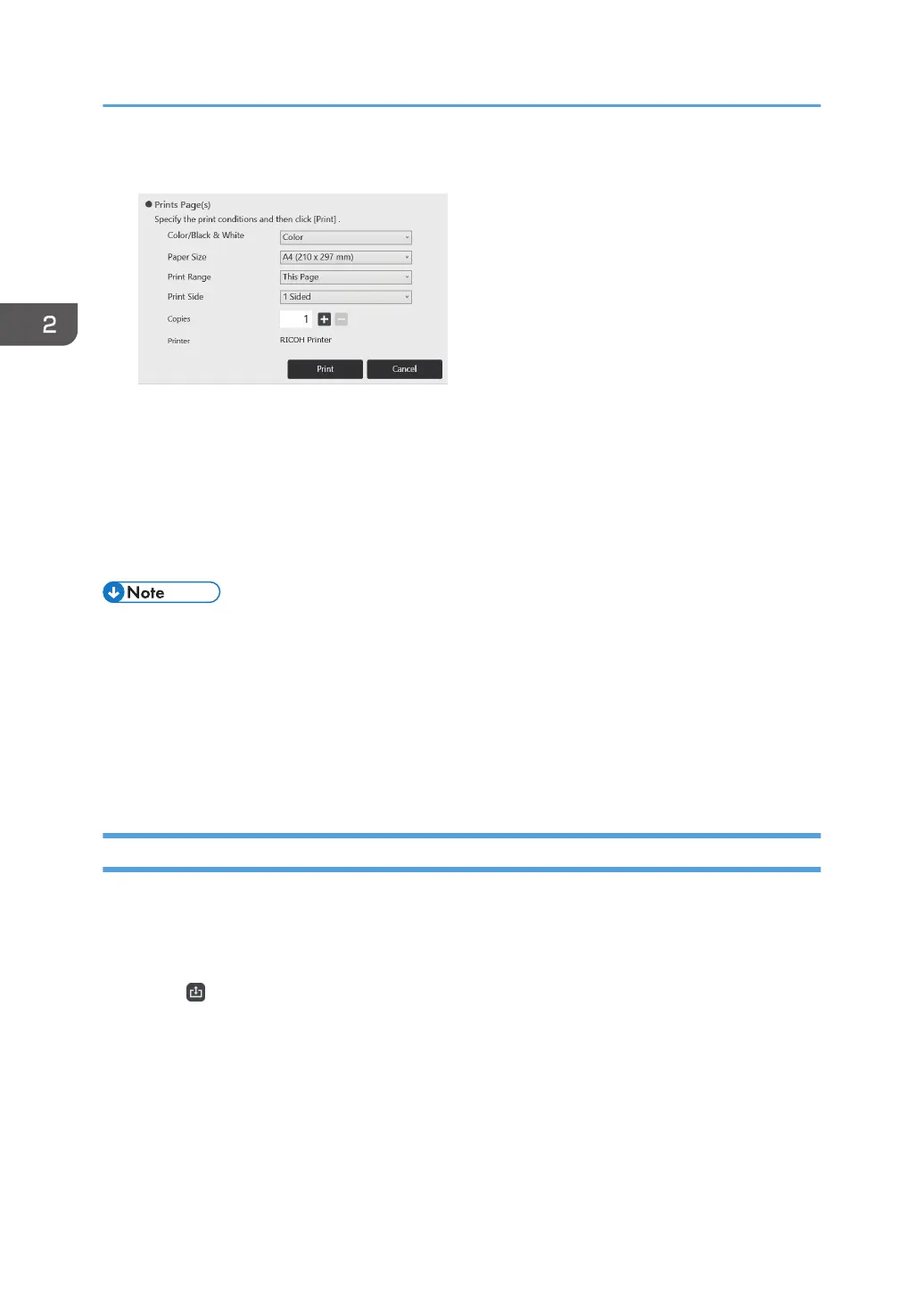
3. Specify the print conditions.
• When you select "This Page" in "Print Range", you can print only the displayed page.
• When multiple copies are selected, the pages are collated and the specified number of
copies is printed.
• An available printer or multifunction printer is displayed in "Printer".
4. Touch [Print].
Each page is printed with the images and information centered horizontally.
• Depending on the model of the machine you are using, printing cannot be performed for
approximately 2 minutes after the whiteboard screen starts.
• If the window for specifying printing conditions is open while the remote whiteboard is being used,
no operations can be performed on the screens of the machines that are sharing the remote
whiteboard.
• You can print pages by sending them to a multifunction printer via e-mail. For details, see page 66
"Printing pages by specifying the multifunction printer (Mail to Print function)".
Linking with a Smart Device
By using RICOH Smart Device Connector, you can connect to the machine from smart devices.
To display the files shown on a smart device on the machine or to save the pages displayed on the
machine to a smart device, scan the QR code from the machine that is displayed on the smart device.
1. Touch , the Import and Save icon.
2. Using a Whiteboard
72



 To Next Page