Changing User Authentication Settings
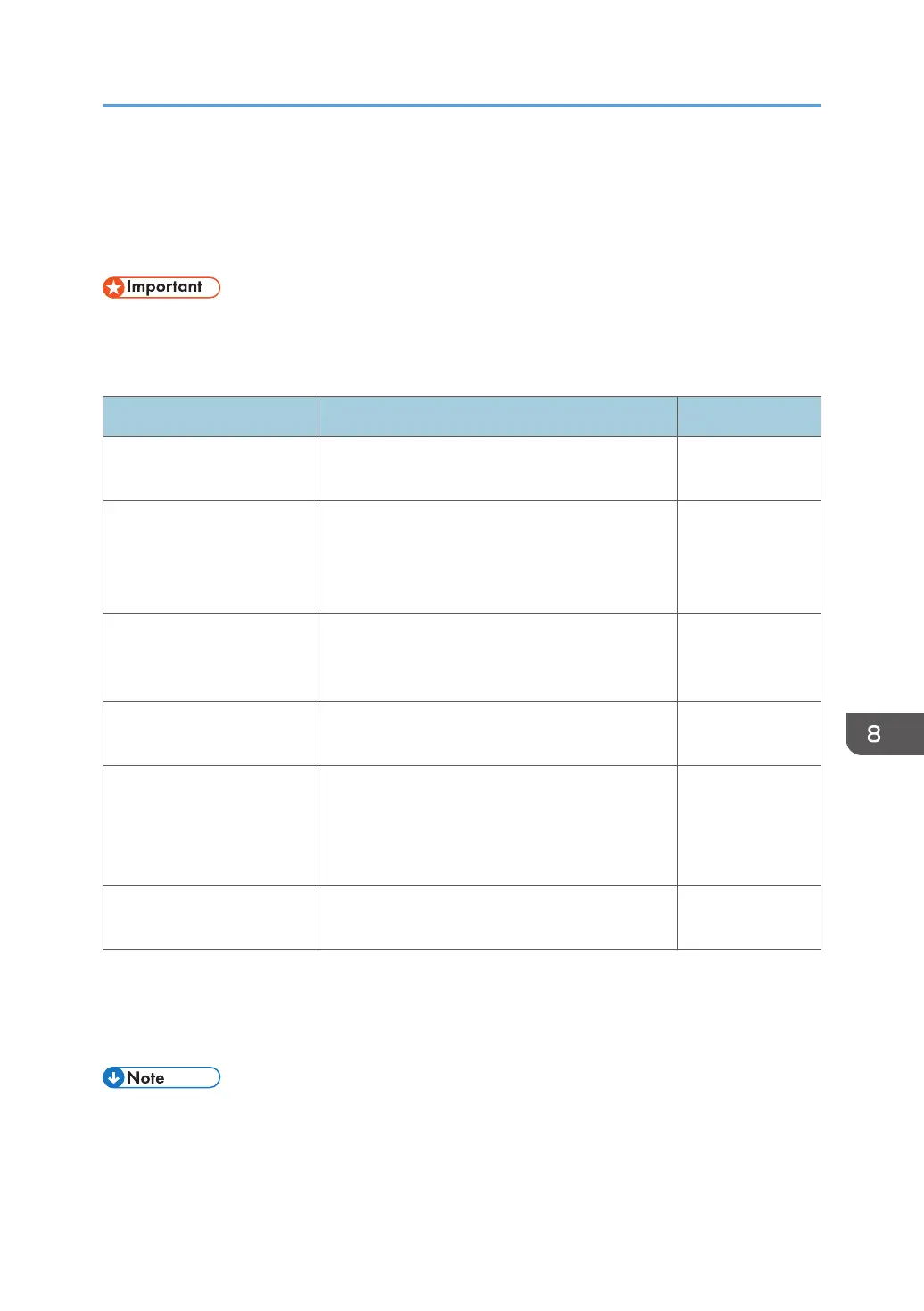
You can configure the following settings on the User Authentication Settings screen under Administrator
Settings:
• This setting cannot be configured from the Administrator Settings on the machine. To configure this
setting, use the Administrator Settings Web page. For details about how to access the Administrator
Settings Web page, see page 142 "Opening Administrator Settings".
Item Description Initial value
Use user authentication
function
Specify whether or not to use the RICOH
Streamline NX-based authentication function.
Not Selected
Server Address
*1*2
Specify the address of the AAM (Authentication
and Accounting Manager) server. Enter the
domain name or the IP address of the server (up
to 256 characters).
Blank
Port Number
*1*2
Enter the port number of the AAM server (an
integer from 1 to 65535). The default port
number of the AAM server is 8444.
Blank
Connection Test
*1
Performs the connection test for the authentication
server.
-
Upload
*1
Imports the image used as the background on the
login screen, if necessary.
If any background image has been imported, the
image is overwritten.
-
Delete
*1*3
Deletes the imported background image on the
login screen.
-
*1
This item can be configured if the RICOH Streamline NX-based authentication function is used.
*2
The configured value is not changed when [Use user authentication function] is not selected.
*3
This operation can be executed only when the background image has been imported.
• The image file to be used as the background for the login screen should be a JPEG file of less than
20 MB. If you import an image file from Internet Explorer, there is no file size limit.
• If you click [Upload] or [Delete] without applying the settings, the entered value is not saved when
the browser is reloaded.
Changing User Authentication Settings
189



 To Next Page