Changing the Security Settings
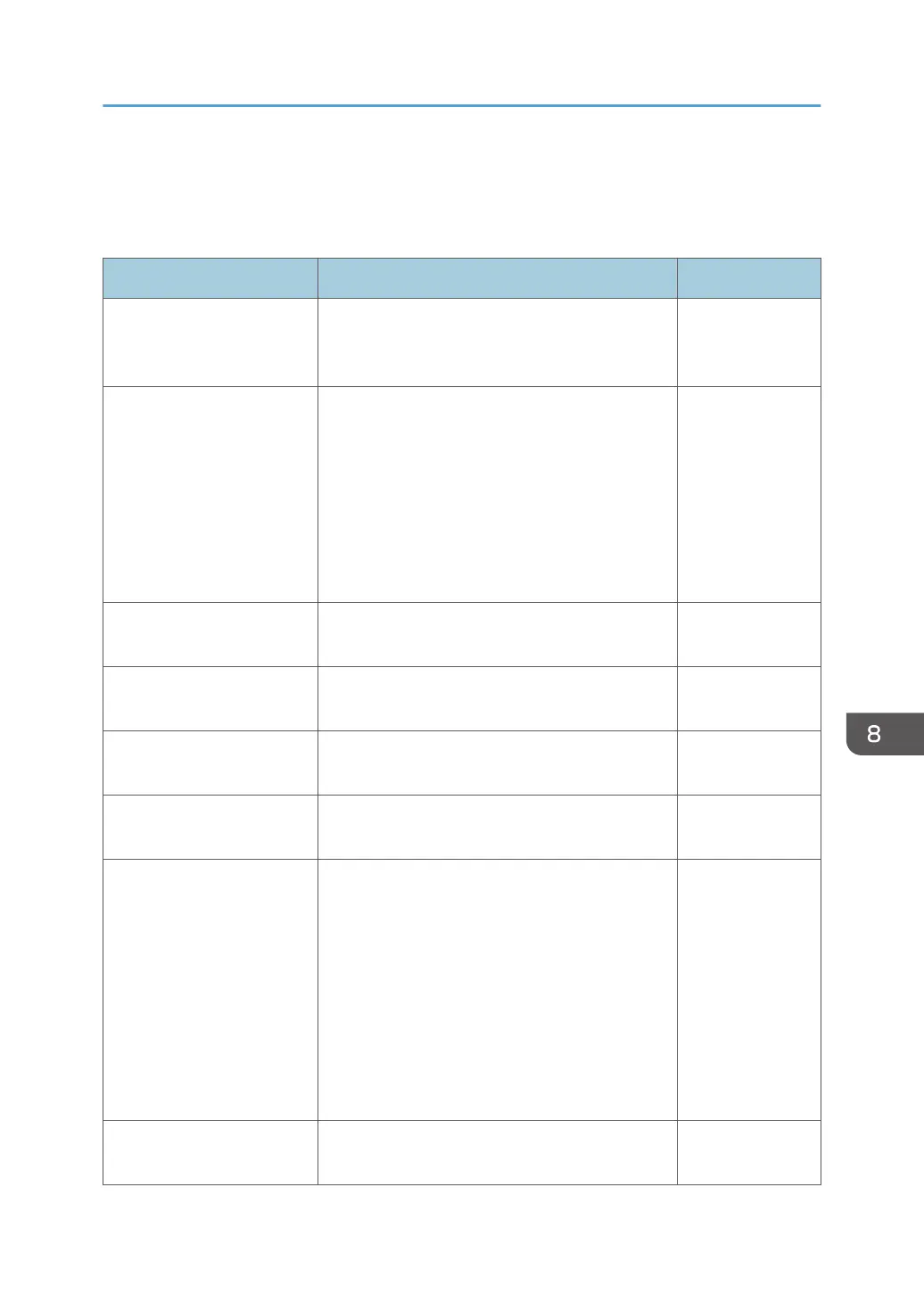
You can configure the following settings on the Security Settings screen under the administrator settings:
Item Description Initial value
Limit domain of email
address
Select this item so that only domains that are
specified under [Specify Domain] can be selected
as the destination of an outgoing e-mail.
Not selected
Specify Domain
*1
Up to 100 domain names can be specified when
[Limit domain of email address] is enabled.
Create a text file (.txt) in the root directory of a
USB flash memory device. Enter the label name
"Domain" in the first line, and in each following
line, enter a domain name using up to 255
characters. Save the file, and then touch [Import]
to import the file.
-
Prohibit direct entry of email
address
Specifies whether or not to prohibit direct entry of
an e-mail address when sending e-mail.
Not selected
Invalidate email address
history
Specifies whether or not to disable the record of
e-mail addresses that are directly entered.
Not selected
Minimum passcode digits Specifies the number of digits (from 4 to 10) to be
used as a passcode.
4
Specify passcode on starting
whiteboard
Specifies whether or not to display the passcode
entry screen when starting the whiteboard.
Not selected
Display IP Address, Host
Name and Passcode
Specifies whether or not to automatically mask
the following information in the upper part of the
mail control screen:
• Host Name
• IP Address
• Passcode
When [Auto Hide] is selected, the entered
passcode is automatically masked one minute
after it has been displayed.
Auto Hide
Fix to [Open with Passcode] Specifies whether or not to require a passcode
when starting a remote whiteboard.
Not selected
Changing the Security Settings
187



 To Next Page