3. Thickness of the line
Selects the thickness of the drawn lines.
4. Grid line
Switches between showing and hiding the grid line on the screen.
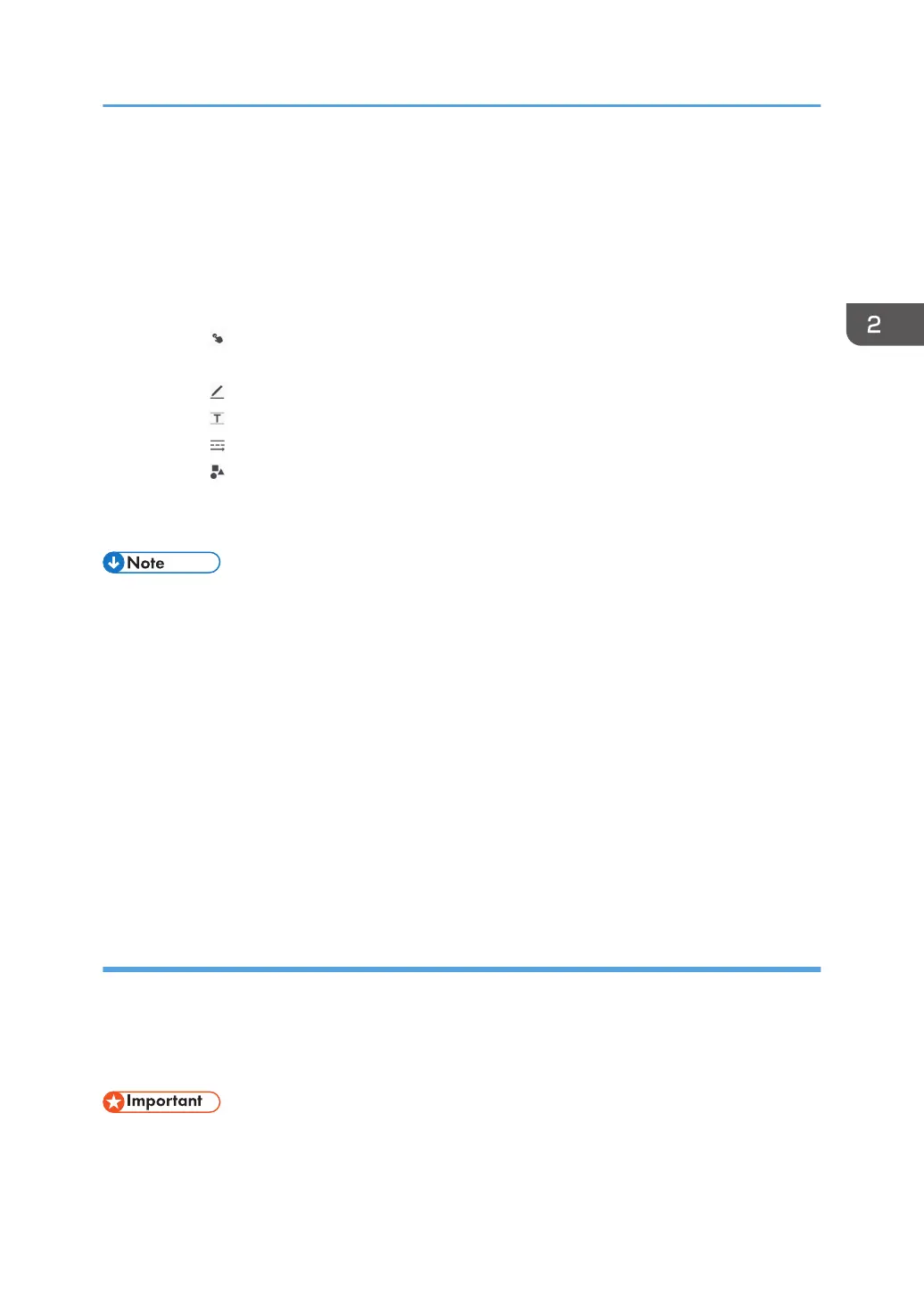
5. Entry mode
Selects the type of the item to draw.
• Writing in marker entry mode (page 31 "Writing in marker entry mode")
This icon is not displayed when the interactive pen is enabled.
• Writing in handwritten entry mode (page 32 "Writing in handwritten entry mode")
• Writing in fair copy entry mode (page 33 "Writing in fair copy entry mode")
• Writing in line entry mode (page 34 "Writing in line entry mode")
• Writing in stamp entry mode (page 35 "Writing in stamp entry mode")
6. Explanation of the various writing operations
Displays the explanation screen for various operations.
• The selection buttons that correspond to each entry mode are displayed for the following entry
modes: copy text entry, line entry, and stamp entry.
• To deepen the color of the grid line, select the [Darken the color of grid/guide line] check box in
System Settings. For details, see page 182 "Changing the System Settings".
• 3,000 total strokes, fair copy entry text, figures, and stamps can be drawn on a single page. The
maximum number of each item that can be entered on a single page is as follows:
• 3,000 strokes
• 1,000 characters (Japanese, Chinese), or 1,000 words (alphanumeric characters)
• 1,000 figures
• 500 stamps
• 90,000 total strokes, fair copy entry text, figures, and stamps can be drawn on all pages.
Writing in marker entry mode
A marker is a semi-transparent, thick line drawn with your finger or touch pen. The drawn marker
disappears in a few seconds after it is drawn.
A marker is useful to indicate an important portion of written text, drawn figures, or a displayed image to
which you want to draw attention. This function can also be used while a remote whiteboard is used.
• This icon is not displayed when the interactive pen can be used. When you use the interactive pen,
touch the screen with your finger and slide it across the surface to draw markers.
Basic Operations
31



 To Next Page