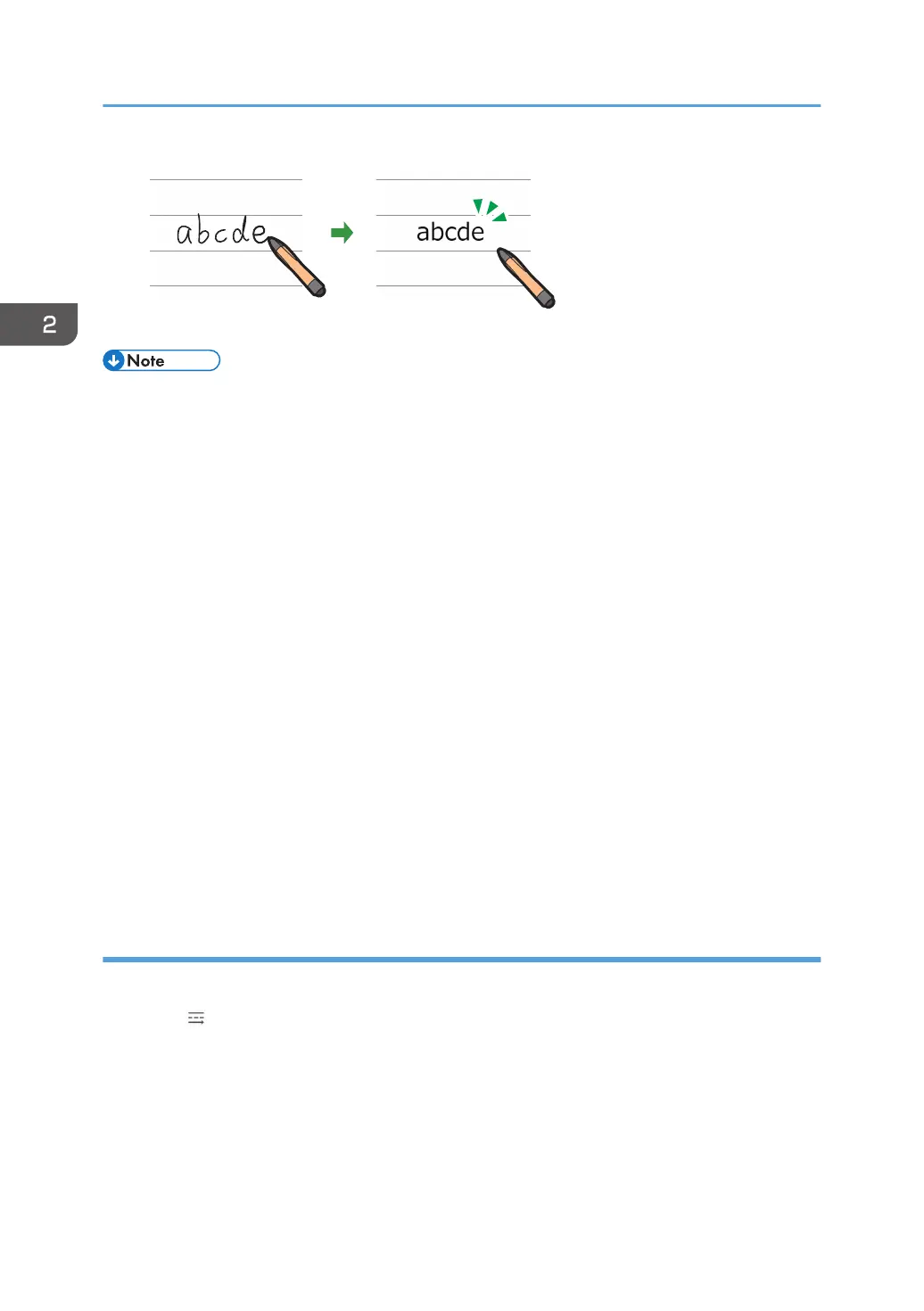
• Japanese or Chinese characters are recognized and converted into text for each single character.
Alphanumeric entries are recognized for each single word.
• If a hand-written Japanese or Chinese character is not recognized correctly, touch and hold the
character until the list of candidates appears. Then, select the correct character from the list.
• To add an additional available language to the machine, download the appropriate language
pack for whiteboard from the Ricoh website and use a USB memory device to install it on the
machine. The language pack is need for RICOH Interactive Whiteboard D5510 to add another
language. For details about how to install a language pack for whiteboard, see page 180
"Updating the System Using a USB Flash Memory Device".
• The size of the character is not affected by changing the line width. An appropriate thickness is
automatically applied to the character according to the size of the character.
• A line that protrudes greatly from the guideline is recognized as a separate stroke.
• To deepen the color of the guide line, select the [Darken the color of grid/guide line] check box in
System Settings. For details, see page 182 "Changing the System Settings".
• If you change to remote whiteboard in compatible mode, the entered characters are converted to
an image and cannot be edited anymore.
• If you want to enter a small figure that may be converted as a character in fair copy entry mode,
you can configure the machine to perform figure recognition in the Whiteboard Detailed Settings.
For details, see page 137 "Changing the Detailed Settings".
Writing in line entry mode
Write freehand lines and arrows.
1. Touch , the Line Entry mode icon.
2. Select the color, thickness, and type of the line you are drawing.
3. Touch the screen surface with the pen nib, and move the pen while keeping the pen on
the screen surface.
A line or arrow that connects the start and end points is drawn.
2. Using a Whiteboard
34



 To Next Page