1. Touch , the Handwritten Entry mode icon.
2. Select the color and thickness of the line you are drawing from the submenu.
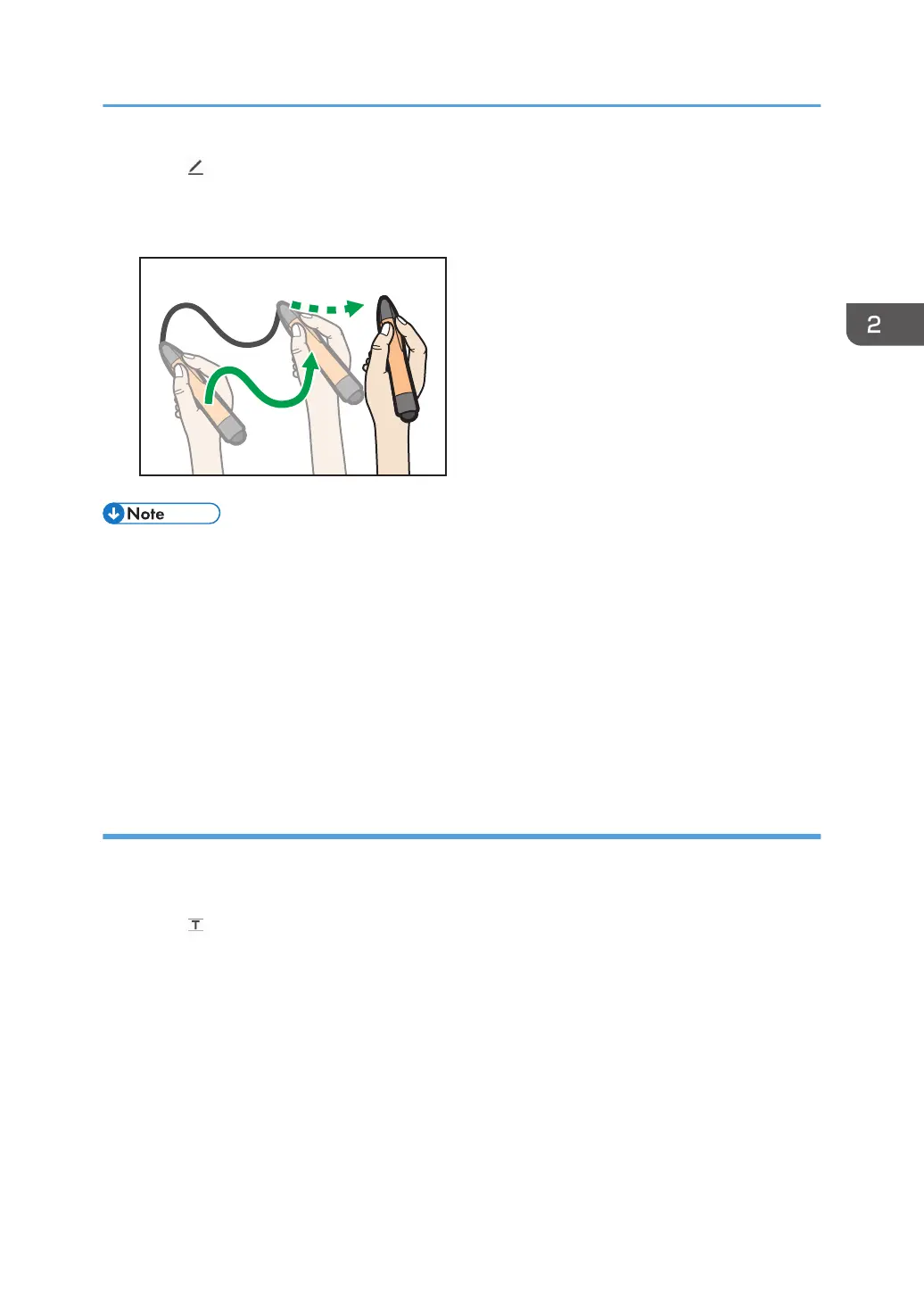
3. Move the pen on the screen.
• In handwritten entry mode with the touch pen, you can write up to 4 strokes at one time. To enter
multiple strokes simultaneously, enable [Handwritten Entry with Touch Pen] in the System Settings,
and then enable [Handwritten Entry with Multiple Touch Pens (Cannot operate whiteboard using
fingers)] on the Detailed Settings screen of the whiteboard. For details, see page 182 "Changing
the System Settings" and page 137 "Changing the Detailed Settings".
• Operations using your fingers (displaying the enlarged image, switching pages) cannot be
performed while this function is used.
• The input mode cannot be switched to fair copy entry, line entry or stamp entry while an entry
is being made.
Writing in fair copy entry mode
Write freehand characters and have them automatically recognized and converted to text data.
Horizontal and vertical lines, circles, and rectangles are also recognized and corrected automatically.
1. Touch , the Fair Copy Entry mode icon.
2. Select the color, size, and language of the characters to be entered.
A guideline that corresponds to the selected character size is displayed.
3. Write characters with the pen in the squares on the guideline.
Handwritten characters are recognized and converted automatically, and displayed as text data.
Basic Operations
33



 To Next Page