• One marker can be drawn whether or not [Handwritten Entry with Multiple Touch Pens (Cannot
operate whiteboard using fingers)] on the Detailed Settings screen of the whiteboard is selected.
• Depending on the machine model you are using, the marker function may become unavailable
while lines, or stamps, or manipulating strokes are drawn.
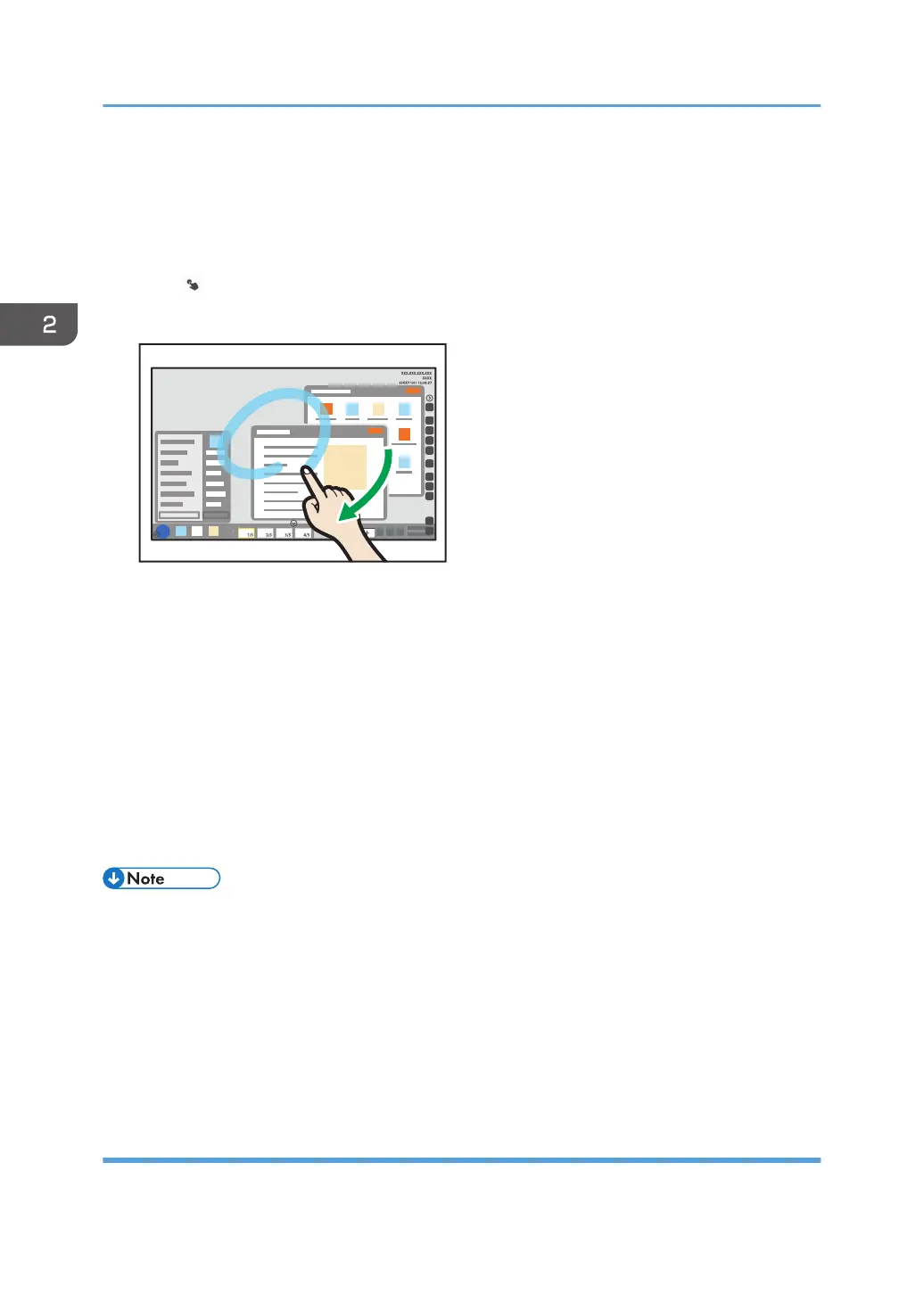
1. Touch , the marker entry mode icon.
2. Touch the screen with your finger or the touch pen and slide it across the surface.
The light blue (cyan) marker runs to the point where you lift your finger off the screen.
Drawing markers during a remote whiteboard session
A marker can be drawn in by all machines hosting or participating in remote whiteboard, and it is
displayed on all the machines.
The colors of the markers used during a remote whiteboard session are as follows:
• Host whiteboard: Light blue (Cyan)
• First participating whiteboard: Pink (Magenta)
• Second participating whiteboard: Green
• Third participating whiteboard: Orange (Yellow)
• You cannot select the thickness and line color while marker entry mode is enabled.
• You cannot draw markers while a compatible mode is enabled for a remote whiteboard session.
• You cannot save, send by e-mail, or print markers.
• When you are using an application that is linked to the whiteboard and you switch the mode to the
marker entry mode with the mouse, the marker starts writing from where you press with the mouse
button until you release it. Regarding links to applications, see page 254 "Using the Application
Linking Function".
Writing in handwritten entry mode
Write freehand text or draw figures.
2. Using a Whiteboard
32



 To Next Page