Operating the Auto Discovery Setting Wizard
59
5
Note
❒ See p.85 “Auto Discovery Settings” for the details of each item.
❒ Input [SNMP community name] in the order of higher usage frequency.
❒ Remove [SNMP community name] you do not use.
❒ The illustration shows the screens of the “E-mail (SMTP)” method. Screens
differ when in the “Internet encryption communication (HTTPS)” method.
Disabling Auto Discovery
A Select “Do not use” for [Auto Discovery].
B Click [Next].
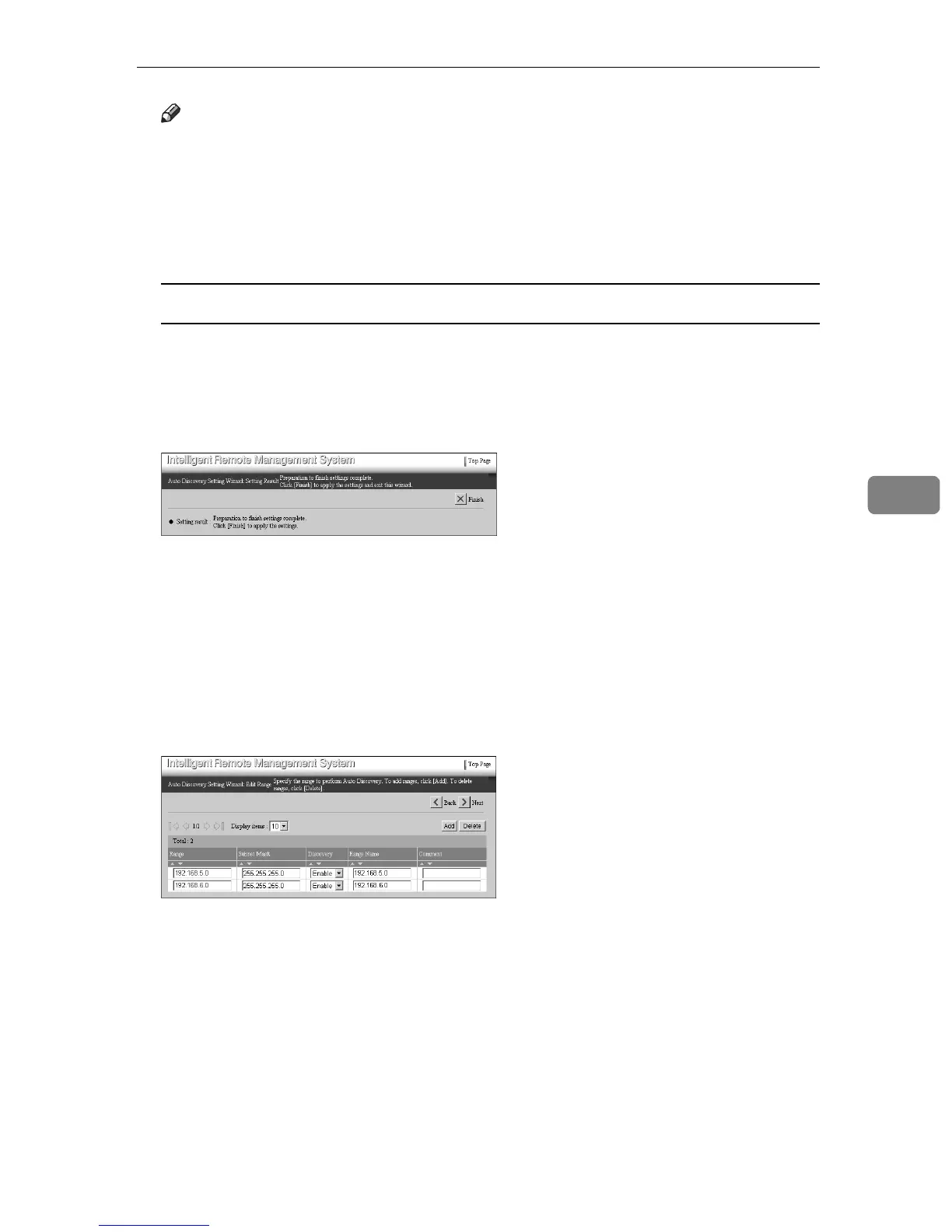
The [Auto Discovery Setting Wizard: Setting Result] screen will appear.
C Click [Finish].
Top Page appears.
C Click [Next].
The equipment starts to obtain the address information of the network. The
[Auto Discovery Setting Wizard: Edit Range] screen will appear when acquisition
finishes.
D Add the range which the equipment could not automatically obtain, or edit
the obtained information.
❖ Range and Subnet Mask
The IP address of the network will be calculated from the AND operation
of [Range] and [Subnet Mask].
❖ Discovery
Information will not be collected if you set “Disable” for this item.
❖ Range Name
The IP address for [Range] is shown when the information is automatically
obtained. Enter the range name, for example, the workgroup name, do-
main name, or the name of your section. You can enter up to 61 characters.



 To Next Page