Setting the Auto Discovery
60
5
❖ Comment
You can enter comments for up to 61 characters.
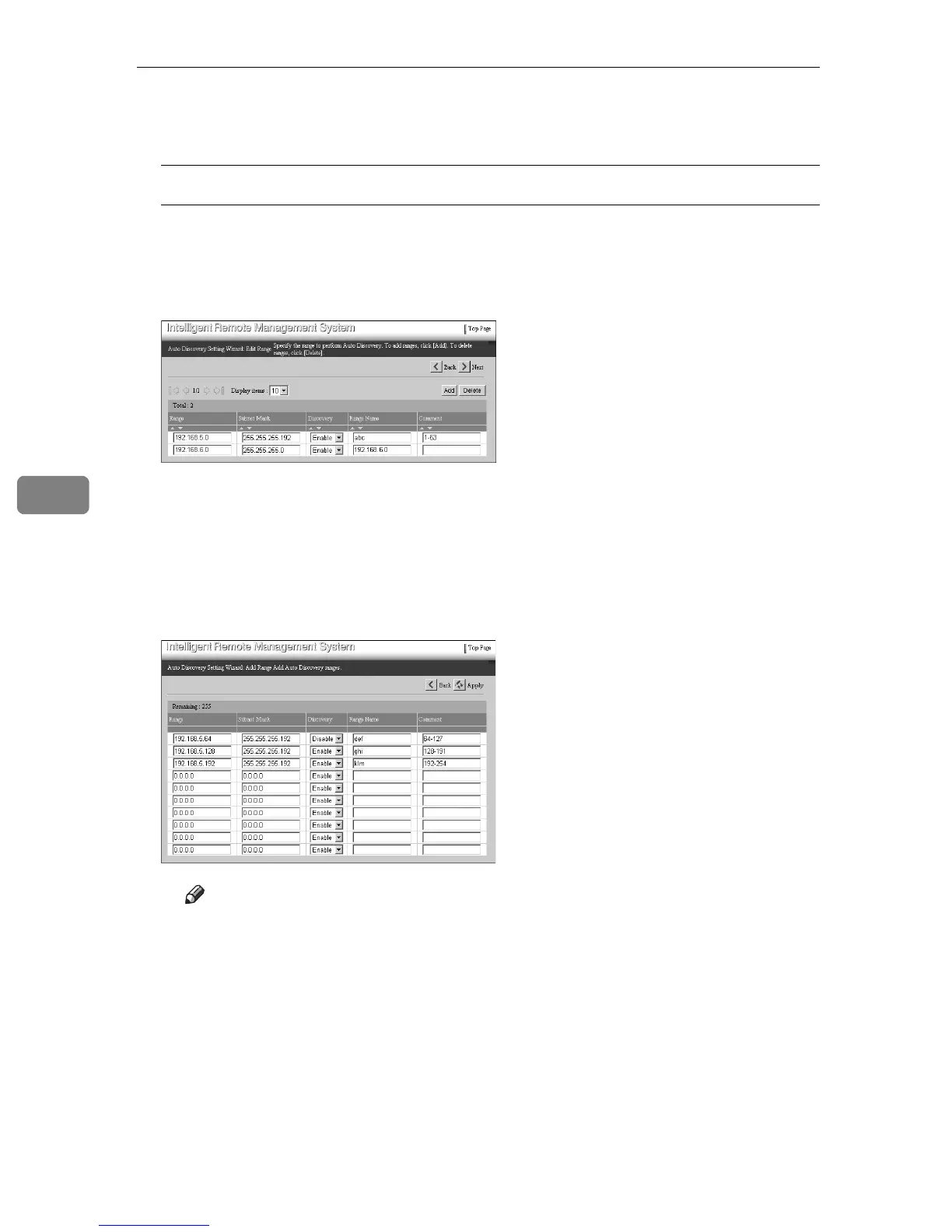
Example of Editing
This is an example of editing. We will delete the IP address from 192.168.5.64
to 192.168.5.127, and the network range of 192.168.6.xxx from Auto Discov-
ery.
A Edit the line for the “192.168.5.0” directly.
In this example operation, the IP addresses from 192.168.5.1 to 192.168.5.63
are added to Auto Discovery.
B To add the IP addresses from 192.168.5.128 to 192.168.5.254 to Auto Dis-
covery, click [Add].
The [Auto Discovery Setting Wizard: Add Range] screen will appear.
C Add the new range.
Note
❒ You can add 10 ranges at a time.
❒ You cannot add a range which the [Range] is set to “0.0.0.0.”
❒ You do not need to add the “192.168.5.64” line in the example above.
You can add the “192.168.5.64” line and keep it out from the search
range. Select “Disable” for [Discovery ] and enter the appropriate section
and the reason why the range is not included in the search to [Range
Name] and [Comment]. Entered information will be saved till the next
time you open [Edit Auto Discovery Range]. You can confirm and change
the saved information.



 To Next Page