104
Multi-room & UNDOK
Create a new multi-room group
You can create a new multi-room group using your sound system.
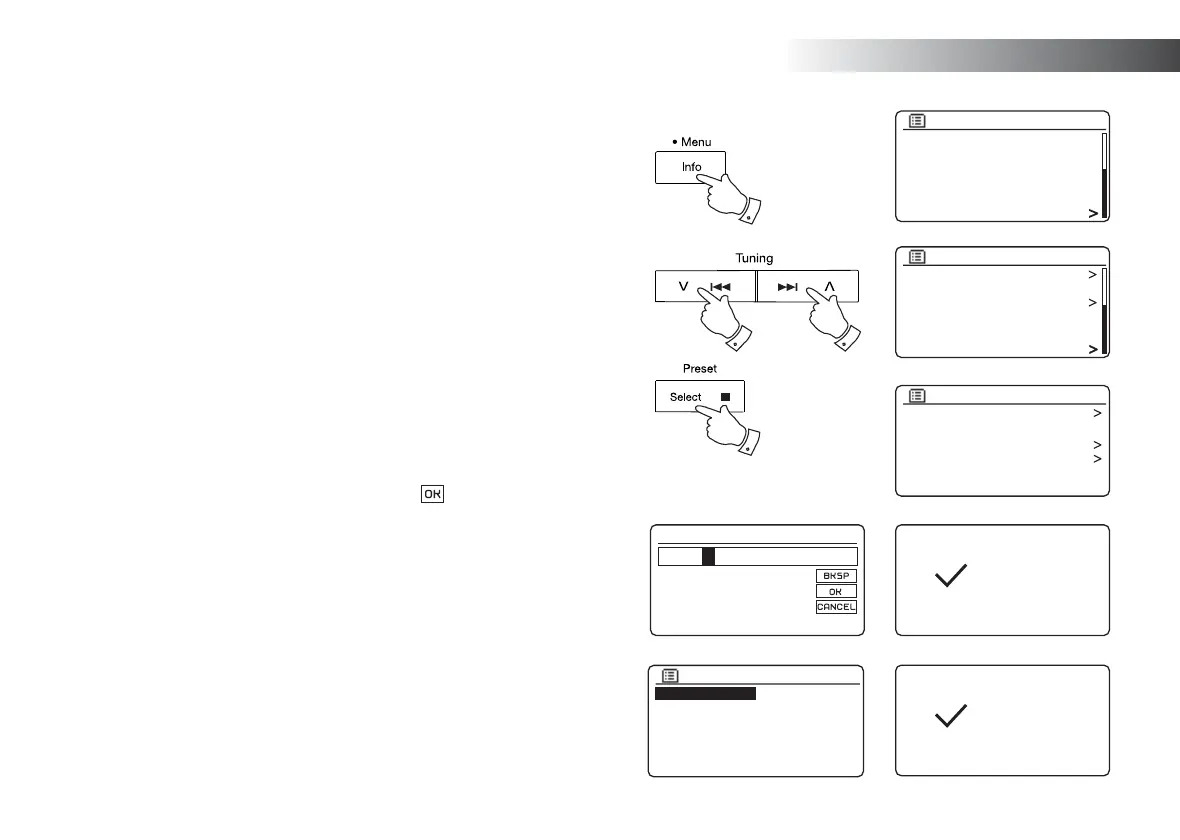
1. Access the menu for the current mode, press and hold the Menu button.
2. Press the Menu Up or Down buttons until 'System settings' is highlighted
on the display. Press and release the Select button to enter the settings
menu.
3. Press the Menu Up or Down buttons until 'Multi-room' is highlighted on the
display. Press and release the Select button.
4. Press the Menu Up or Down buttons until 'Create new group' is highlighted
on the display. Press and release the Select button.
5. To enter the group name, characters are selected and entered using the
Menu Up or Down (Left or Right on the remote control) and Select buttons.
The highlight scrolls through the available characters as well as the three
controls on the right. The character currently highlighted will be entered
when you press the Select button. Select the '
' symbol when you have
entered the text. You can quickly access the three symbols on the right by
pressing the Info button and then use the Menu Up or Down and Select
buttons as needed.The next screen will prompt you to add other connected
multi-room products to the current group.
6. If you wish to add a product from the list to the new group, highlight the
product using the Menu Up or Down buttons and press the Select button
to confi rm. The screen will show 'Added'. Products already added to the
group are marked with an asterisk.
7. If you do not wish to add another product to the current group press the
Back button to exit.
SD
Bluetooth
Aux in
Sleep
Alarms
System settings
Main menu
Rec. default dest.
Factory reset
Software update
Setup wizard
System info
Multi-room
System settings
Insert group name
0 1 2 3 4 5 6
7 8 9 . _ - @
, a b c d e
f g h i j k l
m n o p q r s
Lounge
Created
View details
Create new group
Add to group
List current clients
Leave group
Dissolve group
Multi-room
Add to group
S1 002261e80894
S2 002261e80895
Added
2-6 2-6
1
2-6


 To Next Page