63
Windows 'Play to' / 'Cast to Device' function
If you use Windows 7, 8, 8.1 or 10 it is possible to choose a music album,
track or playlist at the computer and then tell Windows that this should
be played on the sound system using the 'Play to' function (called 'Cast
to Device' in Windows 10).
Similar functionality is available for other computer types and for handheld
devices using Apple's iOS or Android operating systems. In this mode the
sound system operates as a Digital Media Renderer (known as DMR mode).
1. Ensure your sound system is plugged in and connected to your network.
2. At your windows PC, locate the fi le, album or playlist that you wish to
play on the sound system.
3. Use the right-hand mouse button to pop-up a menu of options for the
chosen item and select the 'Play to' / 'Cast to Device' option.
4. Windows should show you one or more devices, including your sound
system, to which you may choose to send the music. Highlight the
sound system item and click with the left mouse button.
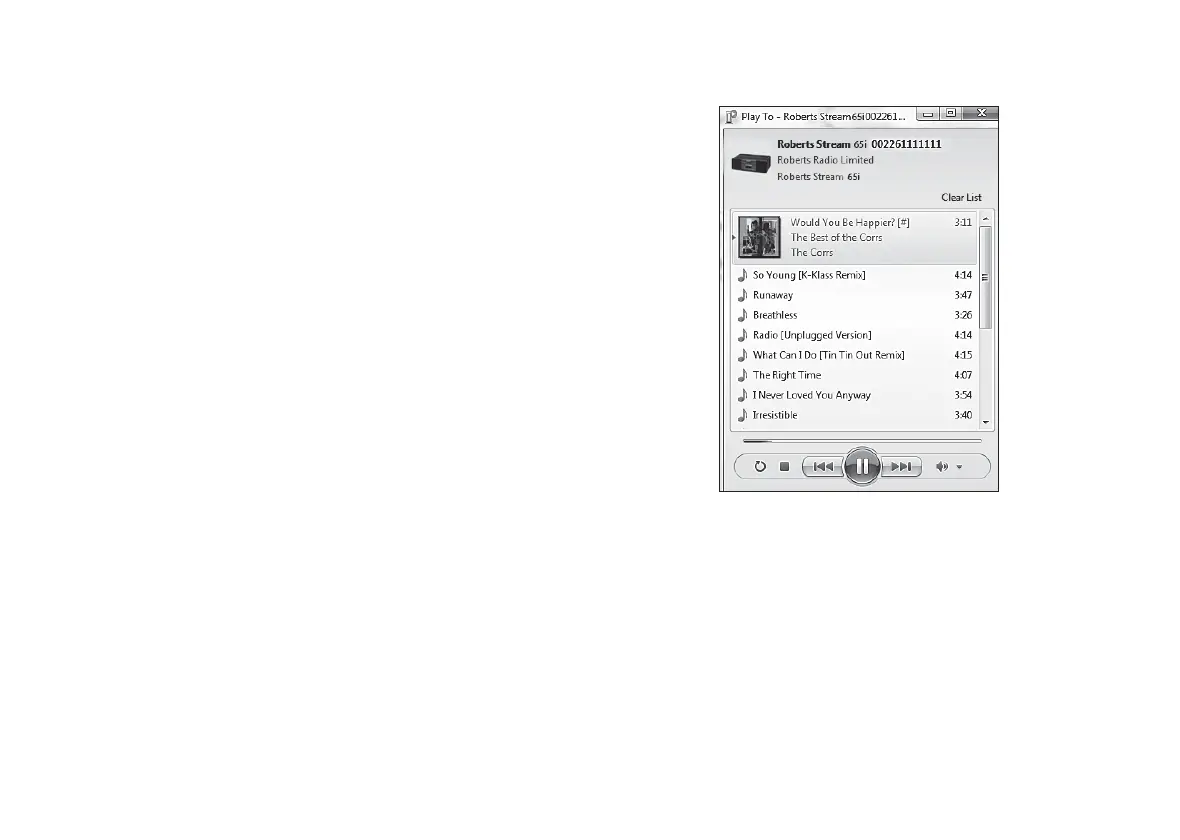
5. Windows will then open a 'Play to' / 'Cast to Device' window showing
the track or tracks to be played. Your computer will then take control
of your sound system. Your sound system will enter the Digital Media
Renderer mode (DMR) and after a few seconds the sound system
will start playing. The display on the sound system will show that is it
in DMR mode.


 To Next Page