91
Setting the clock format
The clock display used in Standby mode and on the playing mode screens
can be set to 12 or 24 hour format. The selected format is then also used
when setting the alarms.
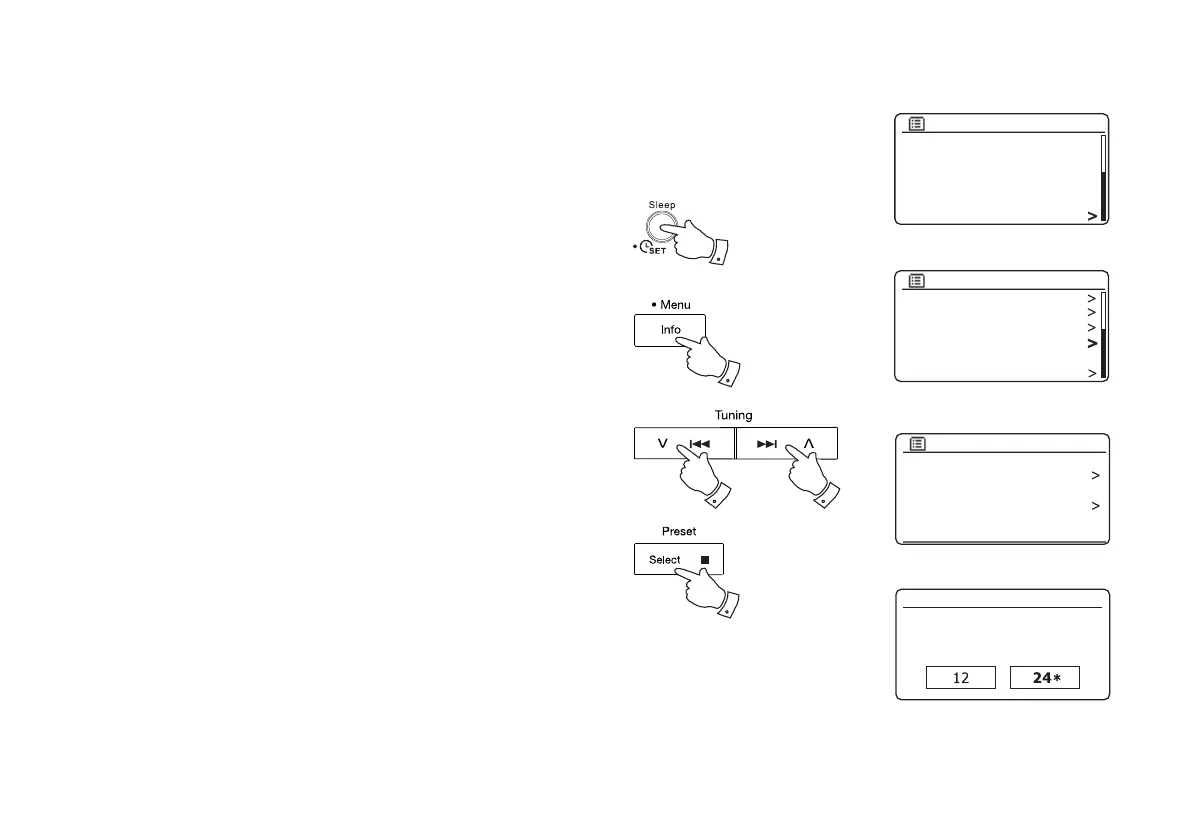
1. With your sound system switched on, press and hold the Clock set
button (on the remote control) and then skip to step 4 below. Alternatively
press and hold the Menu button to access the menu for the current
mode.
2. Press the Menu Up or Down buttons until 'System settings' is highlighted
on the display. Press and release the Select button to enter the System
Settings menu.
3. Press the Menu Up or Down buttons until 'Time/Date' is highlighted
on the display. Press and release the Select button to enter the time
setup.
4. Press the Menu Up or Down buttons until 'Set format' is highlighted
on the display. Press and release the Select button to enter the Clock
Format menu.
The current clock display format is marked with an asterisk.
5. Press the Menu Up or Down buttons to select either 12 or 24 hour
format. Press and release the Select button to confi rm your choice
of clock format. The display will then revert to the previous menu.
If the 12 hour clock format is chosen, the radio will then use the 12 hour
clock for the setting of alarms, and will display a 12 hour clock with an AM
or PM indicator when in standby mode.
2-5
2-5
1
2-5
SD
Bluetooth
Aux in
Sleep
Alarms
System settings
Main menu
Backlight
Equaliser
Network
Time/Date
Inactive Standby
Language
System settings
Set Time/Date
Auto update
Set format
Set timezone
Daylight savings
Time/Date
Date/Time
12/24 hour format
1


 To Next Page